

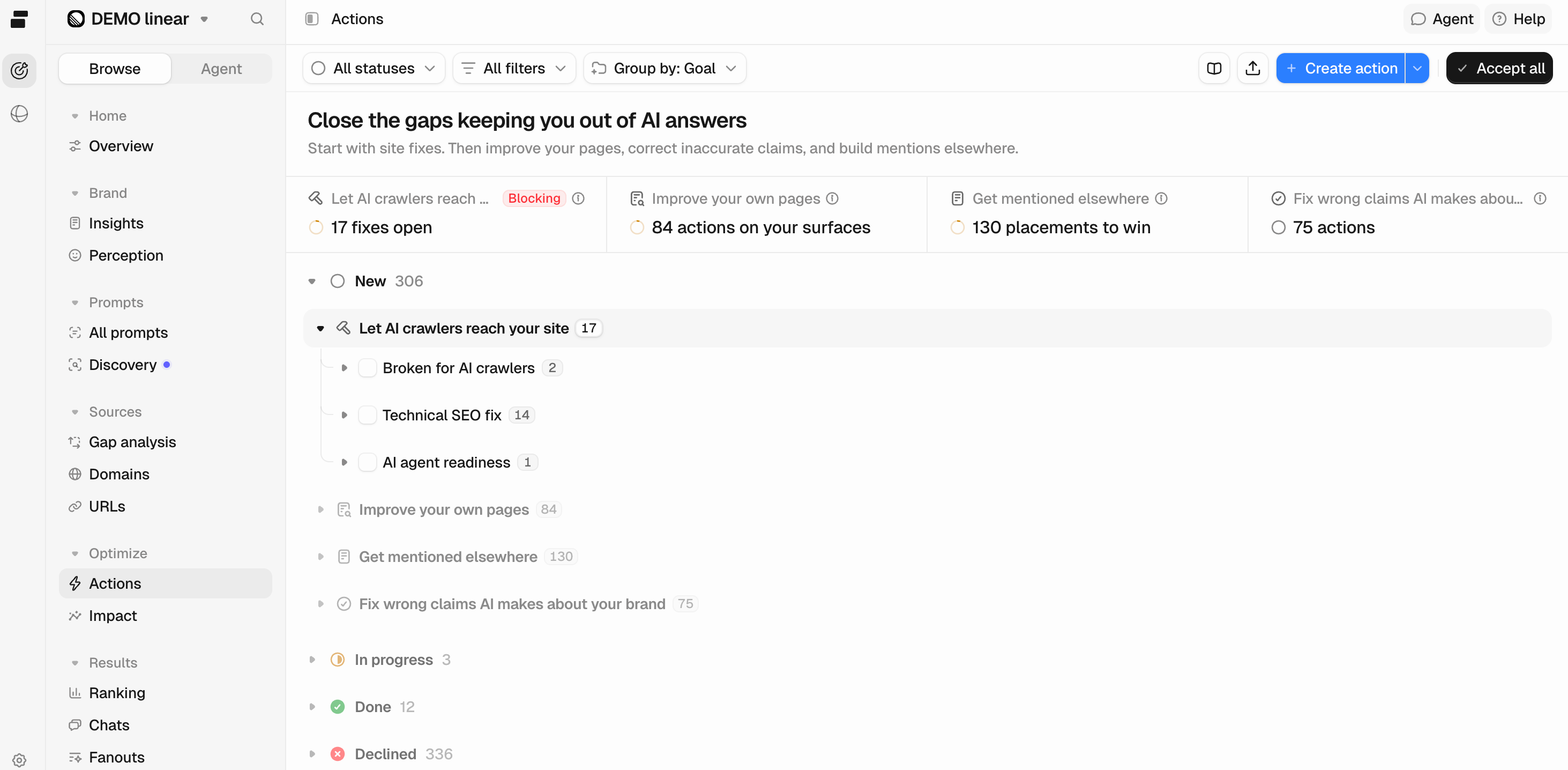
- Fix how AI reads your site: Technical and accuracy fixes that help AI crawlers access and understand your site, such as crawlability issues or blocked content.
- Improve your own pages: Content published and managed by your brand, including your website and the social or community channels you post to.
- Get mentioned elsewhere: Placements you need to gain on third-party sources, such as editorial and reference sites that AI already relies on.
- Fix wrong claims AI makes about your brand: Statements on your own pages and other websites that conflict with your verified facts.
Actions sit under Optimize in the sidebar and is only visible to owners (company members and project members). If you don’t see it, your account doesn’t have owner access to the company or the project.
Working through an action
Actions are ranked by impact, with the highest-impact opportunities at the top. Work through them in order to focus on the changes most likely to improve your AI visibility.- Open the top action: Click a row to open the full details and understand the recommended work.
- Review the evidence: Start with Why this matters to see the supporting data, then check Competitor evidence to understand which competitors are gaining the visibility you’re missing and which sources are contributing to it. This helps you decide whether the action is worth prioritizing.
- Accept or decline: Click Accept to move the action from New to In progress. If you don’t want to pursue it, select Decline instead. Declining isn’t final: open a declined action and click Restore to send it back to New, or Accept to start working on it.
- Execute: Follow the guidance outlined in The brief and mark each step as you complete it.
- Mark it Done: Once you’ve completed an action, mark it as Done. If the work was completed on an earlier date, click the dropdown next to Done and select Complete on an earlier date to ensure Impact reflects the correct completion date. If you no longer wish to continue an action, select Cancel to move it from In progress to Declined.
Peec automatically refreshes your Actions on a set schedule.
Writing your own actions
You can also create actions that Peec AI hasn’t suggested. Click Create action to add your own, including a title, description, and steps. Select Show details to add more information, such as the topic, page, impact, category, due date, and status. Actions you create manually appear under Planned, between New and In progress, while New is reserved for Peec AI’s suggestions. Click Start to move an action to In progress, or Decline if you no longer want to pursue it. Once started, these actions work just like any other action.- Write with agent: Enter a title and click Write with agent to let the Peec Agent draft the remaining details. Alternatively, open the dropdown next to Create action and select With Agent to describe your action in chat.
- Drafts: If you close the composer before creating an action, your work is saved under Drafts at the top of the list. Click any draft to continue where you left off.
- Due date: Each action displays its due date, which turns red if the action is overdue and still open.
- Repeats: Schedule actions to repeat daily, weekly, or monthly. Once you mark an action as Done, the next occurrence is created automatically.
Drafts are saved locally in your browser, so they won’t appear on other devices or be visible to your teammates.Only manually created actions can be set to repeat.
Editing an action
Click Edit in an action’s details to update its title, description, or steps. You can also edit actions suggested by Peec AI, and your changes will be saved even when Peec refreshes your actions. You can also use Write with agent to help make edits. Keep in mind that you cannot change the category or delete an action suggested by Peec AI. If you no longer want to pursue it, select Decline instead.You can also create and edit actions using the MCP server or the Customer API.
Expected outcome
Every action carries a Relative impact rating, shown as three bars with a word beside them: Very low, Low, Moderate, High or Very high. It ranks the action’s expected lift against your other actions. It’s one scale across every kind of action. A technical fix and a new comparison page are rated the same way, so a High on either means the same thing. The raw numbers underneath aren’t comparable between action types, which is why the rating exists.What’s inside an action
Open an action to see the full details behind the recommendation:- Overview: A short summary of the issue or opportunity.
- Topic: The topic the action is relevant to.
- Models: The active AI models the action is relevant to.
- Country: The tracked country the action is relevant to.
- Your page: The URL the action relates to, when it’s about a page you own.
- Why this matters: Shows the data behind the action, including citation counts, the relevant topic, page type, and time period. For example, “Competitor comparison pages were cited in 14 conversations about CRM software in the last 30 days, while your brand has no comparison page covering the topic.”
- Competitor evidence: Shows which competitors are performing better for this opportunity and the sources contributing to their performance.
- The brief: Provides a suggested content structure when the action involves creating or improving content.
- What to do: Provides a step-by-step list of recommended actions that you can check off as you complete them.
- Expected outcome: Shows the potential impact of completing the action.
- Relative impact: How this action’s impact compares to your other actions.
- Additional context: Provides any other relevant information Peec found that supports the action.
Source types
Actions are also categorized by source types connected to the opportunity, helping you understand where you may need to make changes or build visibility.- Your pages: Pages you or your competitors control, such as articles, product pages, listicles, and how-to guides.
- Editorial: Third-party articles, guides, comparisons, reviews, and listicles that influence AI responses.
- UGC: Forums, Q&A sites, and other community platforms where audiences discuss brands and industry topics.
- Wikis & references: Encyclopedias, glossaries, indexes, and knowledge hubs that AI may rely on for information.
- Other: Sources that don’t fit into the categories above.
Actions from Fact-checking
When Fact-checking finds a source page that contradicts one of your verified facts, Peec turns it into an action. These sit under Correct content at the top of the page, and there are two kinds:- Correct owned content: The page is on your own domain, so you can edit it yourself.
- Request source correction: The page belongs to someone else, so you ask the publisher to update it.
- Claim to correct: The statement AI made that conflicts with your fact.
- Verified correction: What the page should say instead, based on your fact.
- Your page or Page to correct: The URL to change.
- Verified passages: The statements on that page that support the wrong claim.
- Why this is a contradiction: How the claim conflicts with your fact.
- Prompts that carried the claim: The prompts whose answers repeated it.
- What to do: The edits to make, as to-dos you can check off.
Correction actions don’t carry a visibility estimate, so their Relative impact isn’t based on expected lift.
If you change a claim’s verdict so it’s no longer contradicted, Peec asks whether to delete the actions that came from it. Deleting can’t be undone.
If you change a claim’s verdict so it’s no longer contradicted, Peec asks whether to delete the actions that came from it. Deleting can’t be undone.
Impact
Impact sits under Optimize, next to Actions, and shows whether the work you completed made a difference. While Relative impact rates an action before you take it, Impact measures the results afterward.
- Day markers: Show when an action changed status on the graph: amber when it moved to In progress and green when it was marked Done.
- Action tracker: Lists the actions connected to those markers. Click an action to open its details beside the graph.
Markers appear in the time period when a status change occurred, so weekly or monthly views may group multiple changes into a single marker.Peec AI automatically tracks action status changes. For completed actions, the marker appears on the date the action was marked Done, or on the earlier completion date you selected.