

Watch “Managing your project for brands” on YouTube
Everything related to your projects can be managed under Settings → Projects under the Company section. Here, you can view your existing projects, update their tracking setup, including prompts, models, and project names, or delete projects when needed.
In the Projects tab, you’ll see:
- The number of prompts allocated to your projects and the maximum available on your subscription.
- The total number of prompts currently being tracked across all projects.
- A list of your projects, including the number of prompts and models being tracked and their tracking frequency.
Updating your project
You can adjust the prompt limit, change how many models you track, or delete a project, all from the same tab.Adjusting prompts
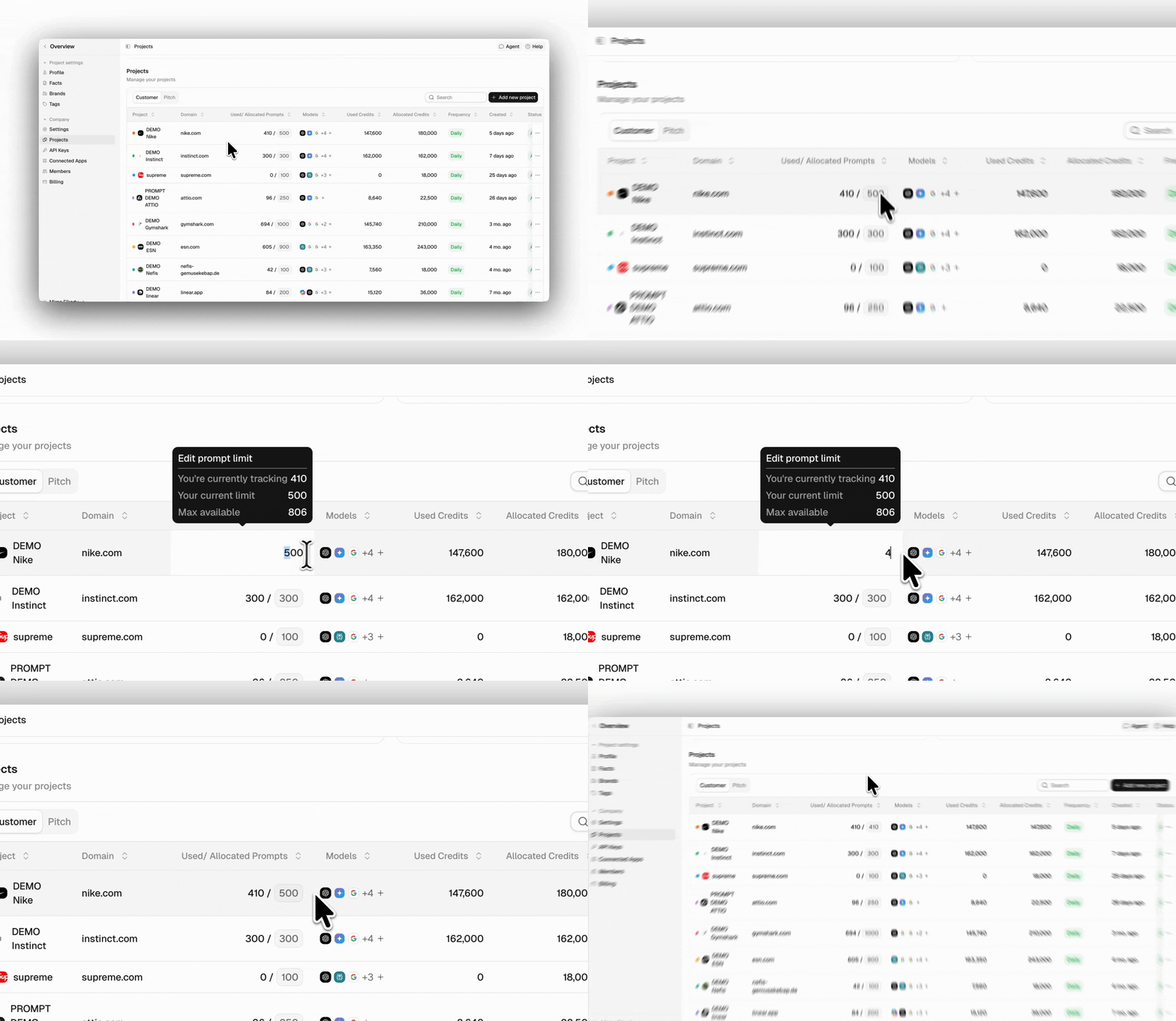
Adjust how many prompts each project tracks from the project table by:- Locate the project you want to adjust.
- Click the box in the “Used / Allocated Prompts” column.
- Enter a new value within your prompt limit.
- Click anywhere else on the screen to save.
Changing AI models
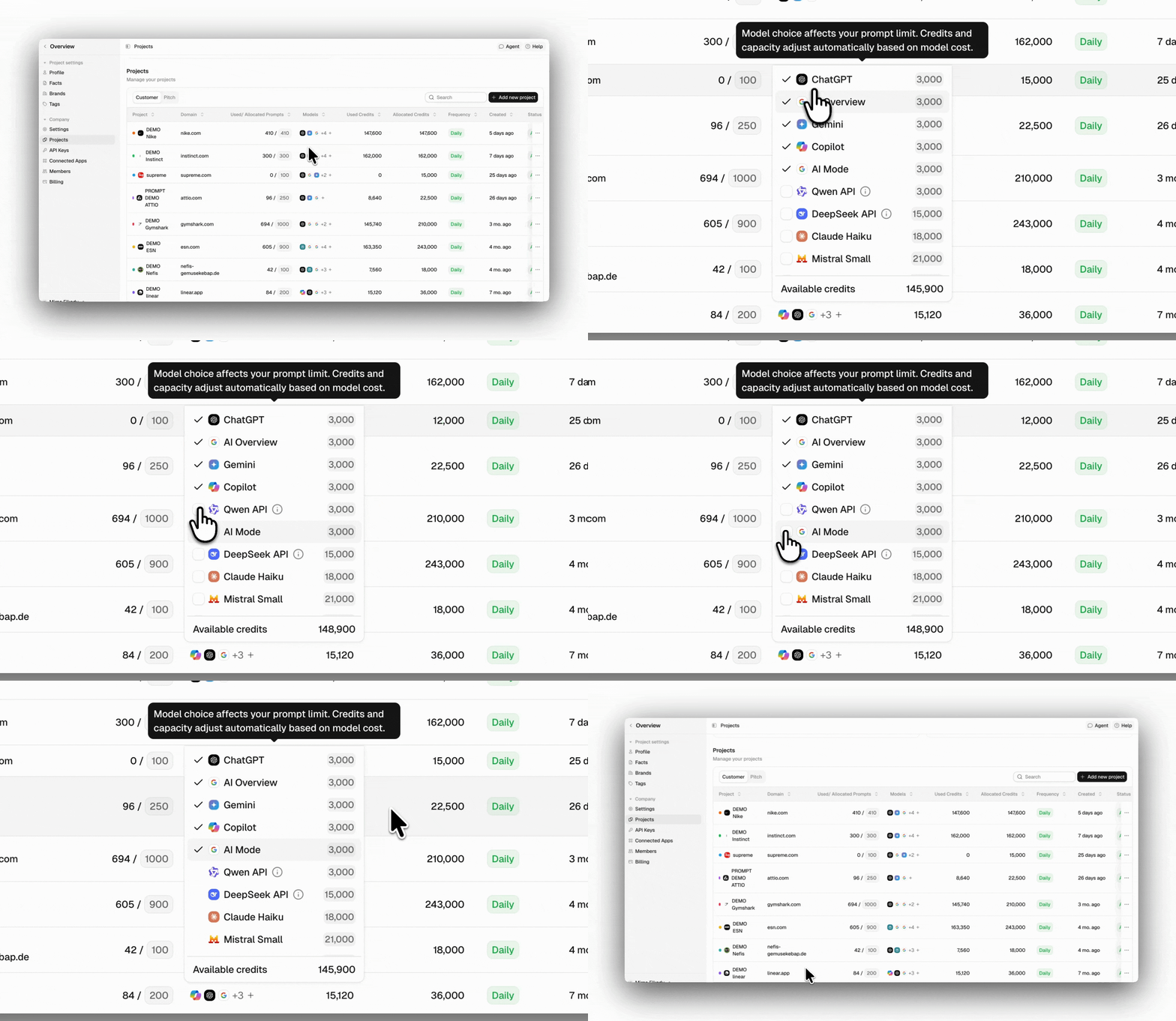
Choose which AI models to track for each project. While three models are selected by default, you can select or deselect models based on your project’s tracking needs. For example, one project may only need ChatGPT, while another may require broader model coverage. In the projects table:- Find the project you want to update.
- Click on the Models box to open the selector.
- Select or deselect the models you need.
- Click Update.
Updating your project details
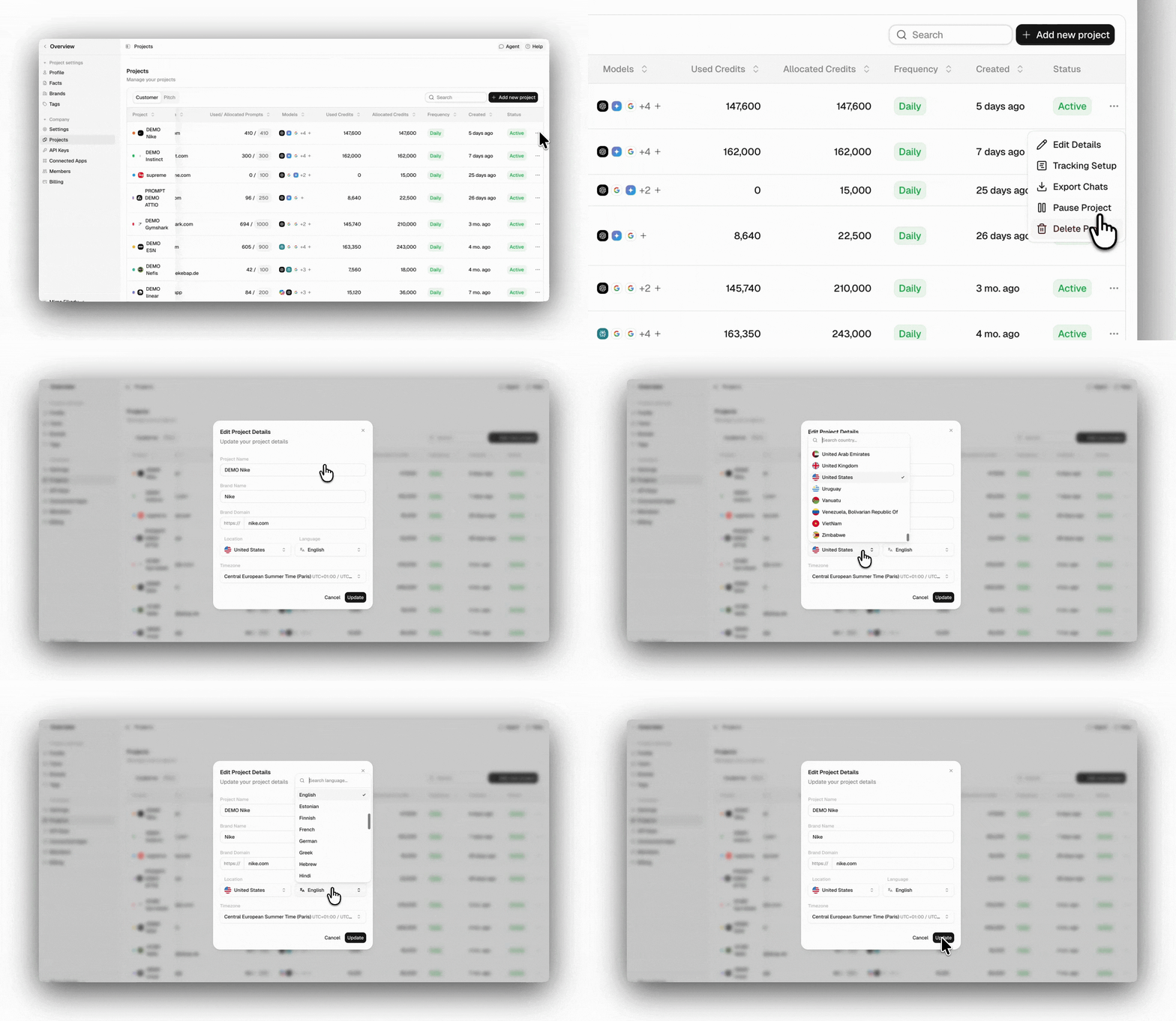
In the Projects tab, you can edit the main details of a project. You can rename it so colleagues recognize it easily, or adjust the location, language, or domain being tracked. To change the details of your project:- Click on the three dots in the right column
- Click on Edit Details to open the settings
- Click Update to save all the changes
Exporting chats
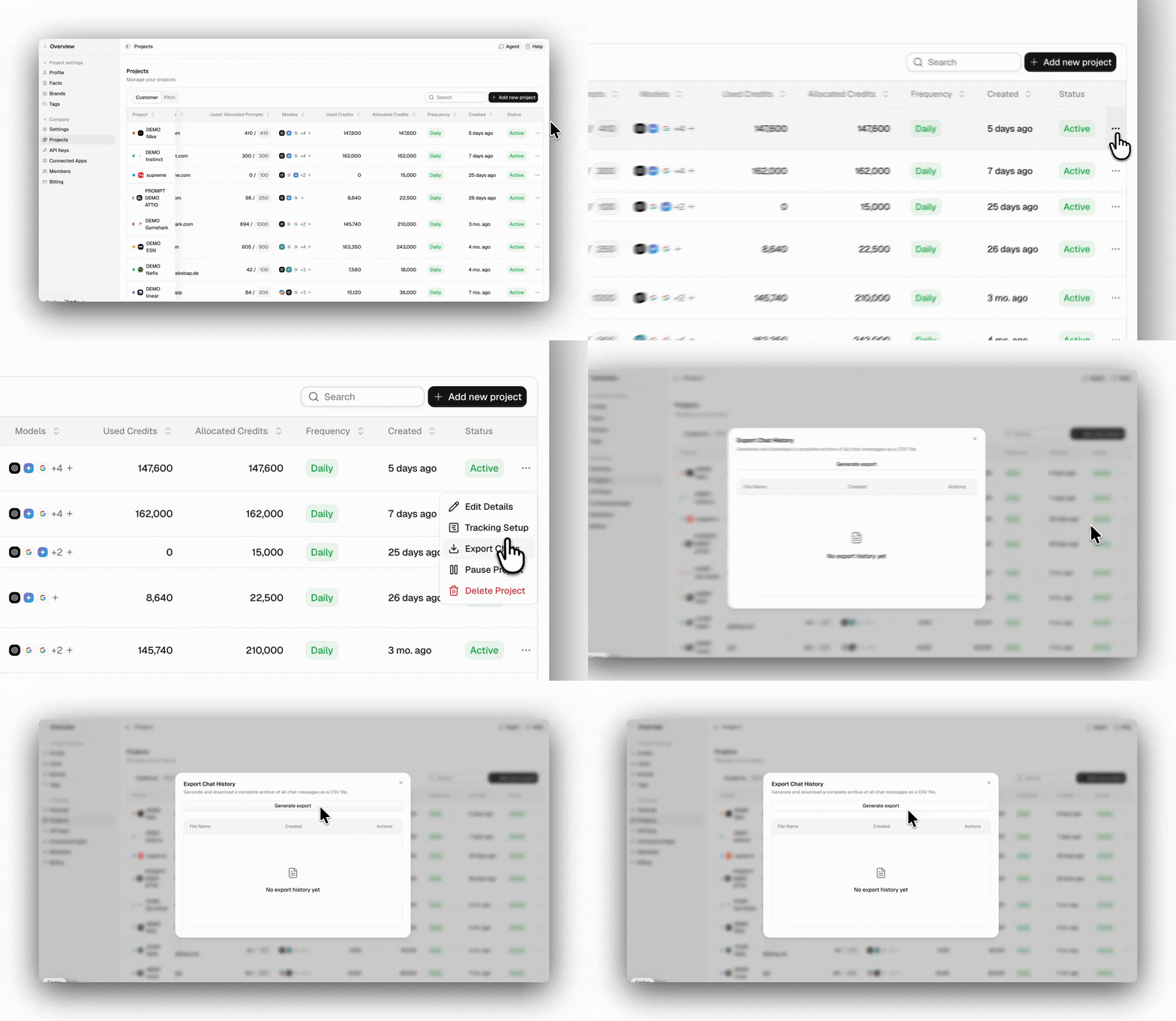
To export all chats for a project as a CSV, download it from the Projects tab. To export all chats:- Click the three dots in the right column.
- Click Export chats.
- Click Generate export and wait for it to finish.
- Download the file and use it for your analysis.
Pausing your project
Pause a project when you no longer need to track it continuously but want to keep it. You can still review the data and resume later. When you pause a project, all its prompts stop running, and it stops collecting data until you resume. Any data that would have been collected during the pause can’t be recovered, so be sure before pausing. After you resume, prompts start running again, and new data begins to appear. Allocated prompts no longer count toward your limit and can be reassigned to other projects.Pausing a project isn’t available on Starter plans.
- Click the three dots for the project you want to pause.
- Click Pause project and confirm.
- Click the three dots again.
- Click Resume project.
- Make sure you have the required prompts available, then click Resume.