


Claims come from the prompts you select for fact-checking, and only from answers that mention one of your tracked brands. This includes both your own brand and your tracked competitors. A prompt you haven’t selected produces no claims; however, its answers often name you.
A competitor claim is checked against your facts in the same way as any other claim. However, a verdict is only given when the claim and fact are about the same subject, so facts about your own brand won’t produce a verdict for competitor claims.
A competitor claim is checked against your facts in the same way as any other claim. However, a verdict is only given when the claim and fact are about the same subject, so facts about your own brand won’t produce a verdict for competitor claims.
Facts
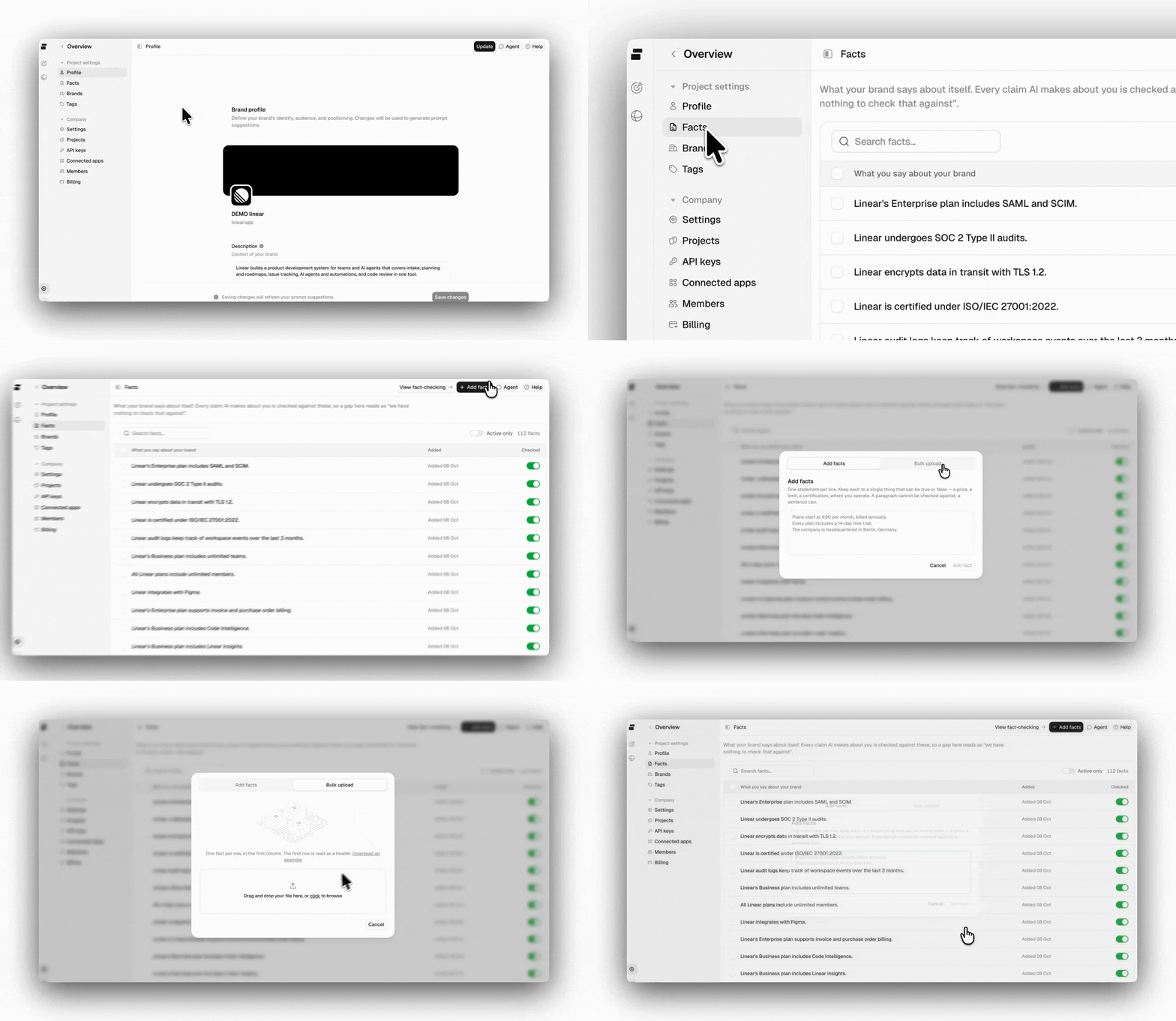
- Add facts: Add one statement per line, with up to 50 at a time. Keep each fact short, clear, and easy to verify.
- Bulk upload: Click on Add facts, then switch to the Bulk upload tab and upload a CSV file. Peec reads one fact per row from the first column and shows a preview before anything is added, leaving out facts you already have and rows repeated in the file. If the file holds more new facts than your plan has room for, the preview says so, and the import stays blocked until the file fits or you upgrade.
- Build facts with AI: Uses the Agent to review your project profile and website, draft checkable facts across your product lines, and show you the suggested facts for review before anything is created.
- Active or inactive: Choose whether a fact is included in fact-checking. Turning it off keeps the fact in your list but excludes it from comparisons, so you can keep outdated facts without deleting them.
- Origin: Shows whether a fact came from your website or was added manually. You can filter by either origin or search for a specific fact.
- Edit: Editing updates the fact and marks it as Edited. Deleting removes it completely, and claims will no longer be checked against it. Select several facts to activate, deactivate, or delete them in one go.
Your plan determines how many facts can be active at once. As you add facts, the composer shows how many you’re currently using. Only active facts count toward this limit, so you can deactivate a fact you no longer need to make room for a new one.
Prompts to fact-check
Choose which of your tracked prompts you want to include in Fact-checking. You can select them during setup or later by clicking Choose prompts in the page header. Your plan determines how many prompts you can fact-check at once. The prompt picker shows how many you’ve selected as you go. Focus on prompts where incorrect information could have the biggest impact on a buyer’s decision, such as pricing questions, plan comparisons, “Is X good for Y?” questions, or prompts used later in the buying journey.Claims are collected from AI answers generated after you select a prompt. It can take up to a day for claims to start appearing, so allow some time before reviewing your results.
All claims
Each claim is read against your active facts and comes back as one of two:- Contradicted: One of your facts says otherwise. These are the ones worth correcting first.
- Supported: One of your facts confirms the claim.
A claim no fact of yours speaks to isn’t given a verdict at all, so it doesn’t show up as a finding. That’s the normal state until the fact base is filled in, and it’s why AI can be wrong about you for months without anything appearing here. The By fact view is where you see the gap.
Three ways to read it
Choose a view based on what you want to explore: claims that need attention, how claims compare against your facts, or the types of claims AI makes about your brand.- Contradicted: Shows claims that conflict with your facts, giving you a clear list of what to review and correct. Claims are listed newest first, with up to 100 shown.
- By fact: Shows each of your facts alongside the claims that have been checked against it. If a fact shows “Never comes up”, it means no claims have been matched against that fact yet. This can help you decide whether the fact is relevant or whether you need to track prompts that cover that topic.
- By group: Groups claims that make the same point together, while claims that don’t belong to a group appear under Other claims. Each group shows the number of Claims, the Chats they came from, and the share that are Contradicted. Open a group to review the individual claims.
A group’s Claims and Chats numbers include all claims in that group. When you open a group, the claims are shown 15 at a time.The Contradicted share only includes claims that received a verdict. This means it shows the percentage of checked claims that were contradicted.
Inside a claim
Open a claim to see the full details behind it in one panel.- Claim: Shows the statement and how often the same claim appeared, for example, “Repeated in 12 chats, across 3 prompts and 2 models.”
- In the answer: The passage the claim was cut from, quoted from the answer it appeared in.
- Fact and Verdict: The fact the claim was checked against and the verdict it got. A claim checked against several facts gets a row per fact. If the fact has since been edited, you’ll see the wording that was used when the verdict was given.
- Prompt, Model, and Last seen: Shows where the claim came from: the prompts that produced it, the AI models that made it, and when it was last seen. The first ten prompts are shown, with the rest behind Show all.
- Sources: The pages behind the claim, each opening its page in Peec. If you want to address an incorrect claim, start here.
- Change the verdict: Set the verdict to Supported, Contradicted, or Not covered if you disagree with Peec’s assessment. The claim is then marked Edited, and Restore Peec verdict puts the original back.
Filtering and export
Use the date range, country, model, topic, and tag filters to narrow down the claims you want to review. Search claims lets you look for something specific, such as a price or product name, and searches both the claim itself and the prompt it came from. You can also filter by verdict in the By fact and By group views. When you export, the file includes the claims currently loaded on the page, each with the fact it was checked against and its verdict.Best practices
- Fill the fact base before reading the verdicts: Ten plainly stated facts about price, plan contents, and integrations turn a silent page into real findings.
- Fact-check the prompts where being wrong is expensive: A comparison prompt a buyer reads before choosing is worth more here than a broad awareness question.
- Work contradicted first, then the facts nothing has been checked against: One is wrong information already in circulation; the other is information you haven’t given anyone to check against.
- Treat pricing, availability, and guarantee claims as the expensive ones: They’re the easiest to verify against your own site and the most costly to have wrong.