

The Agent makes it easier to explore your Peec AI data without jumping between pages or stacking multiple filters. Ask a question in plain language, and it works through your tracked data to return the answer with a chart or list already built.
Agent only works with your own Peec data, so it isn’t a general-purpose chatbot. It’s also separate from Agent Analytics, which tracks AI crawler activity on your website, and Chats, which contains the raw AI responses generated from your tracked prompts.
How to ask
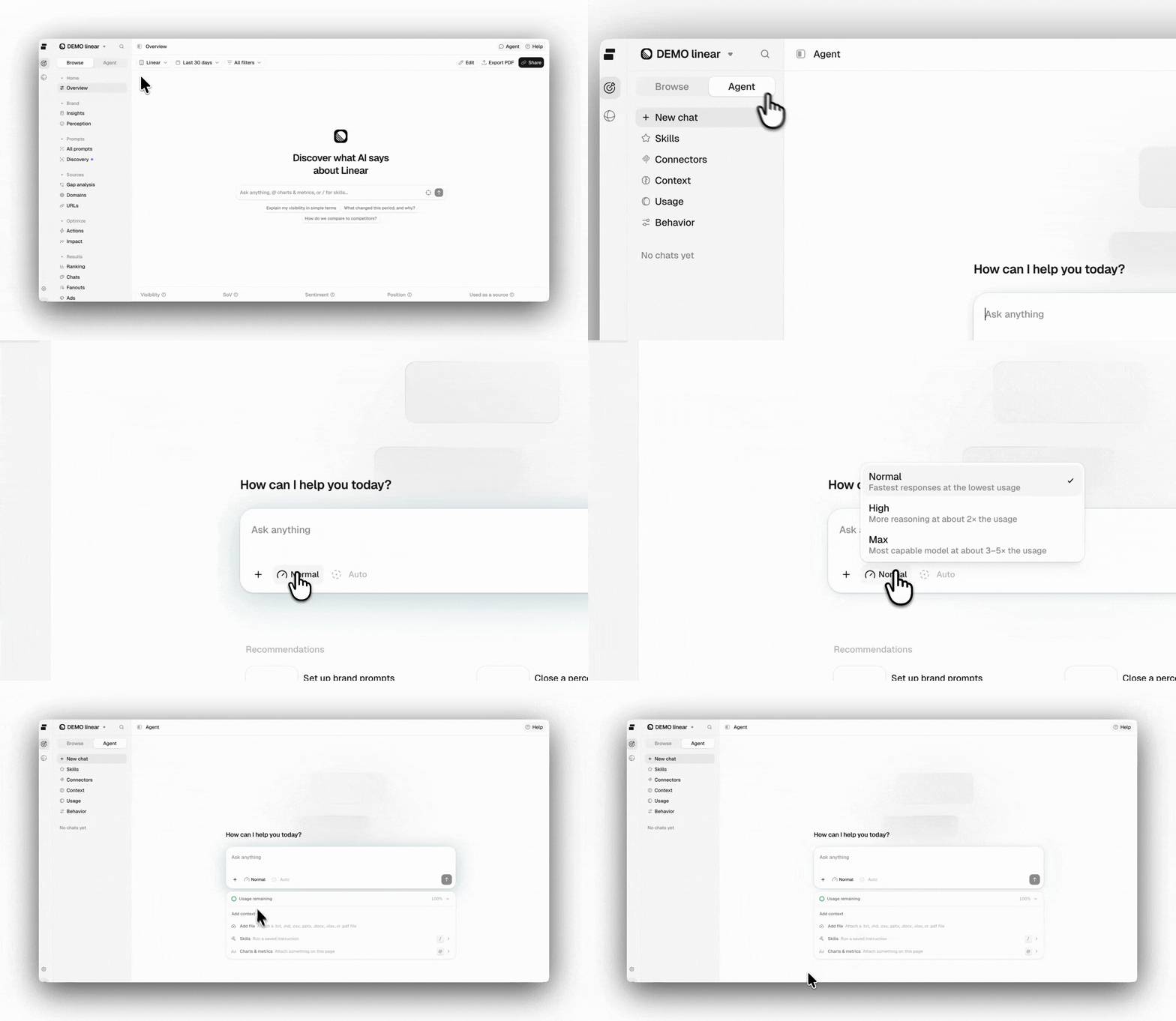
/Opens the Skills catalog. Choose a skill to use as the starting point for your conversation.@References a chart, metric, or table directly in your question.+Opens the same options in browse mode, starting with Skills and Charts & metrics.
An
@ reference hands the Agent that chart along with its data, so you don’t need to describe which one you mean. The Agent can also see what’s on your current page, so you can ask about what’s on screen without adding a reference.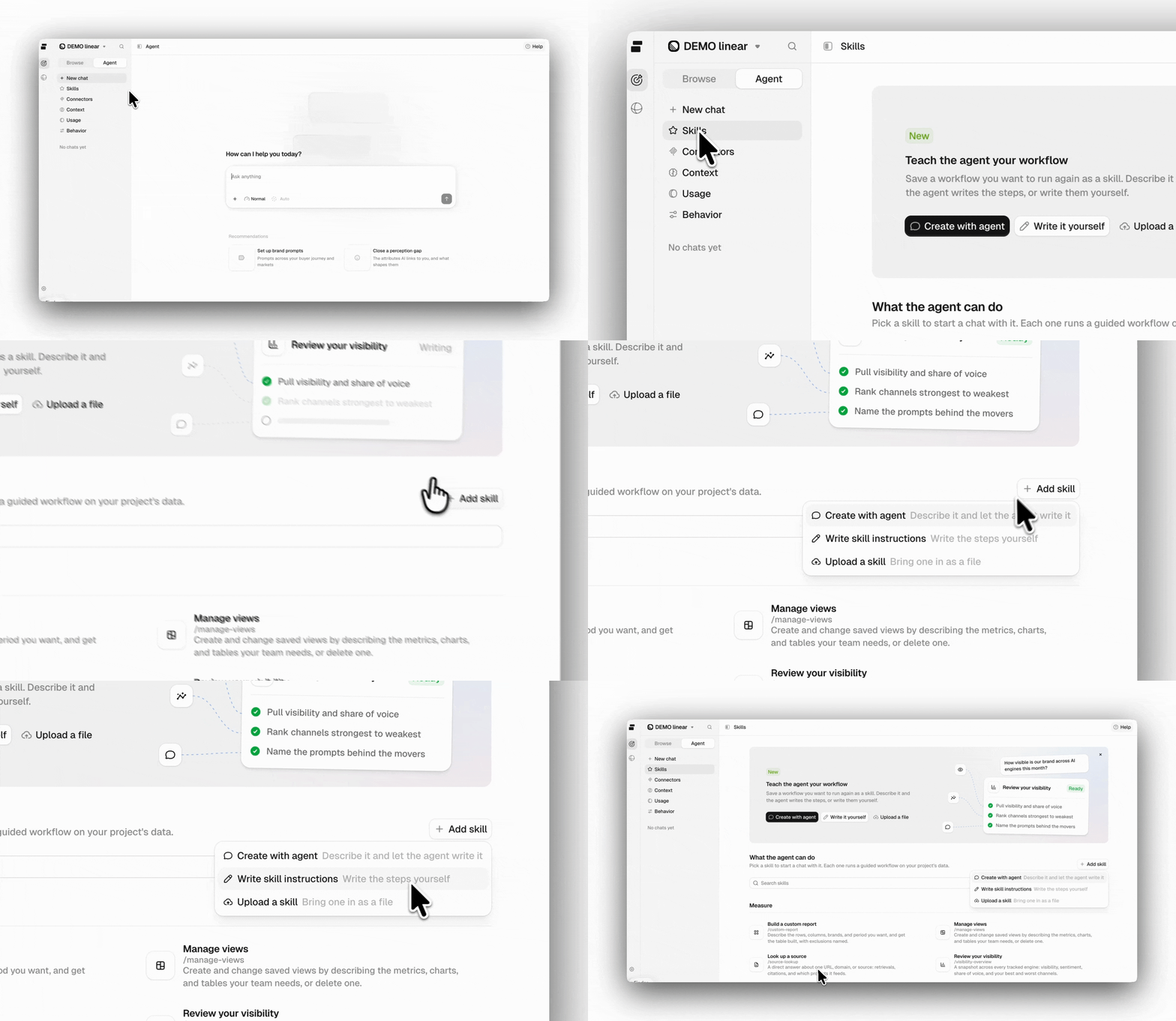
Choosing a quality tier
The Quality picker in the composer sets how much work the Agent puts into a chat:- Normal: The fastest responses at the lowest usage. This is the default.
- High: More reasoning, at about twice the usage.
- Max: The most capable model, at about three to five times the usage.
How the Agent responds
The answer appears as the Agent works through your question, showing its progress, the steps it’s taking, and the tools it’s using along the way. Results can appear in different formats depending on your question:- Charts: Visualized from the data the Agent queried.
- To-do lists: Turn the answer into a list of next steps.
- Multiple choice: Lets you choose between options when the Agent needs more input to continue.
Managing approvals
The Agent can read and analyze your data without approval. Any action that makes a change, such as creating a brand, prompt, topic, or tag, is shown to you first and only happens once you click Approve. There are two ways to reduce approval steps when you want to work faster:- Auto: The toggle in the composer approves actions for the rest of the current chat. Always allow, in an approval’s options menu, turns on the same toggle.
- Auto-approve actions: On the Behavior page in the sidebar, this makes Auto the starting point for your new chats.
Auto-approve covers every action that would otherwise ask, including connector tools set to Ask. Tools set to Never stay unavailable to the Agent. Leave it off if you’d rather see every change before it lands.
Giving the Agent context
Context is what the Agent knows before you type anything, so you don’t have to repeat it in every chat. Set it on the Context page in the sidebar, at three levels:- User context: Notes about you that follow you into every project. Add, edit, or delete them, up to 100.
- Project context: Applies to this project only. Only project owners can edit it.
- Company context: Applies to everyone in your company, across every project. Only company owners can edit it.
The Agent saves notes about you on its own during a chat, without asking. If you own the project or the company, it can also propose an update to that context when you share a lasting fact or instruction about it, and the update goes through an approval like any other change.
Connecting your tools
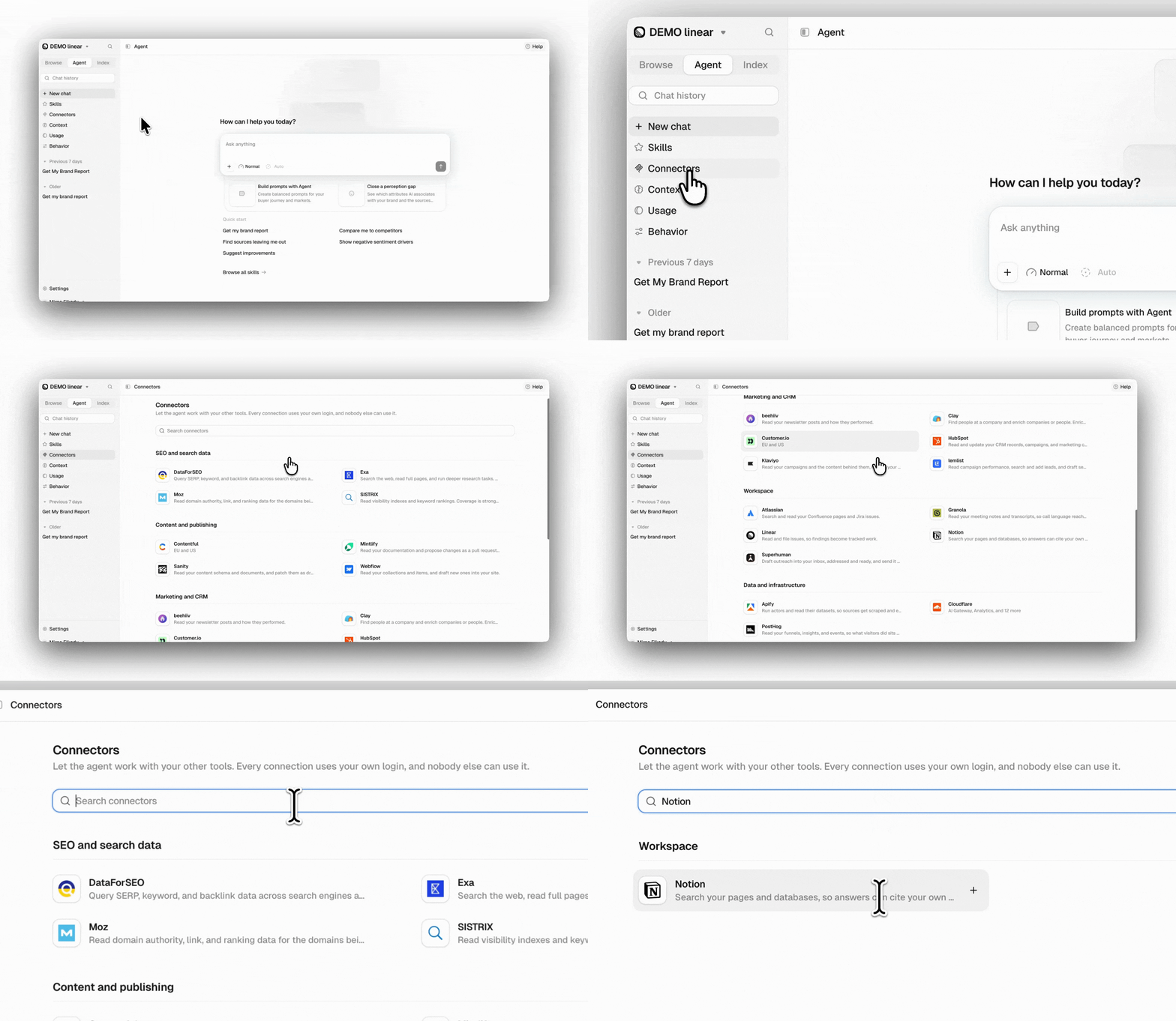
- Open Connectors in the sidebar, then search for the product or browse the catalog by category.
- Pick it, choose where it’s Available in: All my projects or only the current project, and click Continue.
- Sign in with your own account for that product.
- Each tool is set to Always allow (runs without asking), Ask (asks before each use), or Never (hidden from the Agent). Read-only tools start on Always allow and the rest on Ask.
- The connection’s menu changes which projects it’s available in, reconnects it, or disconnects it.
Connections are personal. Each one uses your own login, and nobody else in the company can use yours. You can have up to 10.
Agent credits
The Agent runs on agent credits, a monthly allowance included in every plan and shared by everyone in your company. Agent credits are separate from the credits that cover your tracked prompts, so using the Agent never takes anything away from your prompt tracking. Each answer consumes a different number of agent credits depending on the complexity of the task. Simple questions use fewer credits, while more detailed analyses or content briefs require more. Choosing a higher Quality tier also increases credit usage, even for the same question. This is why Peec AI displays your available credit balance rather than a fixed number of questions you can ask.What’s included
Each plan includes a monthly allowance of credits shared across your company and all its projects:Your credit balance resets at the start of each billing period. For annual plans, it resets monthly on your billing date. Unused credits do not roll over.
New companies receive up to 5,000 additional agent credits during their first 24 hours to explore the Agent without using their monthly allowance.Companies with an active subscription or trial at the time of the Agent credits launch receive a one-time bonus of 5,000 agent credits, valid for 30 days. These bonus credits are used before the monthly allowance.
New companies receive up to 5,000 additional agent credits during their first 24 hours to explore the Agent without using their monthly allowance.Companies with an active subscription or trial at the time of the Agent credits launch receive a one-time bonus of 5,000 agent credits, valid for 30 days. These bonus credits are used before the monthly allowance.
Checking your balance
The Agent composer shows your company’s monthly credit usage and the next reset date. When usage reaches 75%, 85%, or 90%, a warning appears with a suggested add-on to cover the rest of the month. Company owners see the details on the Usage page in the Agent sidebar:- Agent credits: Credits used, the daily average, and when the balance resets.
- Credits by member: How many credits each member used in the period, across all projects.
- Credits by project: How many credits each project used in the period.
- Credits per day: Your company’s usage for each day of the period.
When agent credits run out
Once your company uses its monthly allowance, the Agent stops responding until credits reset or additional credits are purchased. There are no automatic overage charges.- Three messages per day: Each member can still send up to three messages daily. Messages sent before credits ran out also count toward this limit. If you’ve already sent three messages that day, you’ll need to wait until the next day. The limit resets at midnight UTC.
- Company owners: Can purchase the suggested credit add-on directly from the chat to cover the rest of the month.
- Other members: Ask a Company Owner to add more agent credits.
Adding agent credits
Company Owners can purchase additional agent credits under Settings → Billing. Choose from 5,000, 20,000, 50,000, or 100,000 credits per month. The price and amount due are displayed before you confirm.- Adding or upgrading: Takes effect immediately, with charges applied right away.
- Downgrading or removing: Takes effect at the end of the current add-on month. Your credits remain available until then. You can undo a scheduled change by clicking Cancel change on the Billing page.
- Billing: Add-ons are billed monthly, regardless of whether you’re on a monthly or annual plan.