

Watch “Organizing your setup” on YouTube
As your prompt collection grows, having a clear way to manage prompts at scale becomes increasingly important. Prompts can have three statuses: active, archived, and deleted, with each serving a different purpose.
Organizing prompts into groups also makes your data easier to analyze. Instead of reviewing hundreds of individual prompt results, you can compare performance across meaningful categories and identify broader trends.
Manage your prompts
Batch actions make it easier to manage multiple prompts at once. You can select multiple prompts in three ways:- Click the checkbox next to each prompt you want to select.
- Hold Shift and click another checkbox to select a range of prompts.
- Select the checkbox in the top row to select all prompts on the page.
Use search to narrow down your prompts before selecting them, making bulk actions easier to manage.
- Assign tags: Add tags to multiple prompts at once.
- Assign topics: Move multiple prompts to different topics. Each prompt can only belong to one topic.
- Archive: Archive multiple prompts while keeping their existing data.
- Assign tags and topics: Manage tags and topics the same way as in the Active tab.
- Activate: Reactivate archived prompts back to the Active tab.
- Delete: Permanently remove prompts and all associated data. Only use this when necessary.
Prompt states:
- Active: Peec AI runs the prompt against AI models once a day and includes it in analytics.
- Archived: Peec AI stops running it but keeps all chat history and sources in analytics.
- Deleted: Peec AI removes everything associated with the prompt and treats it as if it never existed.
Add your tags and topics
Both tags and topics help you organize prompts, but they work differently and serve complementary purposes. Tags let you add multiple labels for analysis, while topics group prompts into folders and improve prompt suggestions based on your chosen topics.Understanding tags vs topics
Tags: Dimensions you can use to segment your data for granular views of your brand visibility. One prompt can have multiple tags. For example: “email-marketing,” “enterprise,” “decision-stage,” “q4-campaign.” Tags give you flexible categorization for analysis:- Filter by single tags or combinations (with AND/OR conditions).
- Compare performance across categories.
- Export data by tag groups.
- Handle overlapping attributes (one prompt can be both “enterprise” and “decision-stage”).
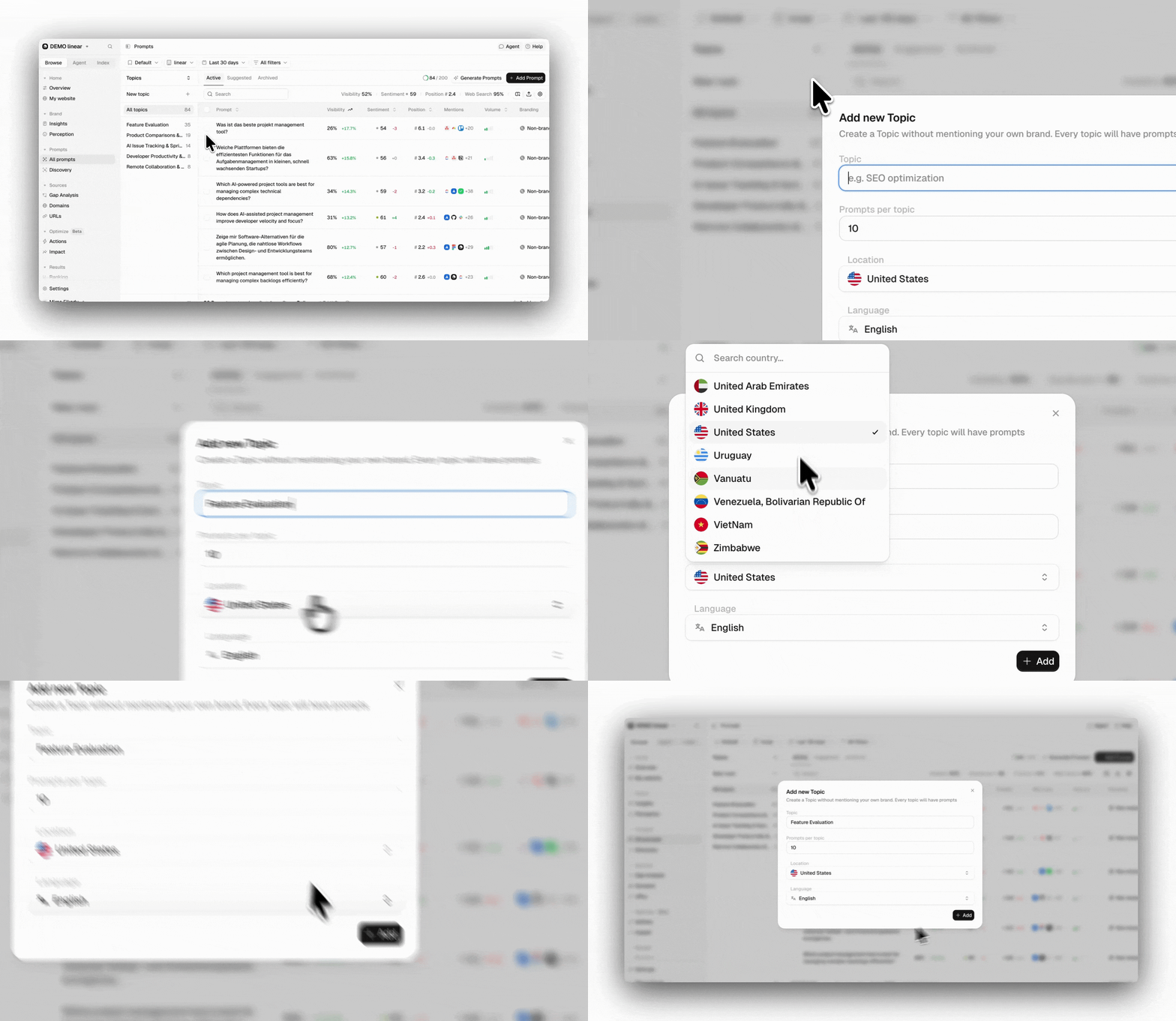
- Track visibility at the topic level.
- Generate new prompt variations based on topics.
- Filter and segment prompts more effectively.
Tags vs. Topics:
- Tags: Multiple per prompt, flexible filtering (like Gmail labels).
- Topics: One per prompt, visual folders (like file folders).
Branded and Intent classification tags
In addition to the tags you create, Peec AI automatically classifies every prompt by Branding and Intent Type. Both are shown as dedicated columns in the prompts table and are added automatically when a prompt is created, with no setup required.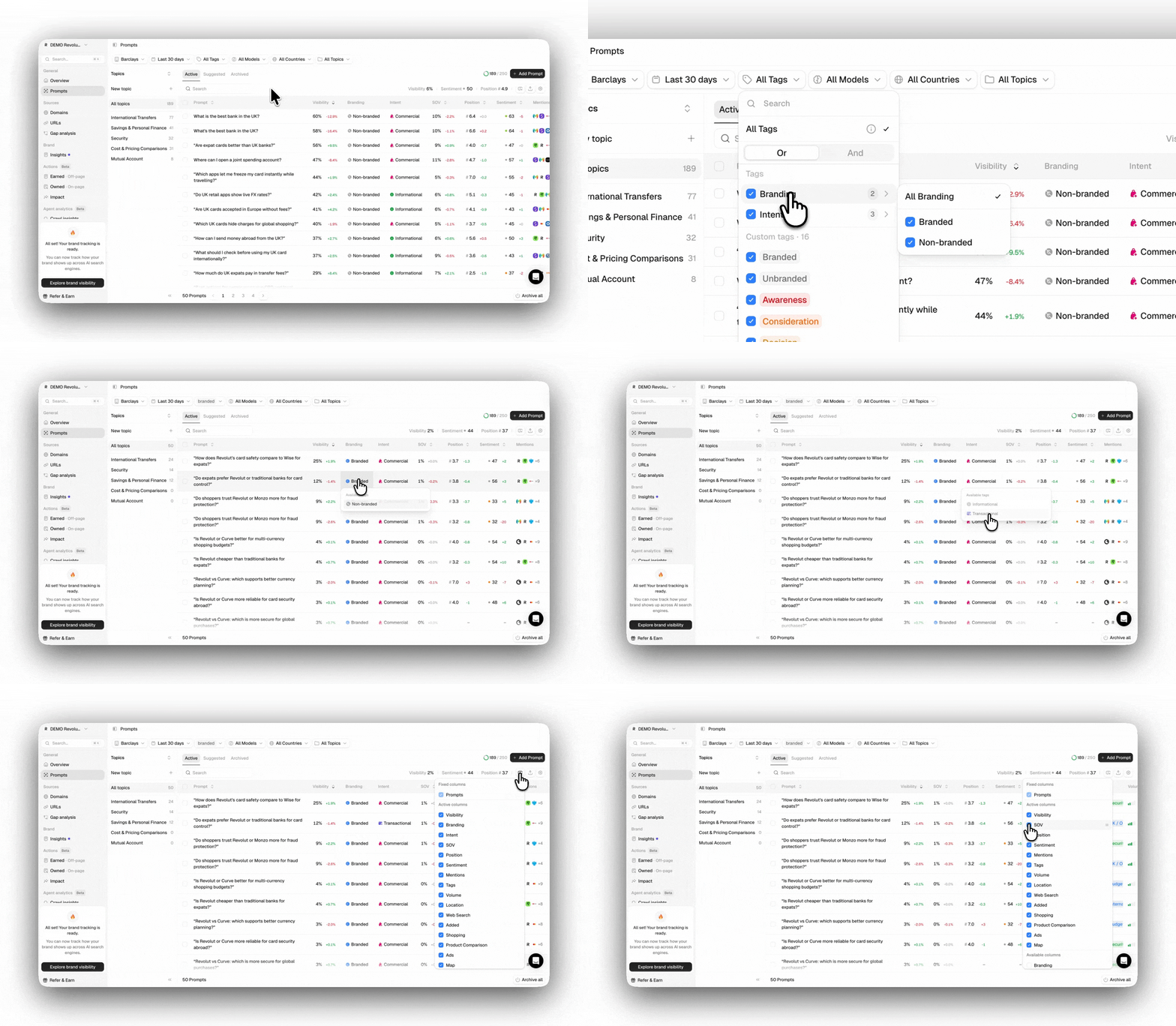
- Branded: The prompt mentions your brand or a competitor directly. (For example, “What is HubSpot?” or “HubSpot pricing.”)
- Non-branded: The prompt is a generic question with no explicit brand mention. (For example, “best CRM software” or “how to manage customer relationships.”)
- Informational: The user is looking for information or wants to understand something. For example, “How do noise-cancelling headphones work?” or “What is cloud storage?”
- Commercial: The user is exploring or comparing different options. For example, “Best running shoes for beginners” or “Which meal delivery service is best for families?” or “HubSpot vs Salesforce.”
- Transactional: The user is closer to making a decision or taking action. For example, “Nike Pegasus price” or “Where to buy an air purifier?”
Branded and Intent classifications are separate from the tags you create yourself. They can’t be renamed, but you can reclassify them for each prompt. Every prompt has exactly one value for each classification.If a prompt doesn’t show a value in either column, the classification is still being processed and will appear automatically shortly after.
Customize your prompts table
In the prompts table, you can choose which metrics to show or hide and rearrange the columns so the ones most relevant to you appear first. To return to your previous view, open the table settings and click Reset to default view. In addition to the standard metrics, you can also add:- Shopping: The percentage of chats that triggered a shopping carousel.
- Product comparison: The percentage of chats where AI compared multiple products.
- Images: The percentage of chats that included an image.
- Ads: The percentage of chats that triggered an ad.
- Map: The percentage of chats that displayed a map in the answer.
- Web Search: The percentage of chats that triggered a web search.
These metrics are separate from your main metrics (Visibility, SoV, Position, and Sentiment) and do not depend on your brand being mentioned in the chat.