

Watch “Agent Analytics - Peec AI” on YouTube
Crawl Insights reveals AI bot activity directly from your server logs, showing which bots access which pages and folders, how often they visit, the status codes they receive, and how all of this links to your AI visibility.
To get started, go to Crawl Insights in the side panel and connect a data source. Peec AI supports automated integrations for AWS CloudFront, Google Cloud CDN, Cloudflare, Vercel, WordPress, and Akamai, plus a generic webhook and direct CSV/CLF file upload. The setup steps for every option are in Connecting your data.
Once connected, Peec AI identifies AI bot hits in your logs, categorizes each bot, and populates the dashboard. You can manage or disconnect your data source at any time from Settings.
Dashboard overview
Once the data is loaded, your dashboard appears. From here, you can access key information and use different tools to analyze your data.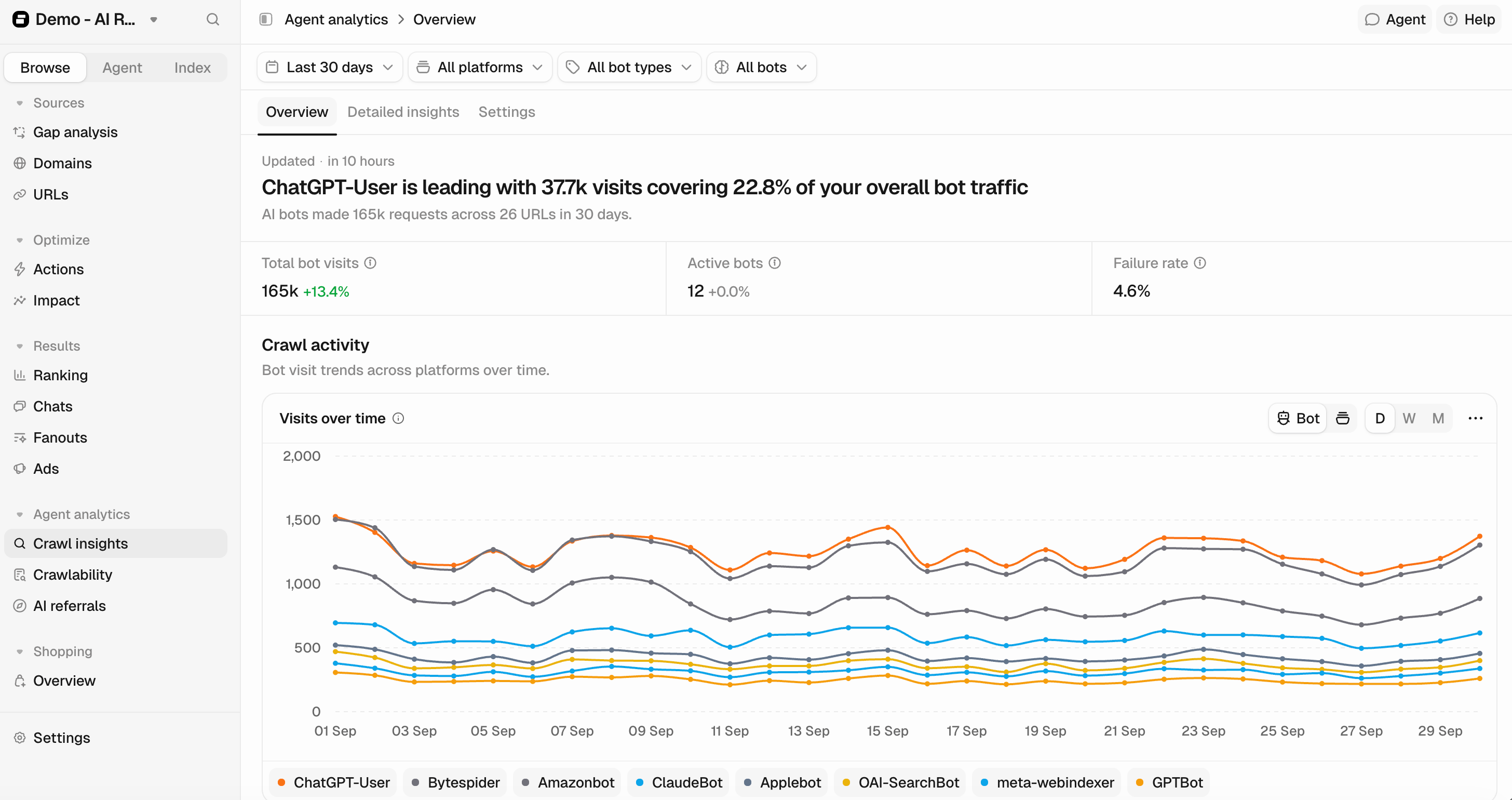
- Filters: Date, Platform (e.g., OpenAI, Google), Bot type (Training, Search, User Query, Other), and Bot (e.g., GPTBot, ClaudeBot).
- KPI summary: A row of key metrics at the top gives a snapshot of your filtered data: total bot visits, active bots, and failure rate (the proportion of requests that returned an error, 4xx or 5xx).
- Crawl activity over time: A line chart of AI bot visits, with a separate line for each AI model. Switch between hourly (only in a 3-day view), daily, weekly, and monthly; daily is the default. Use it to spot trends, sudden spikes, or unexplained drops in bot activity.
- Content section: Further down, you’ll see AI bot traffic broken down by folder and URL, showing which parts of your site AI bots visit most.
Crawl breakdown
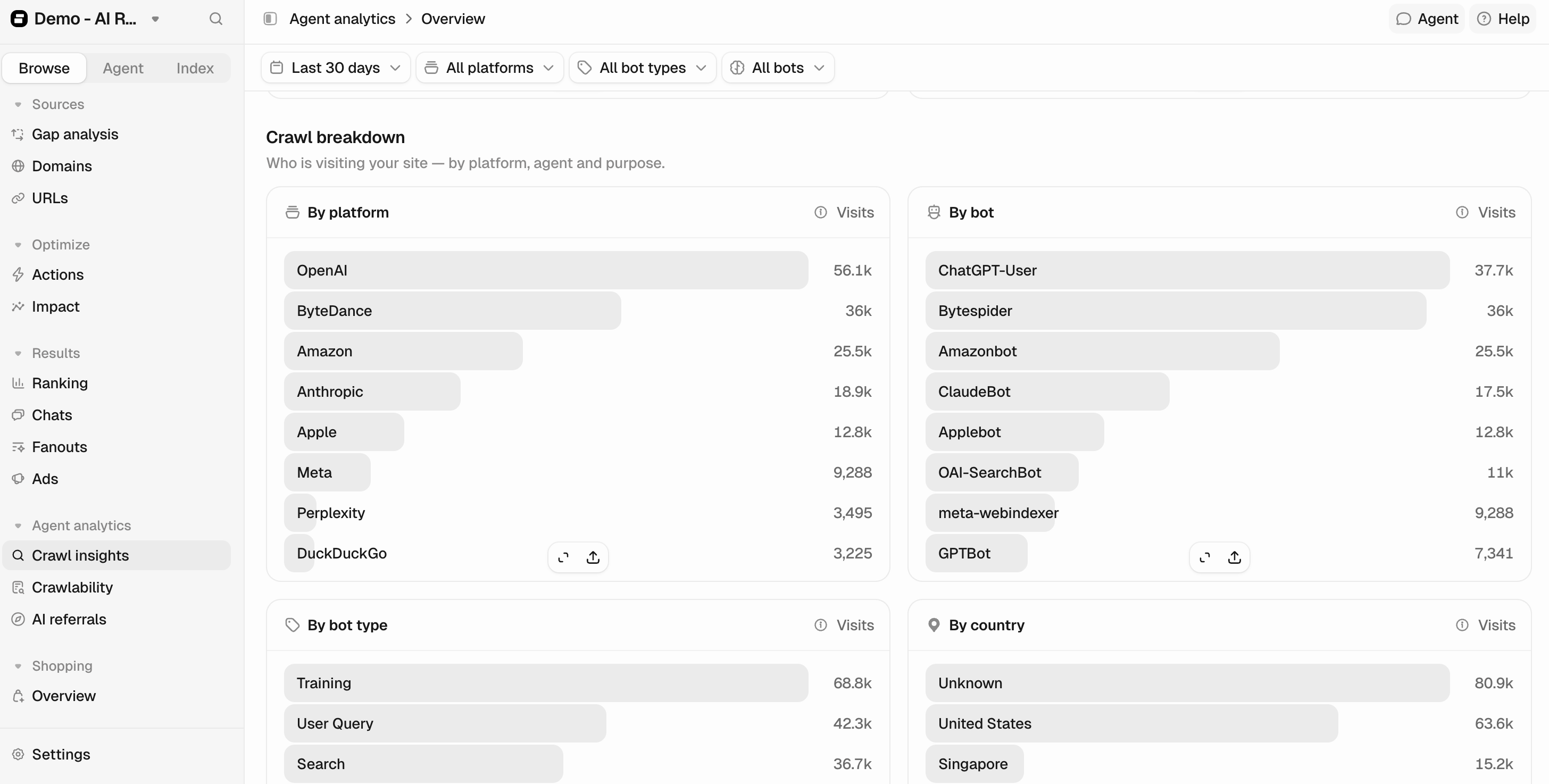
- Platform: The AI vendor (e.g., OpenAI, Anthropic, Google).
- Bot: The specific user agent (e.g., GPTBot, ClaudeBot, PerplexityBot).
- Bot type: Training / Search / User query / Other.
The Bot type indicates the purpose of the crawl:
- Training bots collect data to build or refine AI models.
- Search bots crawl the web and index web pages to surface in AI search results.
- User Query bots access your website to fetch content on behalf of a user.
Detailed insights
Insight Details gives a URL-level breakdown of AI bot activity and source performance. Open it from the in-page navigation bar, or by clicking See details above the By URL chart. Here you will see:- Filters: The same global filters apply (date range, platform, bot type, bot). Within the table, you can also filter by folder (drill into a specific section of your URL structure) and status code (show only URLs that returned a specific HTTP response (e.g., 200, 404, 500)). You can also use the table’s search bar to quickly find a specific URL.
- KPI summary:
- Total bot visits: Total requests across all URLs in the selected filters.
- Active bots: Number of distinct bots active in this view.
- Failure rate: Proportion of requests that returned an error (4xx or 5xx status code).
- Top-visited folder: The top-level section of your site (e.g., /blog/, /products/) receiving the most bot visits.
- Top-visited URL: The single URL receiving the most bot visits.
Visited URLs table
This table shows the pages on your site that can be crawled and indexed, with details for each: which pages receive bot visits, how often, and how that varies across the bots visiting them. You’ll see:- URL: The requested page path from your domain.
- Folder: The primary section or directory the URL belongs to.
- Bot visits: Total AI bot visits to this URL in the selected period.
- Platforms: Bot visits by the vendor behind the bots requesting the URL.
- Status codes: The HTTP response the server returned to bots.
- Retrievals: The total number of times this URL appeared as a source in AI chat responses.
- Citation rate: The average number of inline citations per chat when this URL is retrieved as a source.
- Topics: How many of your tracked topics had prompts where this page appeared as a source.
Prompt data comes from the prompts you are tracking. It is not influenced by AI bot activity.
Settings
Under Settings, you can manage your connection to Cloudflare or any other provider. To switch providers, disconnect and reconnect to keep the migration seamless and avoid data gaps. You can also delete all of your log file data. This action is irreversible; the data cannot be recovered.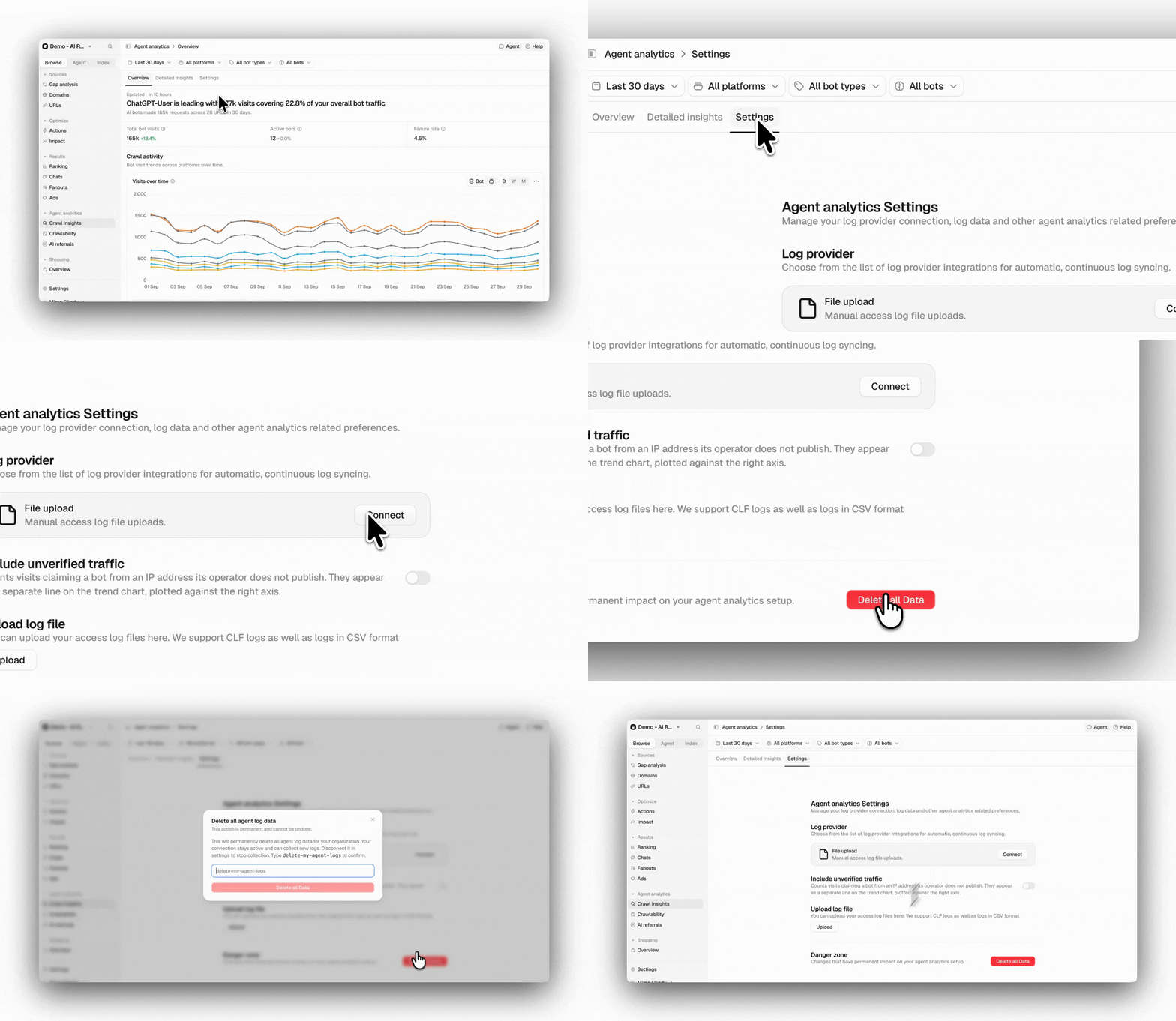
Status codes
Status codes show how your server responded to AI bot visits, based on your connected log data. The overview table always shows a baseline set of status codes, even when they have zero visits in your logs. Additional codes appear only when present in your logs.FAQs
How do I connect?
How do I connect?
Go to Crawl Insights and follow the setup prompt. The method depends on your hosting setup:
- If your site runs on AWS CloudFront, Google Cloud CDN, Cloudflare, Vercel, WordPress, or Akamai, use the automated integration for your provider.
- If your provider isn’t listed, send logs via the generic webhook, or upload a CSV or CLF log file directly.
How do I disconnect?
How do I disconnect?
Go to Crawl Insights → Settings. You’ll find the disconnect option in the danger zone. Disconnecting stops log syncing. Disconnecting does not automatically delete historical data.
What plans are agent analytics available on?
What plans are agent analytics available on?
Crawl Insights is currently available on all plans, with monthly bot visit limits based on your plan:Brands
- Starter: 4M bot visits/month
- Pro: 10M bot visits/month
- Advanced: 25M bot visits/month
- Enterprise: Custom limit
- Essential: 10M bot visits/month
- Growth: 25M bot visits/month
- Scale: 45M bot visits/month
- Comprehensive: Custom limit
Does my Cloudflare plan affect how much data is collected?
Does my Cloudflare plan affect how much data is collected?
Yes. If you’re on Cloudflare’s free plan, your Worker is limited to 100,000 requests per day. On high-traffic sites, this may mean not all bot requests are captured. Upgrading to a paid Cloudflare Workers plan removes this limit.
Can I request my data to be deleted?
Can I request my data to be deleted?
You can request the deletion of your data at any time by contacting our support team or navigating to settings in the danger zone.