

Watch “Setting up your prompts” on YouTube
Prompts are the foundation of everything Peec AI tracks. This section shows you how to create, organize, and manage prompts for meaningful visibility insights.
You’ll learn how AI models work, how to write effective prompts, how to organize them with topics and tags, and how to handle prompts at scale using Peec AI’s suggestion tools. By the end, you’ll have a tracking system that captures your visibility across AI platforms.
How prompts work
Understanding how prompts work with AI models is essential for effective visibility tracking. This section covers how AI models interpret your questions and what that means for your tracking strategy.The difference between prompts and keywords
Traditional SEO focuses on keywords. AI search requires understanding how people actually converse with AI models.- Keyword approach: “Best CRM software.”
- Prompt approach: “What CRM would work best for a sales team of 10 people?”
- Prompts are longer and conversational.
- Prompts include context and constraints, not just topics.
- Prompts use natural language patterns.
How AI models process prompts
AI models like ChatGPT, Claude, and Perplexity don’t match keywords like traditional search engines. They analyze the entire prompt to understand three key things:- Intent recognition: What you’re actually asking for. Examples of clear intent are:
- “What’s the best…” (seeking recommendations)
- “How do I…” (seeking instructions)
- “Compare…” (seeking analysis)
- Context analysis: The specific situation or constraints mentioned. Context provides constraints and situation details that shape how the AI fulfills the intent. Types of context are:
- Audience: “for small businesses,” “for beginners”
- Use case: “for remote teams,” “for e-commerce”
- Constraints: “under $100,” “with less than 50 employees”
- Response generation: Crafting an answer that matches both intent and context.
- “What are the best running shoes for beginners?” vs. “What are the best running shoes for marathon training?” → Different buying needs → Different recommendations.
- “What are the best running shoes for beginners?” vs. “Which running shoes are best for someone new to running?” → Same buying need, different wording → Similar recommendations.
Prompt example: “What’s the best project management tool for creative agencies with remote teams under 20 people?”
- Intent: “What’s the best project management tool…” (the main ask).
- Context: “…for creative agencies with remote teams under 20 people” (the specifics).
- Exact phrasing doesn’t matter much. Semantically similar prompts will lead to very similar results over time. Focus on capturing the right intent and context rather than perfecting every word.
- Informational prompts need brand context. For prompts seeking instructions (“How do I…”), AI models likely won’t mention brands unless you specifically ask for them. Add context, such as “what tools should I use?” or “which platforms work best?” to get brand mentions in your tracking.
Intent types
Peec AI automatically tags every prompt with one of three intents, based on where the buyer is in their journey. Intent is one of the most useful filters for reading Visibility and Share of Voice, and it drives the intent mix in Prompt discovery.- Informational: The person wants to learn or get instructions, not compare or buy. Example: “How do I improve email open rates for B2B clients?” AI often answers these without naming brands, so they surface fewer brand mentions unless you add brand context.
- Commercial: The person is comparing or researching options before a decision. Example: “What’s the best CRM for marketing agencies under 50 people?” These reliably surface brands and are the core of most tracking.
- Transactional: The person is ready to act, buy, or take a specific step, often naming a product or price. Example: “HubSpot pricing for a 10-person team.”
Prepare your topics
Think in clusters of related prompts rather than individual questions, for better suggestions and organization. Before creating individual prompts, organize your tracking around topics. Topics help you think systematically about the different areas where you want visibility, and they unlock better prompt suggestions. When you create topics first, Peec AI can generate more targeted suggestions based on those specific themes, tailored to your focus areas rather than generic.How topics work
Topics create folder-like structures where each prompt belongs to exactly one topic. Think of them as containers for related prompts around specific themes or product areas. Examples of effective topics:- Marketing Analytics: Prompts comparing tracking tools, attribution models, and reporting platforms.
- AI Writing: Prompts about content generation, editing assistance, and writing workflows.
- Remote Collaboration: Prompts comparing video conferencing, project management, and team communication tools.
- Security: Prompts comparing fraud protection, security features, and safety measures across financial services.
Setting up your first topics
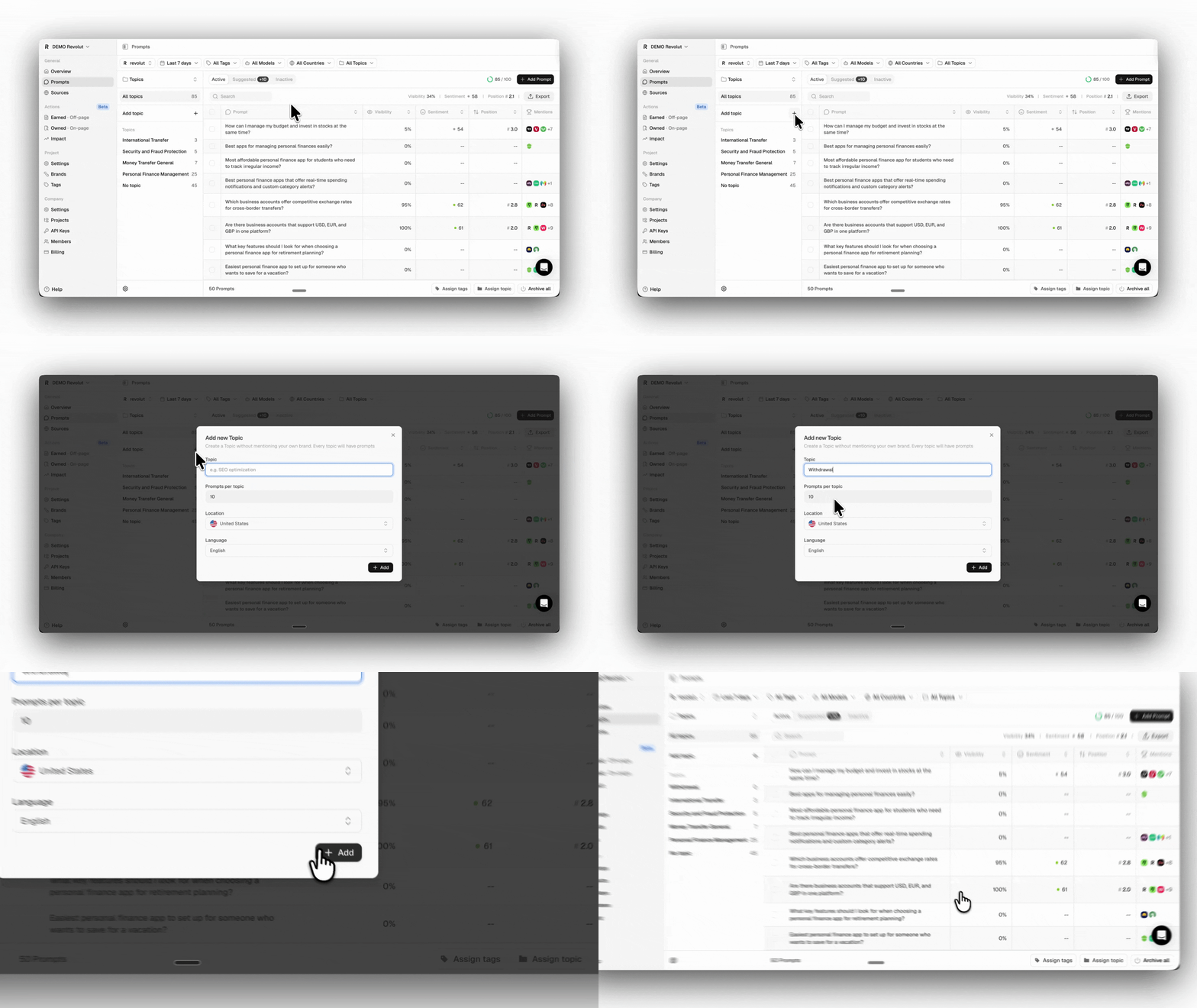
- Identify your key product areas: What are the main categories where you want to appear?
- Create topics for each area: Use clear, specific names that reflect those categories.
- Request topic-based suggestions: Generate prompts tailored to each topic area.
- Expand with manual prompts: Add specific prompts that suggestions might miss.
Create your prompts
There are four ways to add prompts, from fully manual to fully guided. Go to All Prompts in your sidebar to get started.- Add prompts manually
- Bulk CSV upload
- Prompt suggestions
- Prompt discovery
Option 1: Add prompts manually
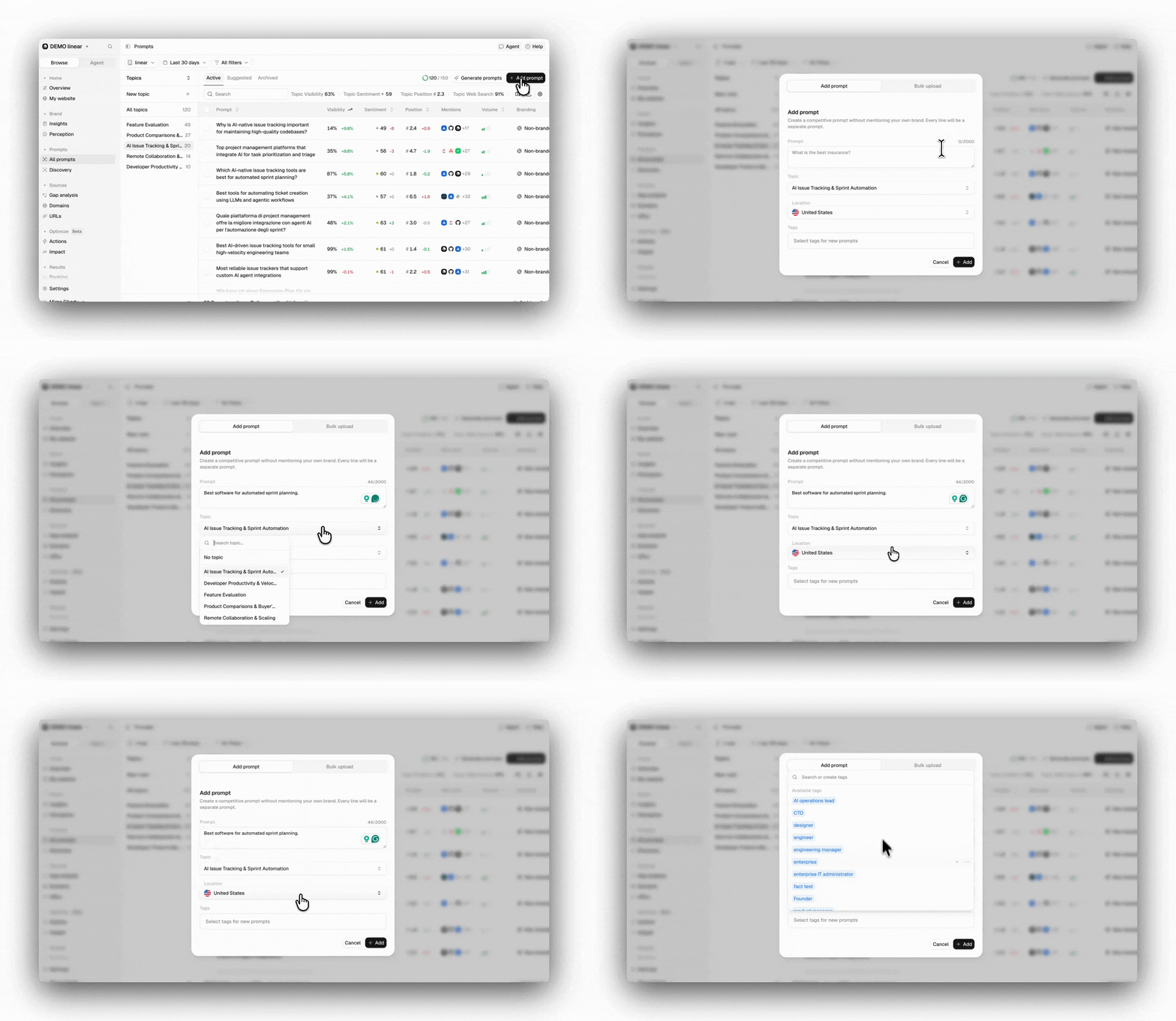
- Click Add prompt in the top right of the All Prompts page.
- Enter one prompt, or several using line breaks (one prompt per line).
- Set Location to choose which country the prompt runs from.
- Add a Topic and Tags (optional).
- Click Add to save.
The Location setting determines the geographic location where your prompt runs. Different locations can produce different AI responses based on regional content preferences and availability.If your desired country isn’t available, contact us, and we’ll add it in the next update.
Option 2: Bulk CSV upload
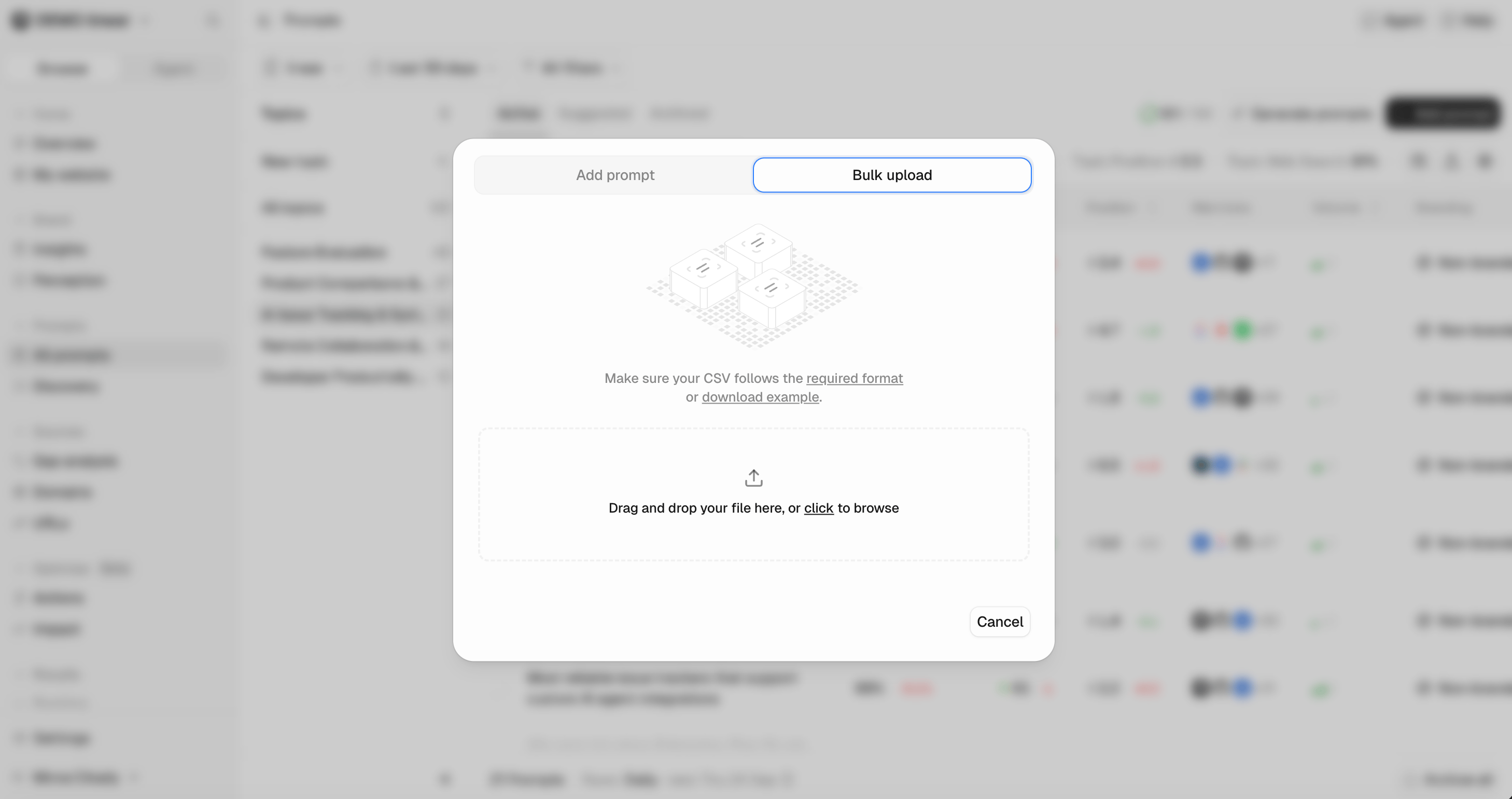
- Click Add prompt and select Bulk upload.
- Drag and drop your CSV file, or click to browse.
- Confirm the preview matches your intended structure.
- Imported prompts appear in the Active tab and start running immediately.
- Row 1: Header row (ignored during import).
- Column 1: Prompt text (one per row, max 200 characters per prompt).
- Column 2: Location, using ISO 3166-1 alpha-2 codes (US, DE, and so on). If blank or invalid, your project’s default location is used.
- Column 3: A topic (for example, CRM Software).
- Column 4 and beyond: Tags to assign to each prompt. Add text to assign as many tags as you need, using one column per tag.
You can download this example CSV file or this Google Sheets template to get started. Make sure your CSV file is UTF-8 encoded.
Option 3: Prompt suggestions
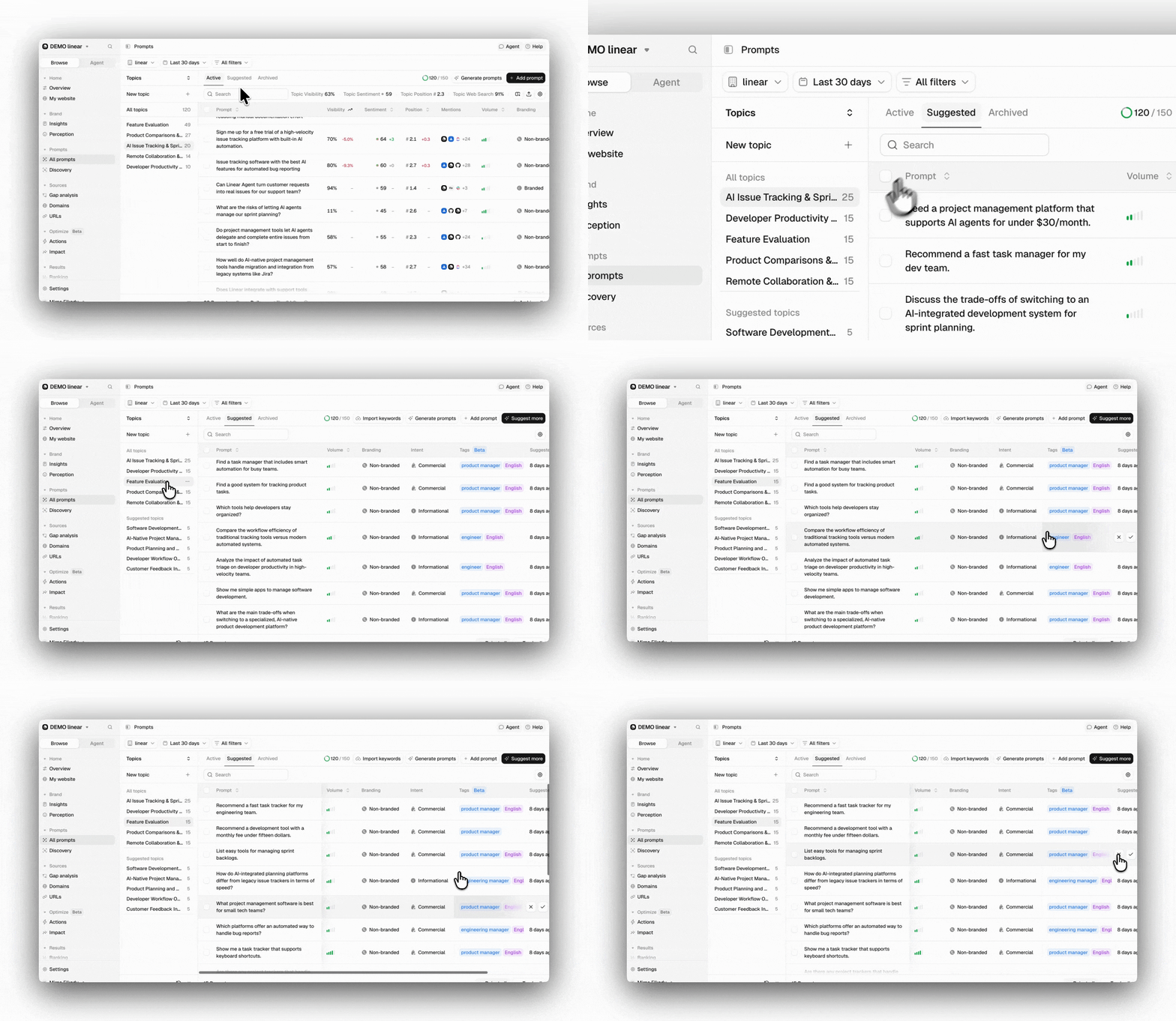
- Go to the Suggested tab in the Prompts section and review the suggestions.
- Click Track to move a prompt to your Active tab.
- If you don’t see suggestions, click Suggest more to create new ones.
Click Suggest more to generate additional suggestions. If you’ve reached the limit of suggested prompts, reject a few unsuitable ones and click again. Accepted prompts join your Active prompts and start running immediately, on the regular 24-hour cycle.
Option 4: Prompt discovery
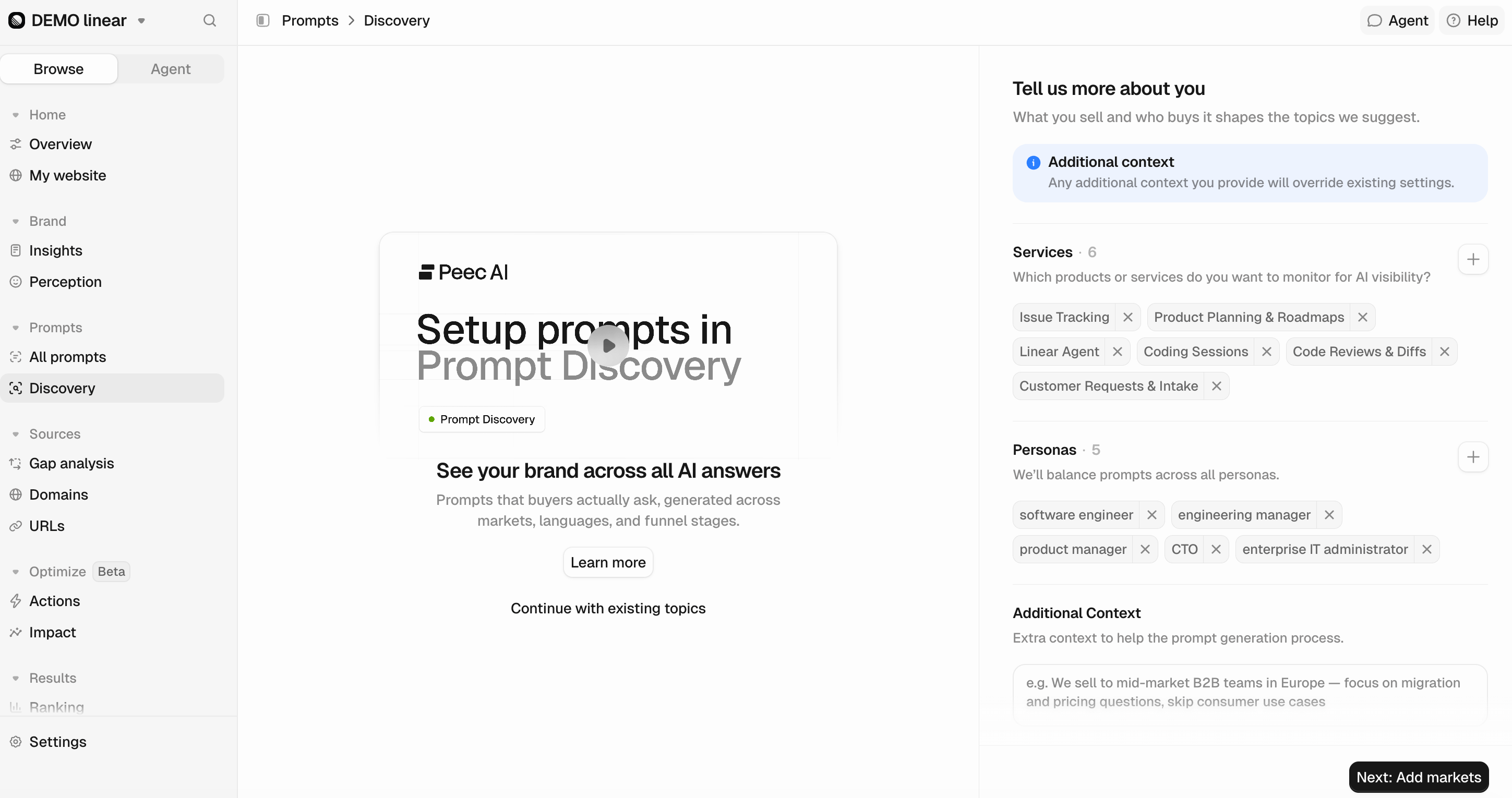
- Profile: Describe what you sell and who buys it, including your products or services and buyer personas. You can also add up to 200 characters of additional context to further guide the suggestions Peec generates.
- Markets: Pick the locations and languages you want to track your brand’s performance in. Prompts are generated per market.
- Topics: Review the suggested topics before any prompts are generated. Rename or delete the ones that don’t fit, and add your own for anything the suggestions missed.
- Distribution: Set the share of branded versus unbranded prompts and the intent mix (informational, commercial, transactional). Each set has to add up to 100%. The defaults, 20% branded and a 25/50/25 intent split, match what works for most brands.
Reviewing suggestions
Generated prompts land on the results page. The left sidebar lists your topics; selecting one shows its prompts in the table. You can regroup the sidebar by branding, intent, persona, market, or language to check coverage from a different angle.- Accept or reject prompts individually, or use Activate all per group.
- Accepted prompts become active prompts and join the regular daily run.
- Use Generate more prompts to top up suggestions, or Modify setup to change your profile, markets, or distribution at any time.
Accepted prompts count toward your plan’s prompt limit, so review before activating in bulk.
Checking coverage
The coverage overview compares what you’ve accepted against the distribution you asked for, so you can see what a generated set is missing before you commit to it. Open it from the results page. Each topic, country, and persona shows where it stands:- On target: It matches the distribution you set.
- Not started: Nothing is accepted yet.
- Empty: The topic has no prompts at all.
Generate more prompts adds more prompt suggestions directly from the overview to expand coverage for a specific market or buyer persona without leaving the page.
Suggested vs. Active topics
When the sidebar is grouped by topic, your topics split into two sections:- Suggested: Topics you haven’t started reviewing yet. Every topic begins here after generation, with a full set of suggestions and no active prompts.
- Active: Topics where you’ve accepted at least one prompt. A topic moves here automatically the first time you accept a suggestion from it, and it keeps any suggestions you haven’t reviewed yet.
A topic with nothing left to review (everything accepted or rejected) shows No suggested prompts on hover and stays under Active with its accepted prompts.
Use prompt volume
Watch “Prompt Volume” on YouTube
Prompt Volume shows you exactly what people are searching for in your industry and how much demand exists for topics related to your brand. It’s a powerful feature that analyzes your prompts and assigns them a relative demand score from 1 to 5. By using this metric, you can focus your content strategy on what truly resonates with your audience.
Prompt Volume helps you find high-impact topics by measuring genuine search interest, ensuring your content meets a real need.
How prompt volume works
Prompt Volume uses a multi-layered model and process that involves multiple steps. Among them:- Real-time search trends: Finding questions/queries people actually search for on web engines such as Google, relevant to the business.
- Keyword weighting: Highly relevant and business-specific queries are given higher importance.
- Relative to the industry scores: Volume is calculated relative to your own keyword landscape, not a global average.
Understanding your scores
Prompt Volume scores range from 1 to 5, indicating how much search interest exists for your prompt’s topics relative to your industry: Score 1 - Very low search volume relative to your industry. Score 2 - Low search volume relative to your industry. Score 3 - Moderate search volume relative to your industry. Score 4 - High search volume relative to your industry. Score 5 - Very high search volume relative to your industry.Manage prompt limits
Your plan includes a specific number of active prompts. You can see it at the top of the All Prompts page. Here’s how the limits work:- Active prompts: Count toward your plan limit and run daily.
- Archived prompts: Don’t count toward limits but preserve historical data. You can always activate them from your Archived tab.
- Deleted prompts (not visible): Don’t count toward limits and erase all historical data. If they were deleted by accident, we might be able to recover them for you.
- Suggested prompts: Don’t count until you accept them.
Depending on your subscription plan, there is a limit to the number of countries you can track. This limit applies per project and only affects the prompt locations you can configure.You can find the country limits and a full breakdown of each plan here: Country Limit.