Credits determine how many prompts and AI models you can track across your client projects. You can change the number of prompts and the models you want to track them on, but not credits. Instead, they are automatically assigned to the project based on the other two variables.
Our credit calculation formula:1 prompt x 1 model x 1 day = 1 credit1 prompt x 1 model x 1 month (30 days) = 30 creditsFor our bigger plans Scale and Comprehensive, you can change to weekly tracking for 1/3 of the price.
For example, tracking the prompt: “What’s the best CRM for small businesses?” daily across three AI models (ChatGPT, Claude, and Perplexity) for a full month would require 90 credits: 1 prompt x 3 AI models x 30 days = 90 credits

Managing your credits

Usage overview

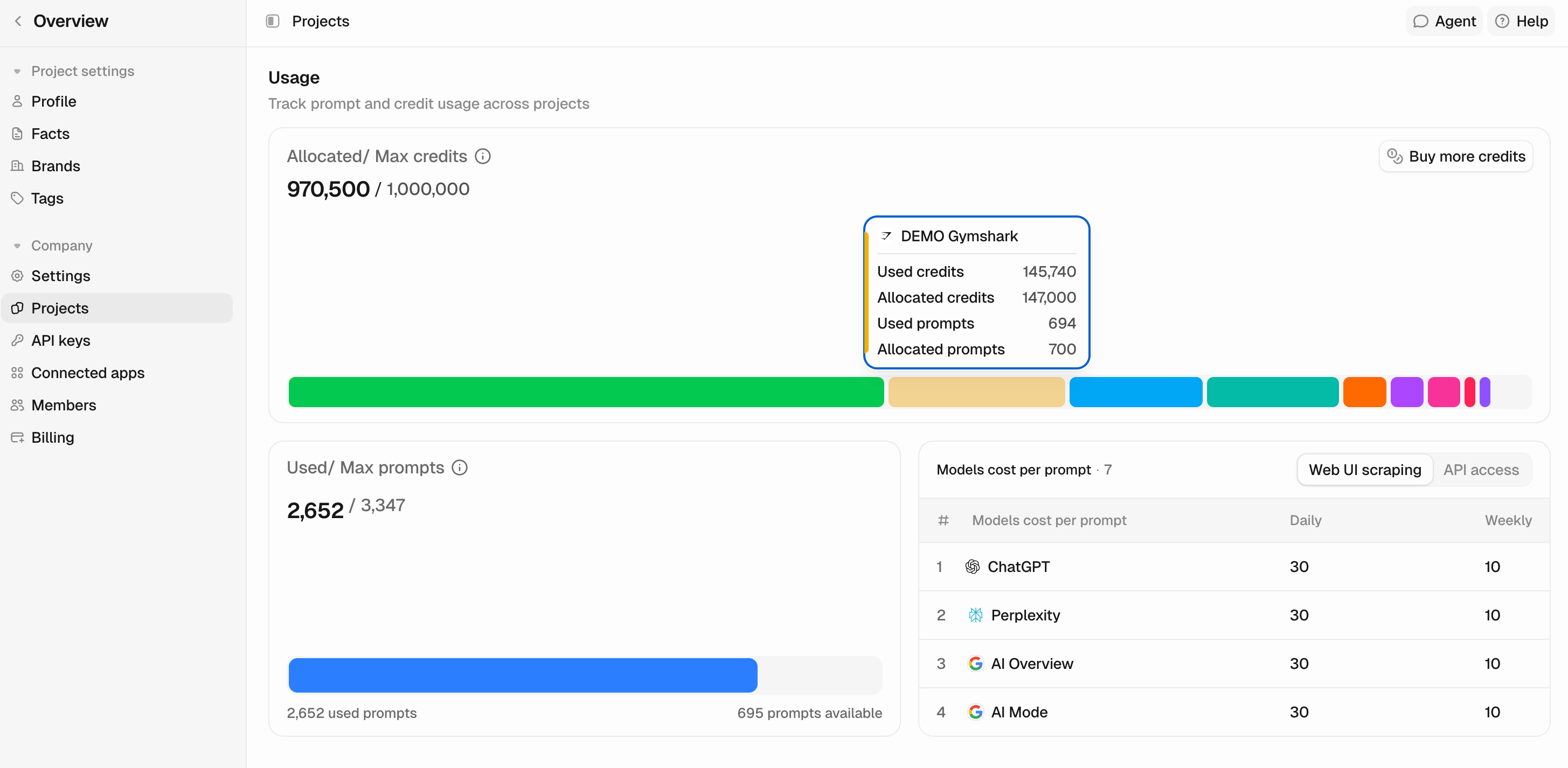
You can see how many credits are available and how many are currently assigned to active customer projects in the Projects tab under Usage. Usage tells you:
  • The total number of already assigned credits
  • The total number of available credits for your subscription plan
  • Colored breakdown of projects by number of credits assigned to each
You can hover over each colored box to quickly see how many credits are being used and how many are assigned for each project. You can also always see this in the project table below. Don’t worry about having to calculate how many credits you will need for each new project. We will automatically do this for you when you create a new one.

Project table

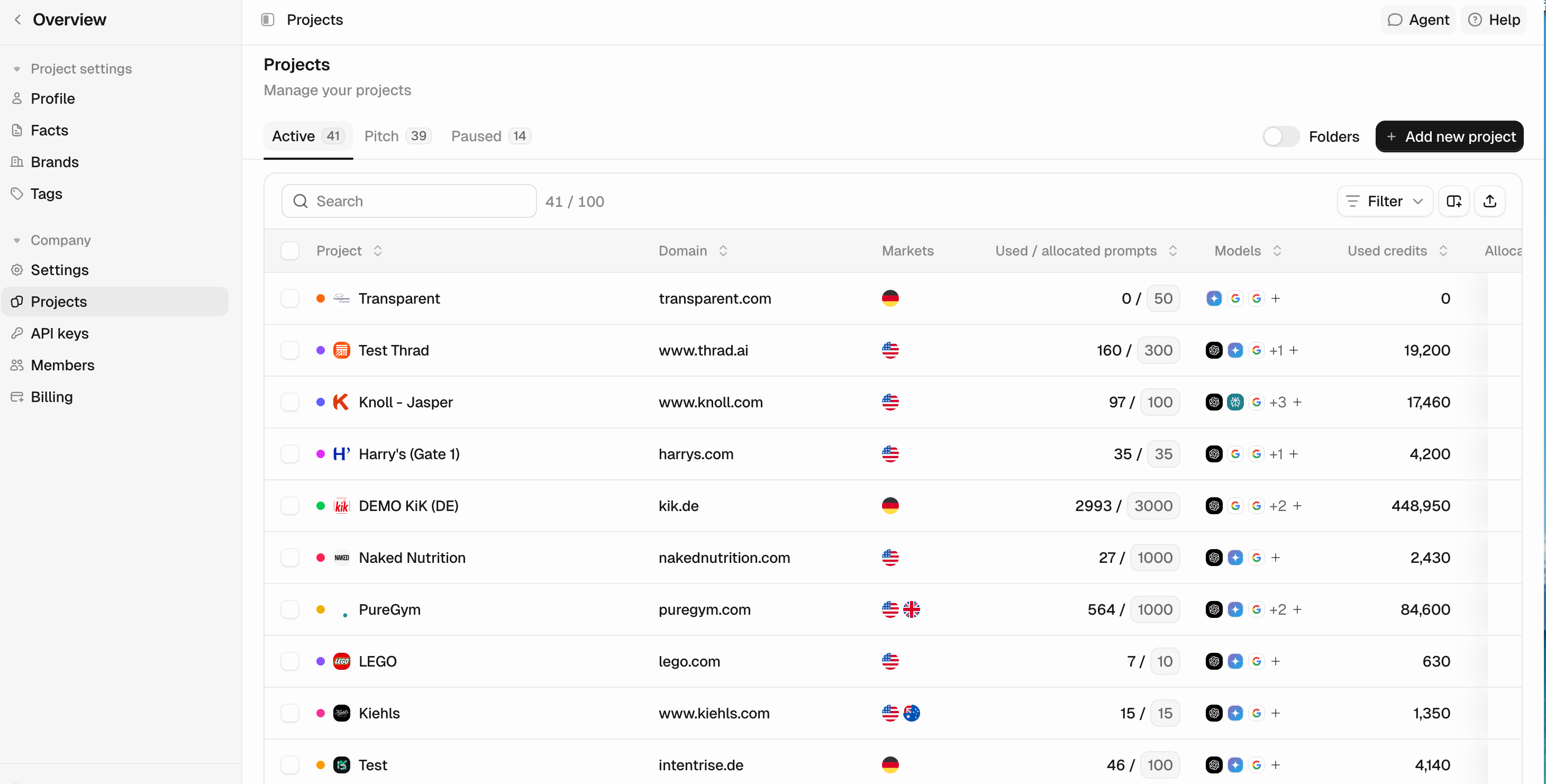
The project table gives you a quick overview of the current status of all the projects on your account, split between Customer and Pitch. This is where you can manage the number of prompts and models each project should track. You can also delete a customer or a pitch project if it’s no longer needed.

Managing your projects

You can manage credits by adjusting prompts and AI models for each project. When you change a project’s prompt limit, your credit usage is automatically updated to reflect the changes.

Adjusting Max. Prompts

You can easily adjust how many prompts each project track should have in the Projects tab using the project table. To do this:
  • Navigate to the Projects tab and locate the project you want to adjust.
  • Click the box next to the active prompt (in the “Active / Max Prompts” column).
  • Enter a new value that is allowed within your credit limit.
  • Click anywhere else on the screen to save the changes.
Your Credits Used column will show an increased number of credits as soon as you add new prompts to your project for tracking. If you don’t use all allocated prompts for a project, your used credits will be lower than your assigned credits. Use this information to optimize your usage and identify where you can reduce prompt limits, freeing up credits for other projects.

Changing AI models

You can choose which AI models you want to track for a given project. You’re not locked into tracking all prompts across all models if that’s not something you need. If one client only requires tracking visibility on ChatGPT, while another needs comprehensive coverage across all three platforms, you can choose which AI models to run for each project. You can adjust this in the Projects table as well:
  • Navigate to the Projects tab in the sidebar.
  • Find the project you want to update.
  • Select the Models box in the project to open up the selector modal.
  • Switch models or turn off the ones you don’t need.
  • Click Update.
The system will automatically either assign more credits or free up credits from the project to your overall credit pool.

Monitoring credit usage and allocation

Regularly checking your credit usage helps you stay ahead of capacity limits and make the most of your plan. What to check:
  • Total allocation vs. available capacity: Check your Projects tab to see whether you’re approaching your credit limit or have room for more customer projects, AI models or prompts.
  • Per-project allocation: Check whether each client receives sufficient tracking to deliver meaningful insights and identify those that are underutilizing their allocated prompts.
When to reallocate:
  • A client engagement is ending
  • A high-priority client needs expanded coverage
  • You onboard a new client

How to upgrade your plan

As your agency grows or clients’ needs change, you can adjust your total credit capacity by upgrading or downgrading your plan. Moving between tiers is straightforward and gives you immediate access to your new credit allocation and project slots. You can easily upgrade your plan via the Billings page:
  1. Navigate to the Billings page in the side panel.
  2. Select the plan you want to upgrade to.
  3. Complete the checkout flow.
Your existing client projects and data remain intact when you change tiers. The only difference is your total credit capacity and available project slots adjust to match your new plan.

How to downgrade your plan

Contact support@peec.ai to find the best solution for downgrading your plan.
Note: Upgrades are always prorated by day. This means you only pay for the days you’re in the new subscription tier.Downgrades happen at the end of your current billing cycle.