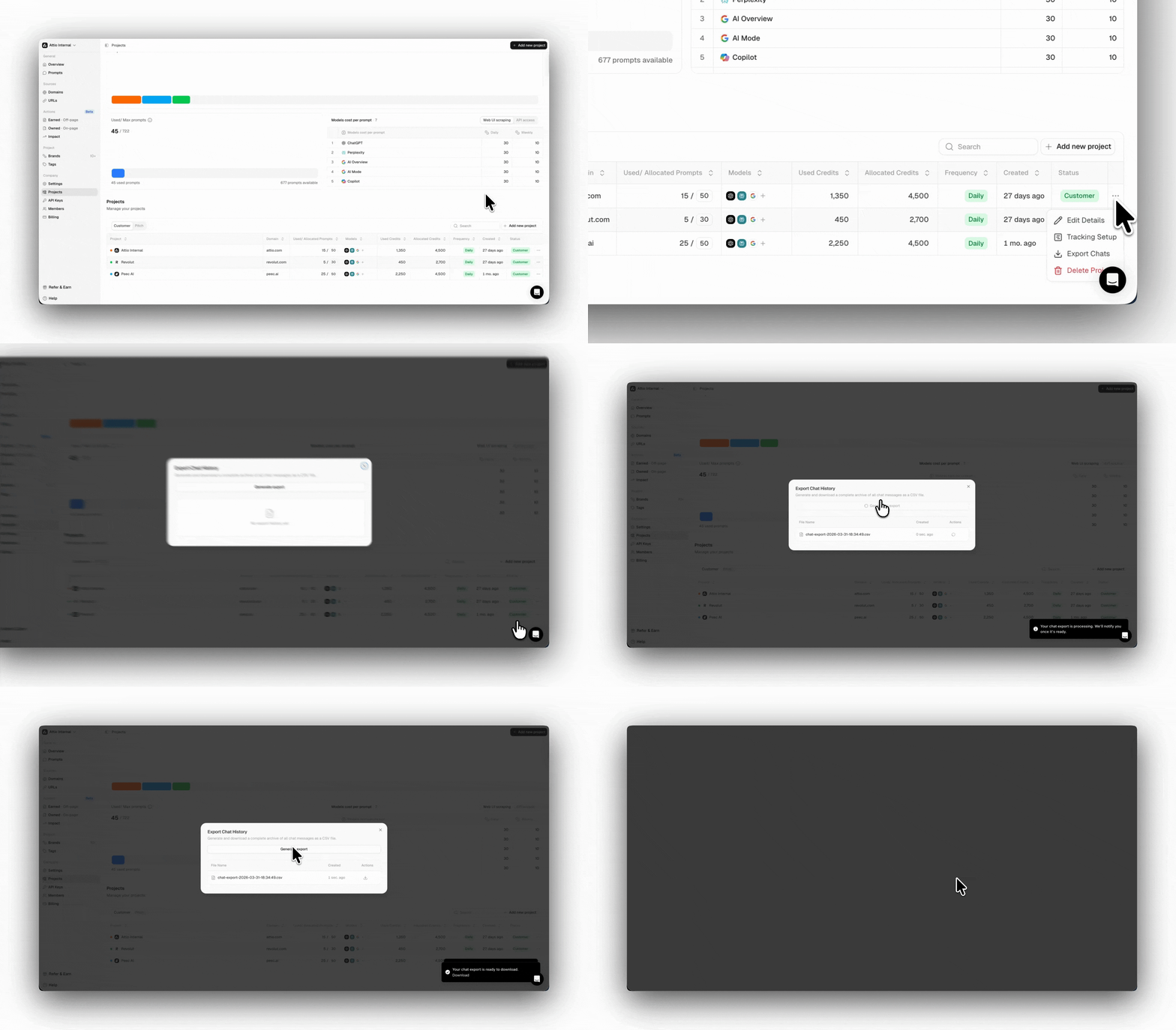
- The number of allocated and the maximum number of prompts you can track with your subscription
- How many prompts are currently being tracked for all your projects
- A list of all the projects you are currently running, with additional information on the prompts, models, and frequency at which the project is set up
Updating your project
Updating your project is simple, and it only takes a few clicks to adjust what you need. Whether you need to adjust the prompt limit, the number of models you want to track, or if you need to remove a project, you can do all of that under the same tab.Adjusting prompts
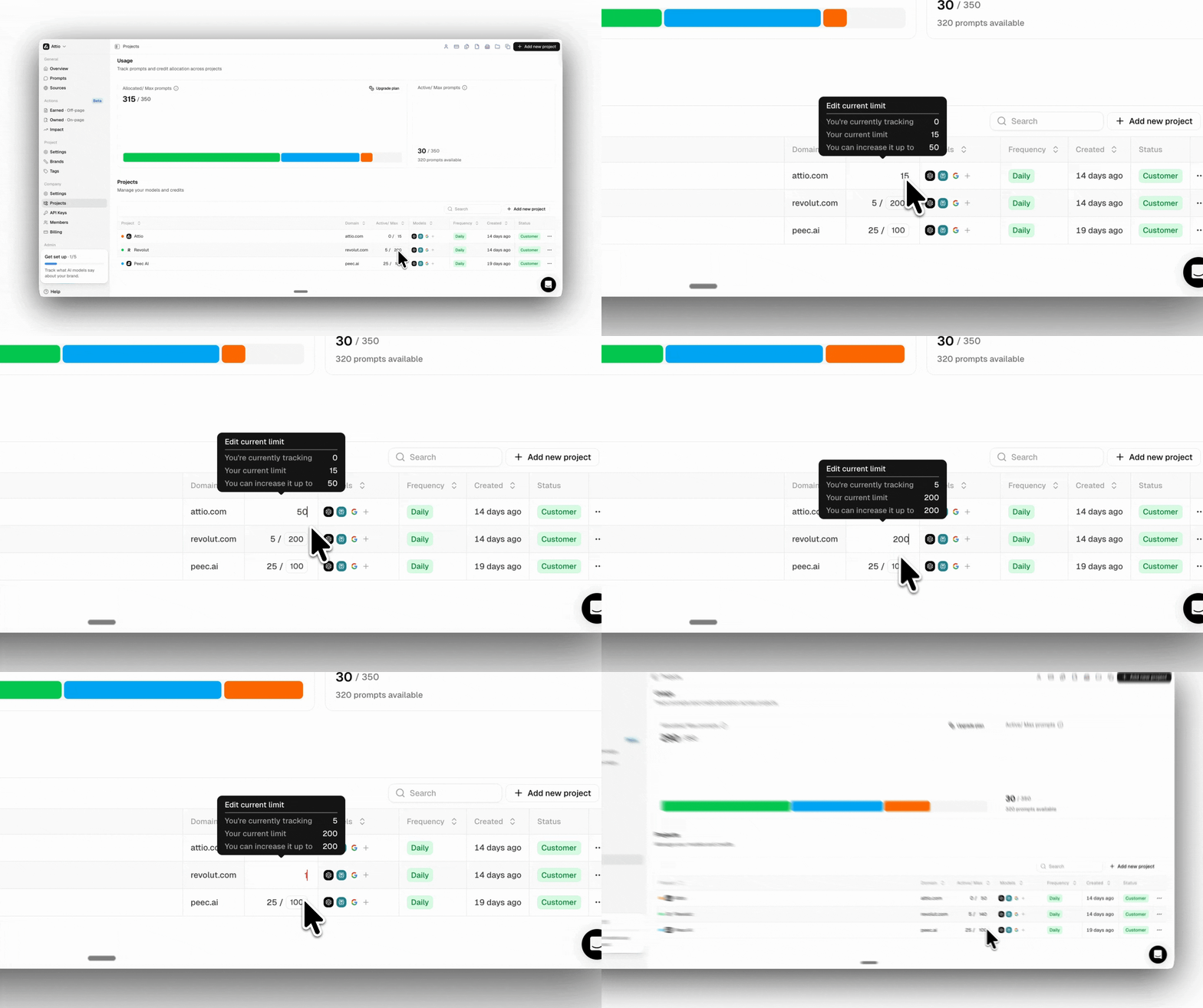
You can easily adjust how many prompts each project track should have in the Projects tab using the project table. To do this:- Navigate to the Projects tab and locate the project you want to adjust.
- Click the box next to the active prompt (in the “Active / Max Prompts” column).
- Enter a new value that is allowed within your prompt limit.
- Click anywhere else on the screen to save the changes.
Changing AI models
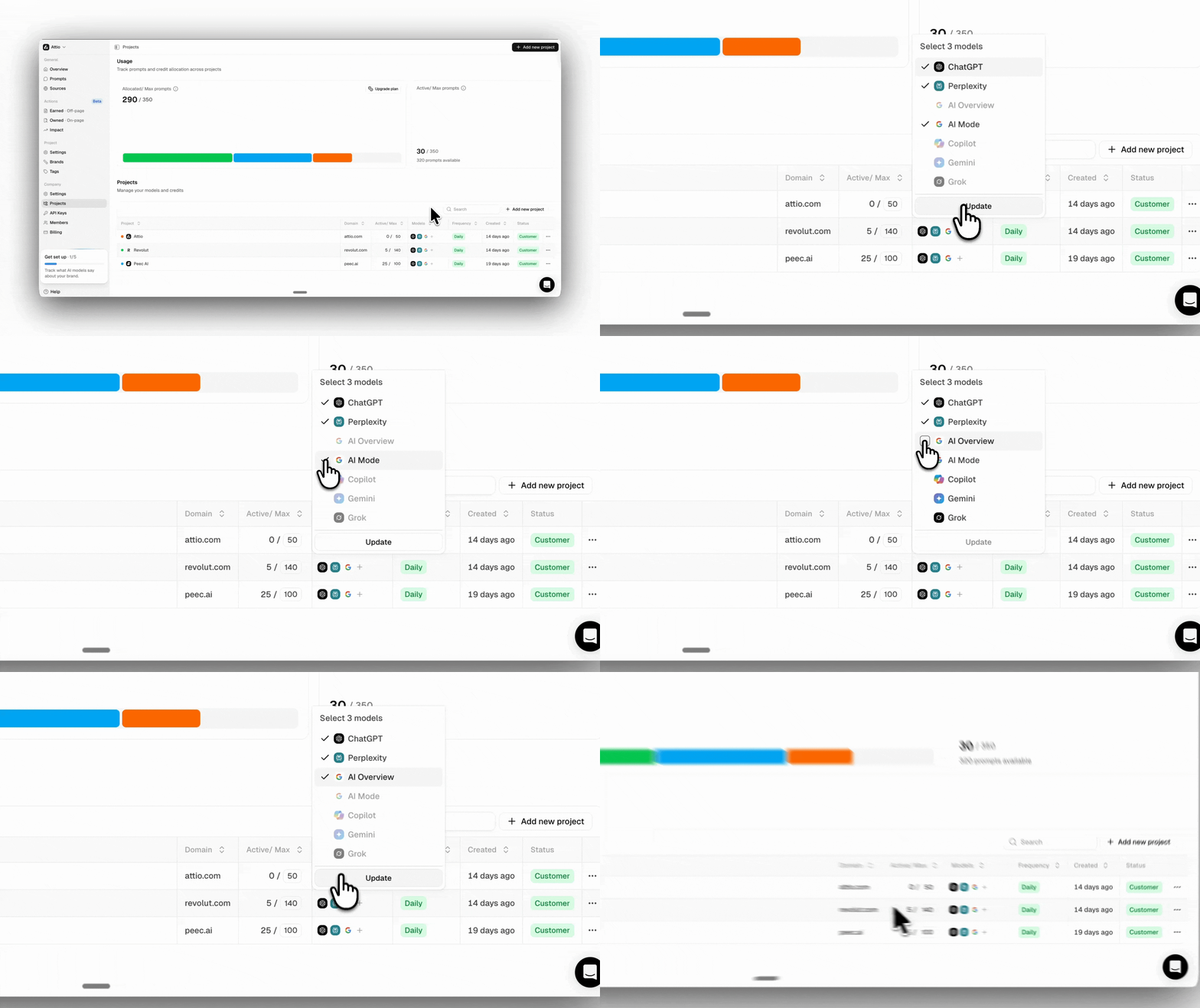
You can choose which AI models you want to track for a given project. You’re not locked into tracking all prompts across all models if that’s not something you need. If one client only requires tracking visibility on ChatGPT, while another needs comprehensive coverage across all three platforms, you can choose which AI models to run for each project. In the Projects table:- Find the project you want to update.
- Select the Models box in the project to open up the selector modal.
- Switch, add, or turn off any model
- Click Update.
Updating Project details
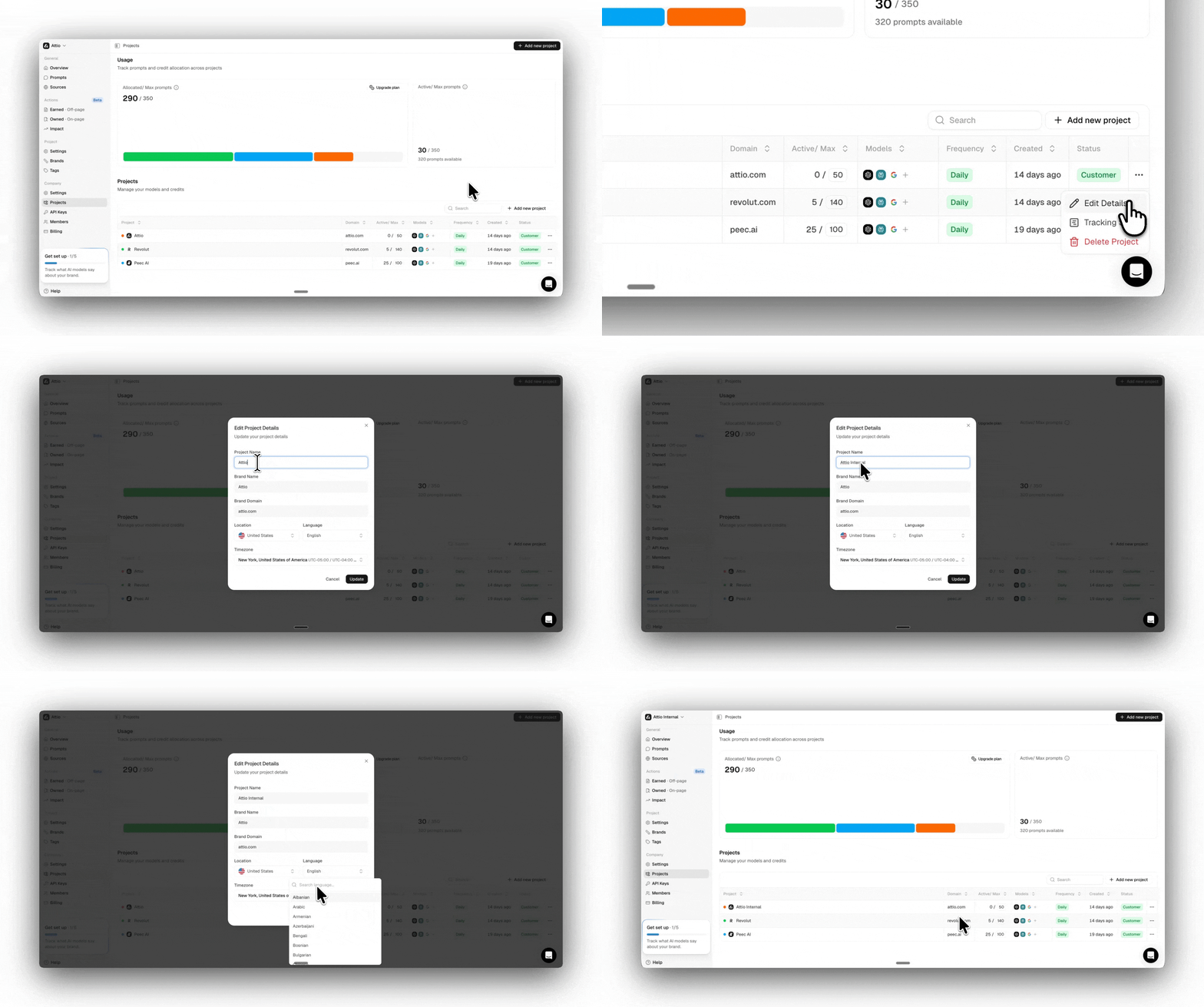
In the Projects tab, you can modify all the main details of your project. Whether you need a new name so your colleagues can recognize it easily, or you want to adjust the location and language settings. To change the details of your project:- Click on the three dots in the right column
- Click on Edit Details to open the settings
- Click Update to save all the changes
Exporting chats
If you need an export of all the chats for any given project in CSV format, you can download it from the Projects tab. To export all chats:- Click on the three dots in the right column
- Click on Export Chats
- Click on Generate Export and wait until the export is finished
- You can download the file and use it for your analysis