

Watch “Managing your project for agencies” on YouTube
Managing your client projects in Peec is simple. From the Projects tab, you can create new projects, adjust tracking for existing clients, manage their setup, or delete projects you no longer need. Whether you’re onboarding a new client or expanding an existing project, you can manage it all from one place.
Creating projects
In the Projects tab, you can create both Customer and Pitch projects in just a few clicks. Create a Customer project when onboarding a new client, or set up a Pitch project for a prospect who wants to explore Peec before committing.Creating a customer project
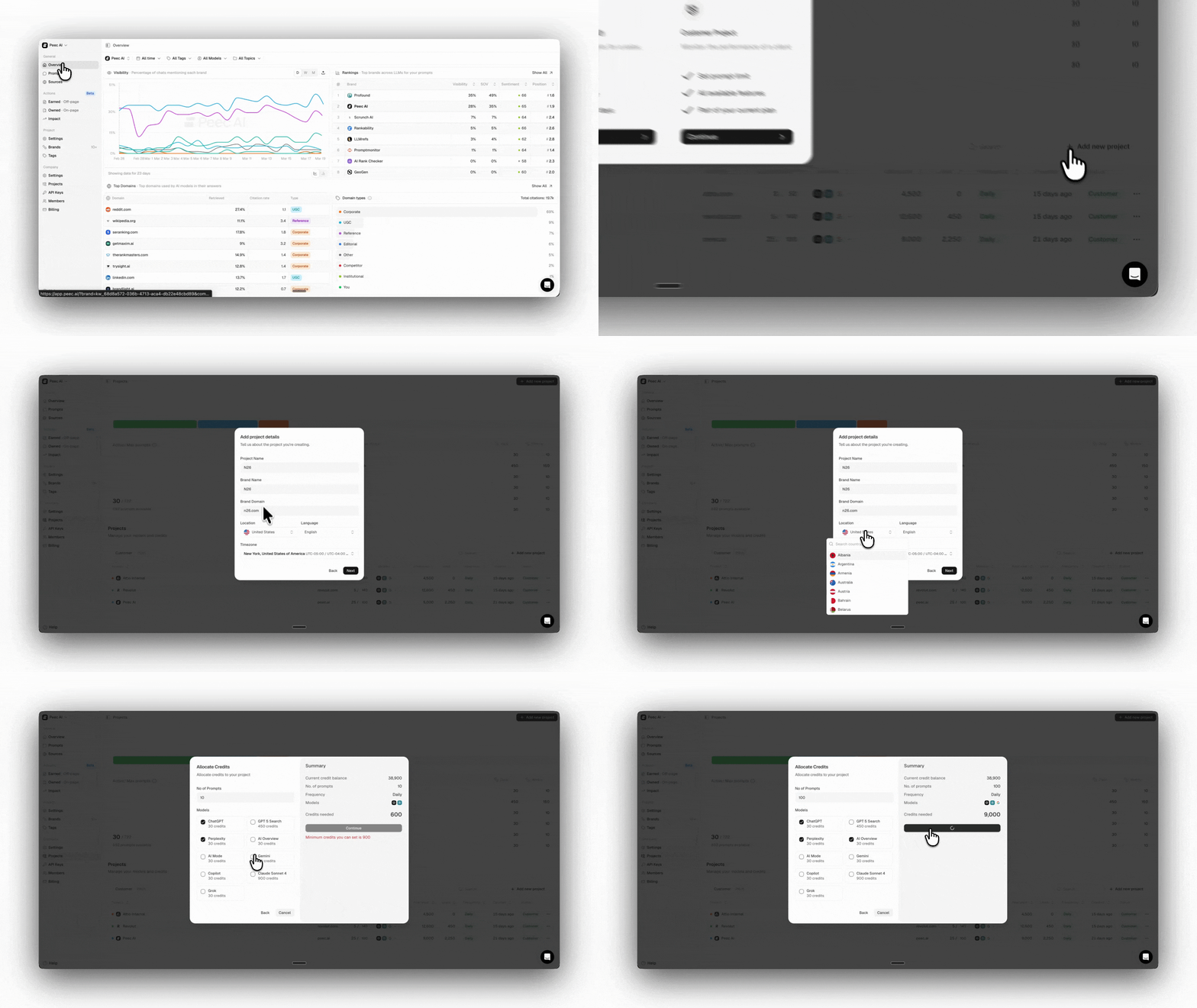
To create a Customer project:- Go to Settings → Projects in the sidebar.
- Click Add new project.
- Select Customer project.
- Fill in the required project information.
- Choose the number of prompts you want to track. The summary will automatically update to show how many credits are required based on your selection.
- Select the AI models you want to track.
- Click Continue.
Creating a pitch project
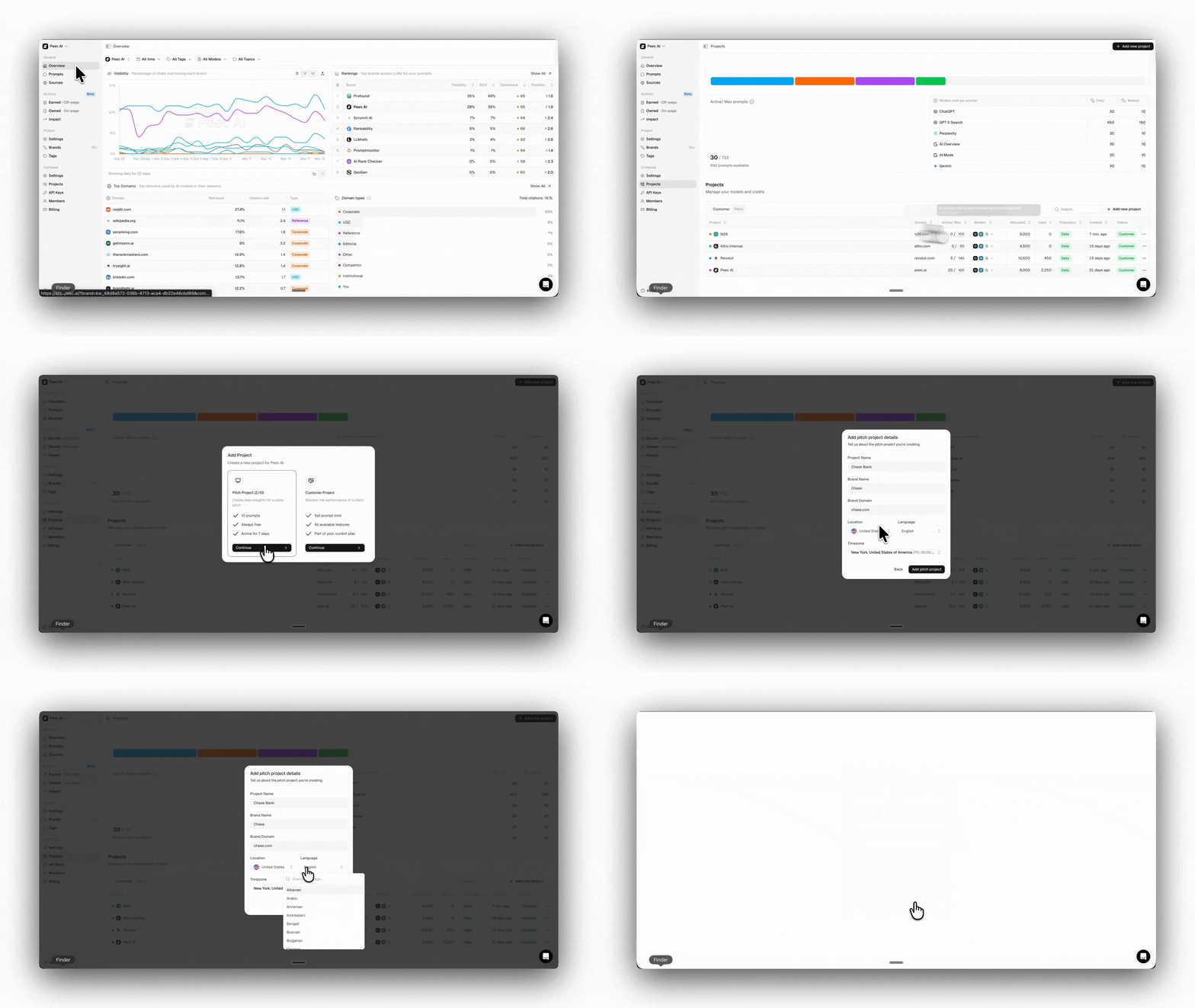
To create a pitch project:- Navigate to Projects in the side panel
- Click Add new project in the top-left corner or at the top-right of the projects table
- Select Pitch project from the modal
- Enter the relevant details
- Click Add pitch project
Adjusting your client projects
In the Projects tab, you can easily adjust tracking settings, such as the number of prompts and the models, for each project individually, as well as edit each project’s details.Changing prompt limit (Max. Prompts)
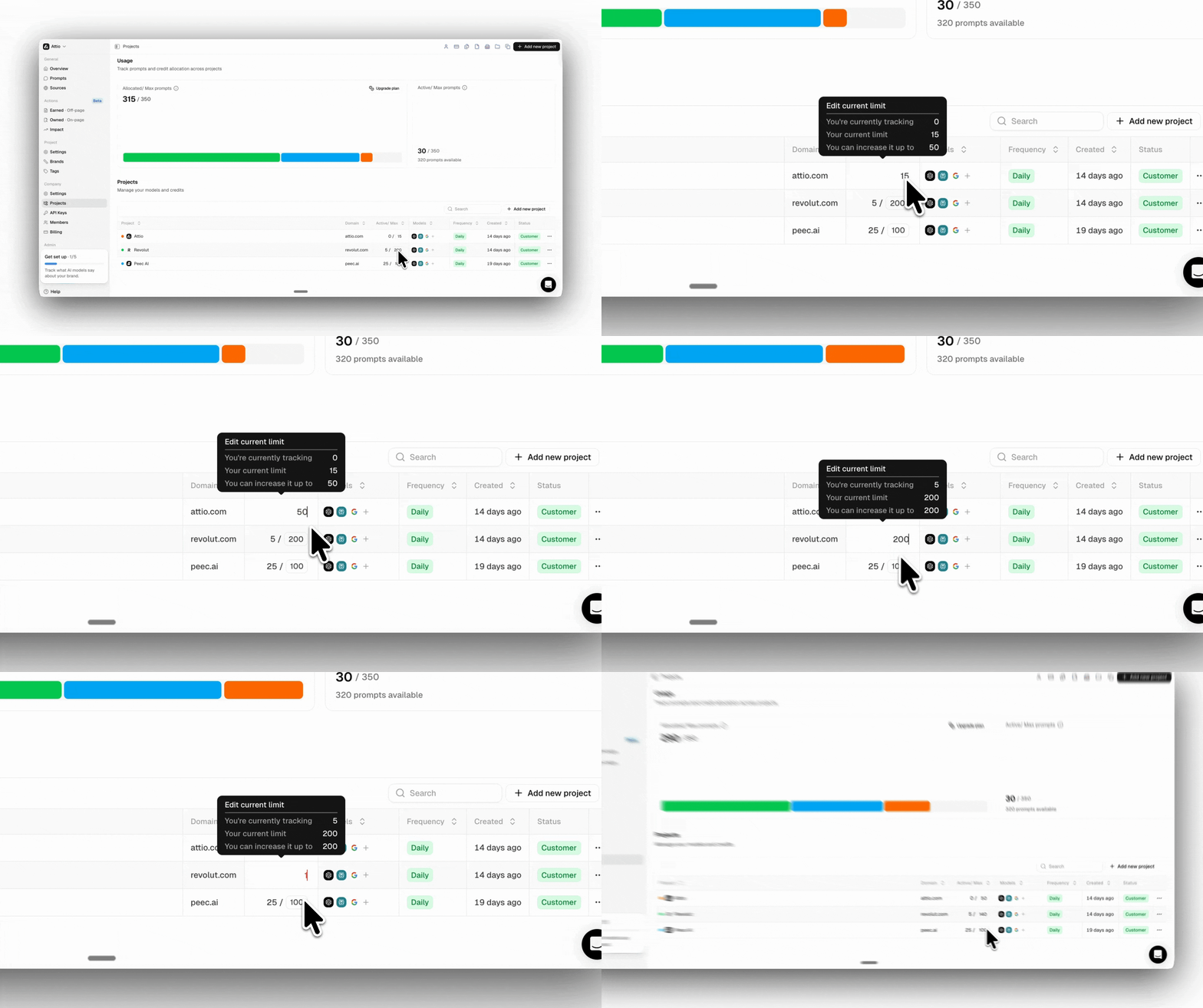
You can easily adjust how many prompts each project track should have in the Projects tab using the project table. To do this:- Navigate to the Projects tab and locate the project you want to adjust
- Click the box next to the active prompt (in the Active / Max Prompts column)
- Enter a new value that is allowed within your credit limit
- Click anywhere else on the screen to save the changes
Changing AI models
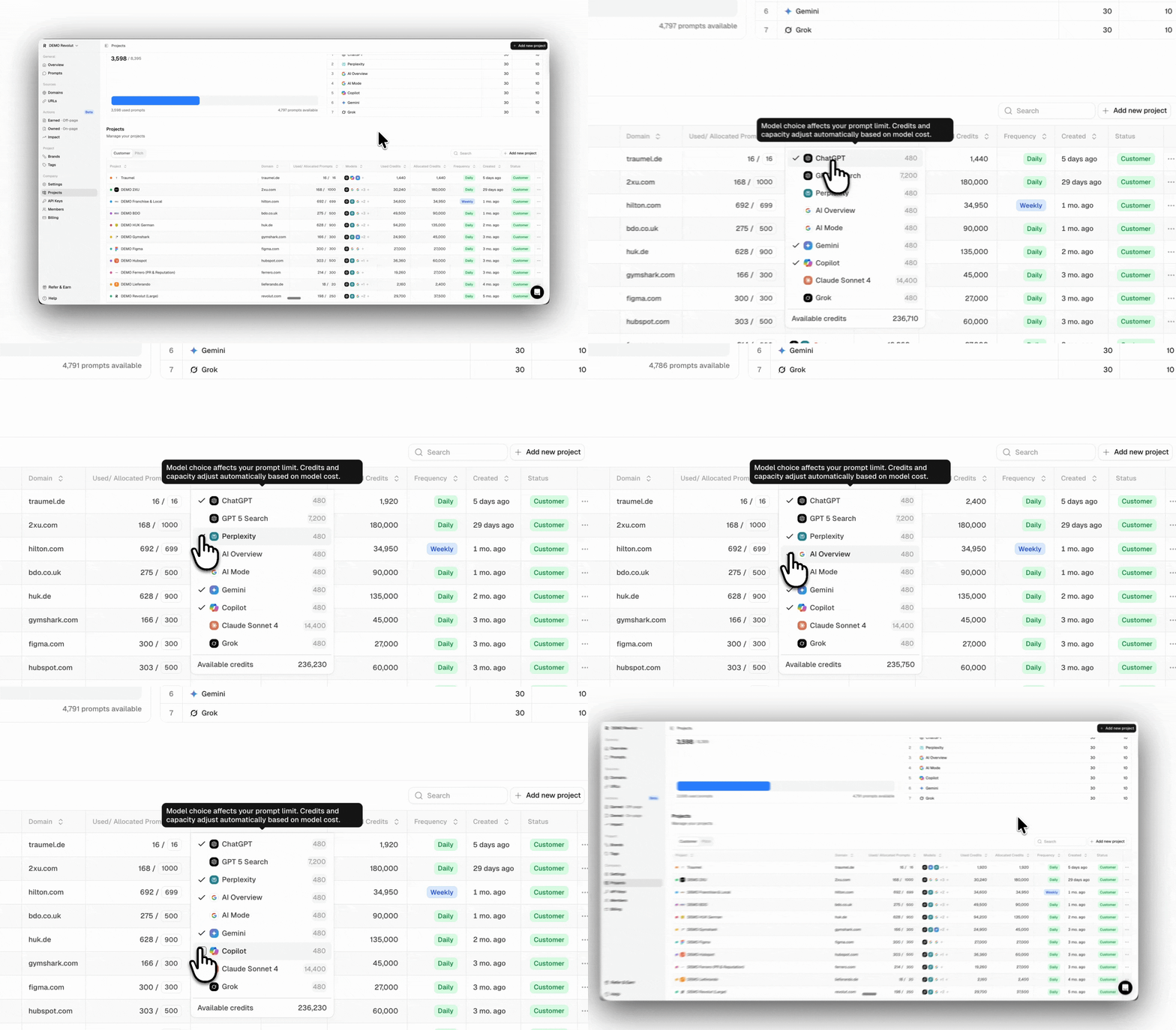
You can choose which AI models you want to track for a given project. You’re not locked into tracking all prompts across all models if that’s not something you need. If one client only requires tracking visibility on ChatGPT, while another needs comprehensive coverage across all three platforms, you can choose which AI models to run for each project. You can adjust this in the Projects table as well:- Navigate to the Projects tab in the sidebar
- Find the project you want to update
- Select the Models box in the project to open up the selector modal
- Switch models or turn off the ones you don’t need
- Click Update
Converting pitches to customer projects
If you have a pitch project that you would like to start tracking on a daily basis for one of your clients, you can easily convert it into a customer project in a few simple clicks. To convert the pitch project:- Navigate to the Projects tab in the side panel
- At the top-left of the table, click on Pitch
- Locate the project you wish to convert
- Click on the three dots at the far right of the table
- Click on Convert to customer
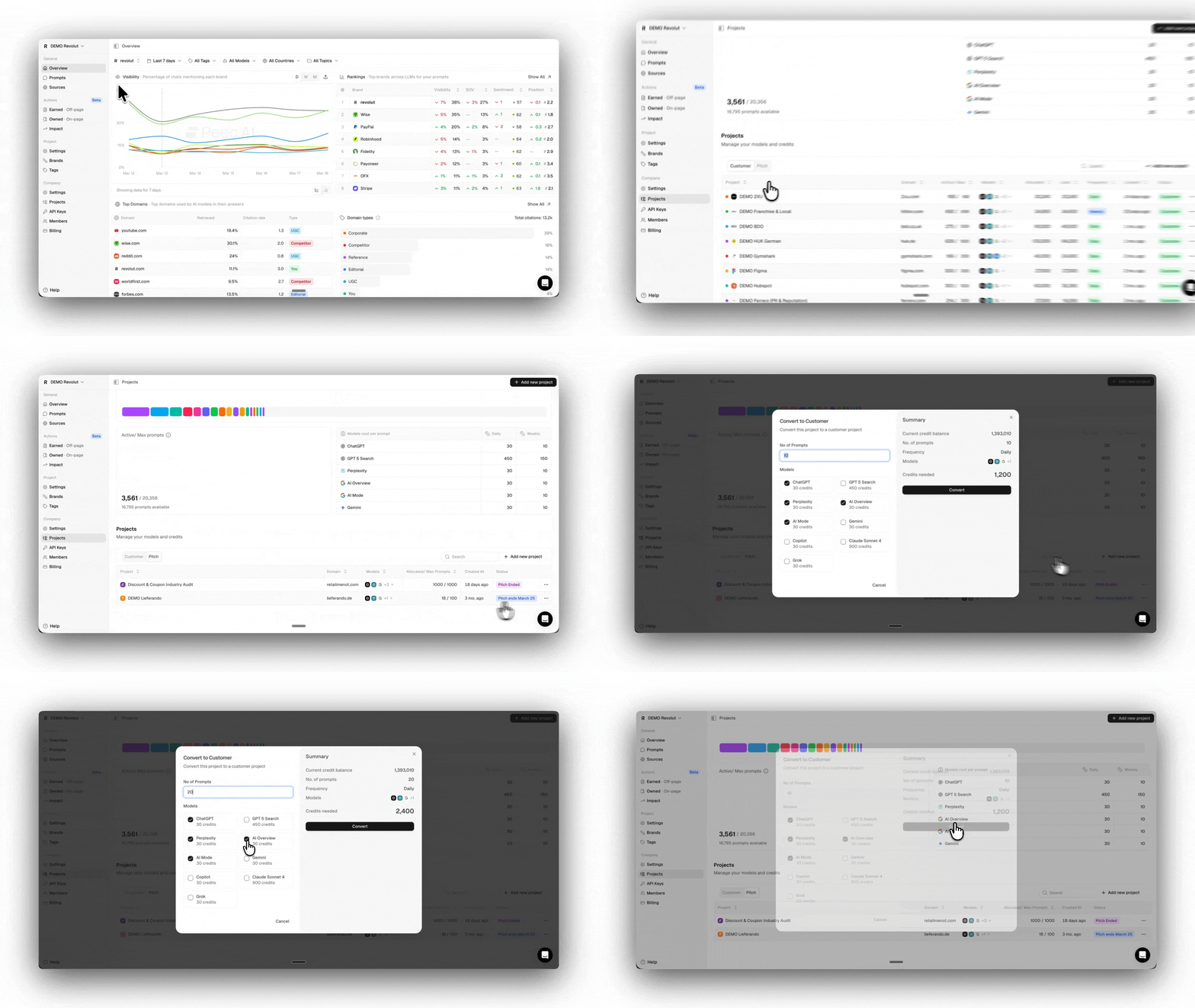
Download chats
If you are looking to download a full data set of all chats that have been generated so far for your project, you can also do this in the Projects tab. To download the chats:- Navigate to the Projects tab in the side panel
- Click on the three dots at the far right
- Click on Export Chats
- From there, a model will open, and you can click on Generate Export
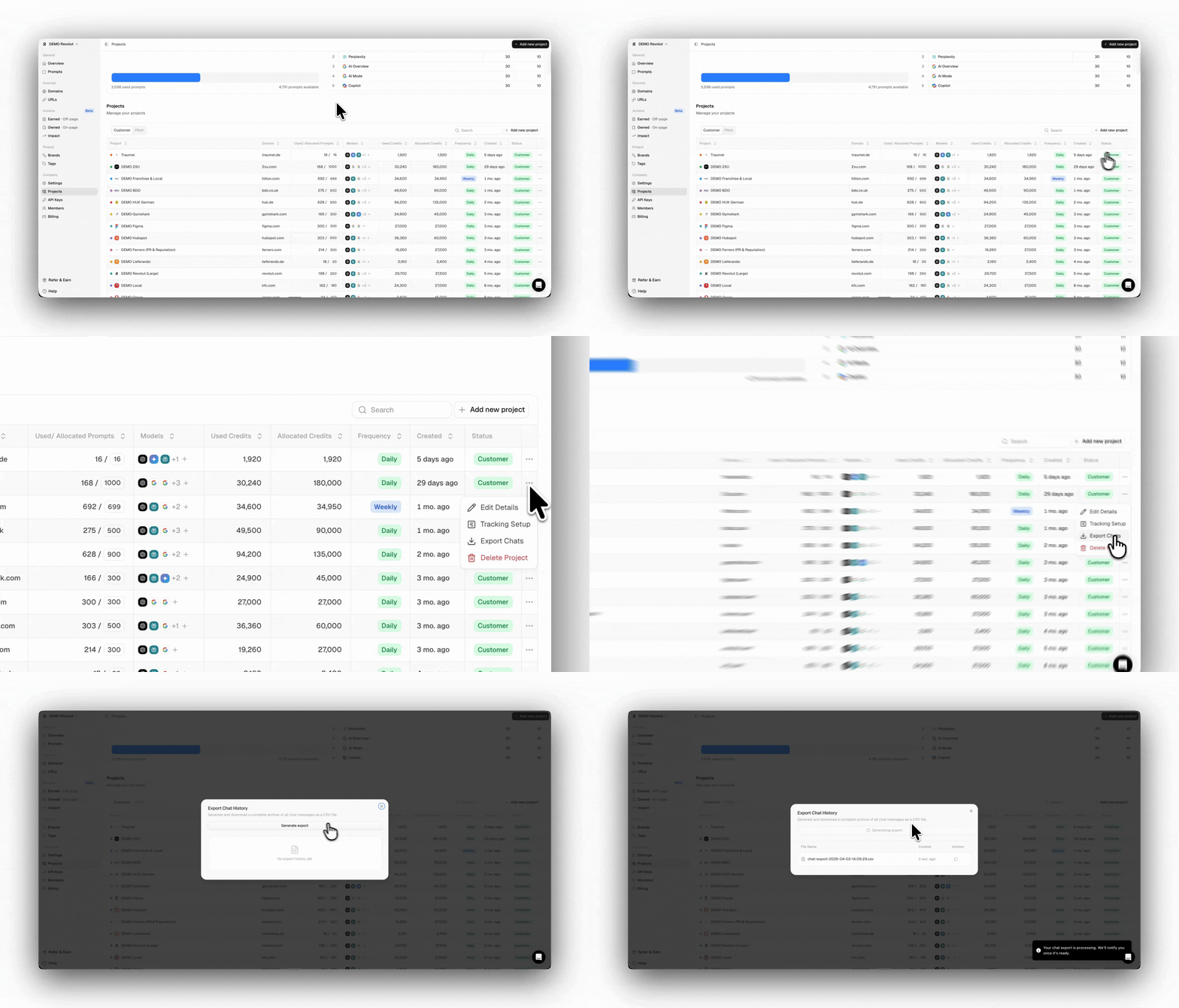
Pausing your project
You can pause a client project when you no longer need to track it continuously, but still want to keep it. You can still review the data and resume it later. Pausing a project stops all prompts within it, meaning that the project will not collect any data until it is resumed. Any data that would have been collected during the pause cannot be recovered, so be sure before pausing a project. Once the project is resumed, prompts will resume running, and new data will appear. The allocated credits will no longer count toward your limit and can be reassigned to other projects. When you resume, you will need to re-allocate credits. You can pause a project by:- Clicking on the three dots for the project you wish to pause
- Click on Pause Project and confirm your choice
- Click once again on the three dots
- Click on Resume Project
- Make sure you have the required prompts available, and click on Resume
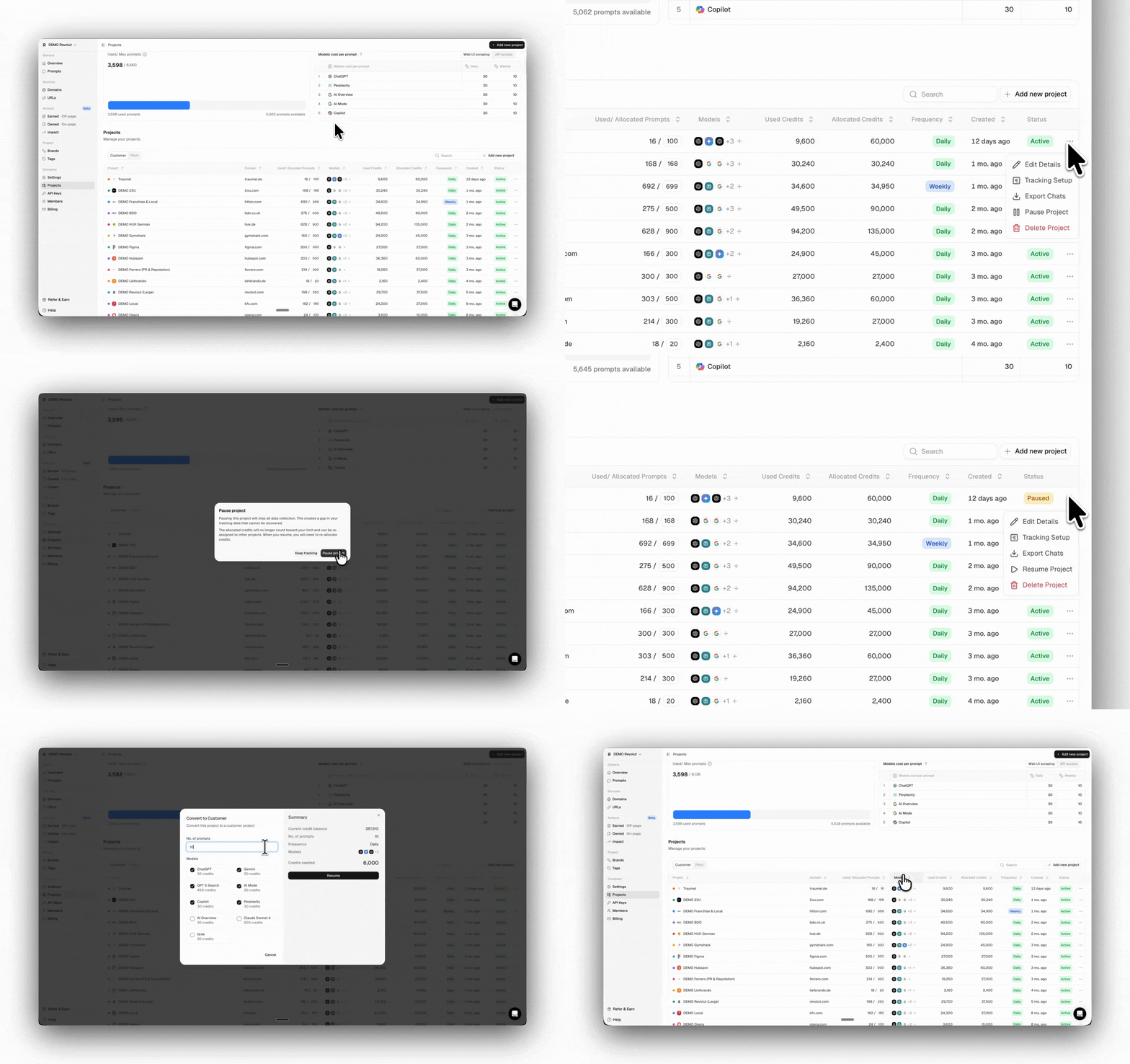
Monitoring credit usage and allocation
Regularly checking your credit usage helps you stay ahead of capacity limits and make the most of your plan. What to check:- Total allocation vs. available capacity: Check your Projects tab to see whether you’re approaching your credit limit or have room for more customer projects, AI models, or prompts.
- Per-project allocation: Check whether each client receives sufficient tracking to deliver meaningful insights and identify those that are underutilizing their allocated prompts.
- A client engagement is ending
- A high-priority client needs expanded coverage
- You onboard a new client
How to upgrade your plan
As your agency grows or clients’ needs change, you can adjust your total credit capacity by upgrading or downgrading your plan. Moving between tiers is straightforward and gives you immediate access to your new credit allocation and project slots. You can easily upgrade your plan via the Billings page:- Navigate to the Billings page in the side panel.
- Select the plan you want to upgrade to.
- Complete the checkout flow.
How to downgrade your plan
Contact support@peec.ai to find the best solution for downgrading your plan.Note: Upgrades are always prorated by day. This means you only pay for the days you’re in the new subscription tier.Downgrades happen at the end of your current billing cycle.