> ## Documentation Index
> Fetch the complete documentation index at: https://docs.peec.ai/llms.txt
> Use this file to discover all available pages before exploring further.
# Setup Guide
> Step-by-step instructions for connecting the Peec AI MCP Server to Claude, Cursor, and other AI tools. Stuck? Email support@peec.ai.
## Server URL
All platforms use the same URL:
```text theme={null}
https://api.peec.ai/mcp
```
## Authentication options
The server accepts two auth methods. Pick based on your client.
* **OAuth 2.0** (default for most clients). The first connection redirects you to Peec AI to sign in and approve access. Your session persists across conversations. Use for Claude Desktop, Claude Web, Cursor, VS Code, Windsurf, and any other client that walks through an OAuth consent screen.
* **Personal Access Token (PAT).** A long-lived bearer token tied to your Peec user. Use for clients that don't support OAuth, headless setups, CI, or when you want to keep the token in your own secrets manager.
### Create a Personal Access Token
Sign in to [app.peec.ai](https://app.peec.ai) and go to **API Keys** in the sidebar.
In the **Personal Access Tokens** section click **Create token**. Give it a name (e.g. `Claude Desktop`, `Cursor laptop`) and pick an expiration: **Never**, **30 days**, **60 days**, or **90 days**.
Copy the token immediately. It's shown only once. Treat it like a password — anyone with it can act as you in Peec via MCP.
Tokens act on your user, so every call respects the same project access and organization-owner checks as your dashboard session. The **Last Used** column on the API Keys page updates each time the token is used, so you can spot tokens you can safely revoke. Revoke a token any time from the same page; clients using it lose access immediately.
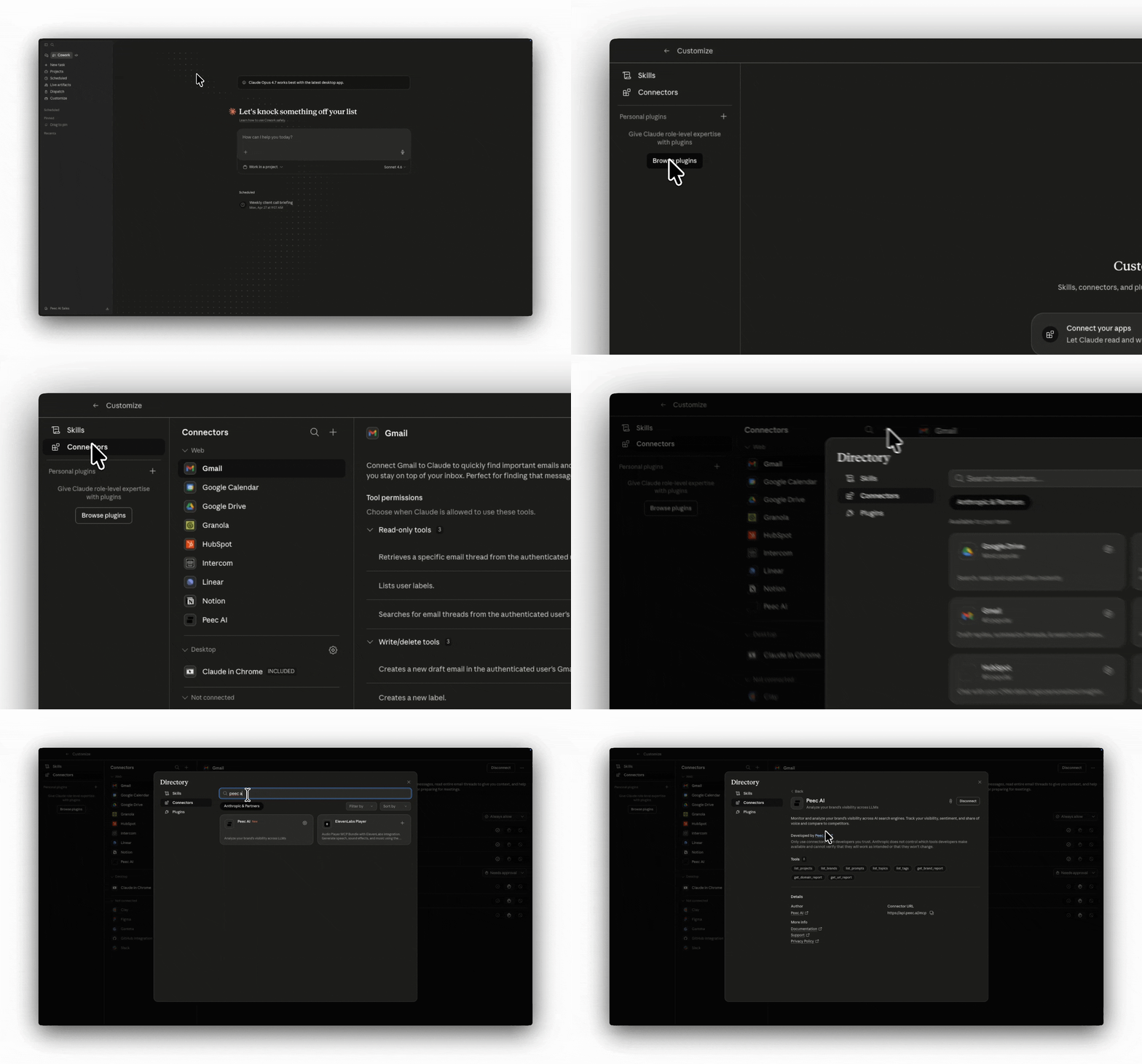
## Claude Desktop and Web (claude.ai)
Open Claude Desktop and go to **Settings** or \*\*Customize \*\*(gear icon), then **Connectors**.
Search for and click on the **Peec AI** connector and install it
Click **Connect**. You'll be redirected to Peec AI to sign in. Once authorized, return to the Claude Desktop.
Please note that only workspace Admins in Claude can add the connector. If you are not able to, you might want to check with your admin
 ## Claude Code (CLI)
OAuth (default):
```bash theme={null}
claude mcp add peec-ai --transport http https://api.peec.ai/mcp
```
Claude Code will prompt you to authorize when you first use a Peec AI tool.
With a Personal Access Token:
```bash theme={null}
claude mcp add peec-ai --transport http https://api.peec.ai/mcp \
--header "Authorization: Bearer YOUR_PEEC_PAT"
```
## Cursor
Open **Cursor Settings**, then go to **Tools & Integrations**, then **MCP**.
Click **Add Custom MCP** and enter the server URL:
```text theme={null}
https://api.peec.ai/mcp
```
Select **Streamable HTTP** as the transport type. To use a PAT instead of OAuth, add an `Authorization: Bearer YOUR_PEEC_PAT` header on the connection.
Without a PAT, you'll be prompted to sign in via Peec AI when you first use the server.
## VS Code (GitHub Copilot)
Add a `.vscode/mcp.json` file to your workspace (or open the user-level config via the **MCP: Open User Configuration** command):
```json theme={null}
{
"servers": {
"peec-ai": {
"type": "http",
"url": "https://api.peec.ai/mcp"
}
}
}
```
To authenticate with a Personal Access Token instead of OAuth, add a header:
```json theme={null}
{
"servers": {
"peec-ai": {
"type": "http",
"url": "https://api.peec.ai/mcp",
"headers": {
"Authorization": "Bearer YOUR_PEEC_PAT"
}
}
}
}
```
## Windsurf
Open **Windsurf Settings**, then go to **MCP**.
Click **Add Server** and enter the server URL:
```text theme={null}
https://api.peec.ai/mcp
```
You'll be prompted to sign in via Peec AI when you first use the server.
## Other platforms
The Peec AI MCP Server uses Streamable HTTP transport and works with any AI tool that supports the MCP standard. Use the server URL `https://api.peec.ai/mcp` and configure your tool's MCP settings accordingly. If the client doesn't support OAuth, attach a Personal Access Token as an `Authorization: Bearer ` header.
## Verify your connection
After setup, try asking your AI assistant:
> *"List my Peec AI projects"*
You should see a list of projects your account has access to. If that works, you're all set. From here:
* Run a built-in [prompt](/mcp/prompts) (slash command) for a ready-made analysis like the weekly visibility pulse or competitor radar.
* Or browse the [use cases](/mcp/use-cases) for free-form question ideas.
## Troubleshooting
**"Authorization failed" or "Unauthorized"**
* Check that you signed in with the correct Peec AI account
* Try removing and re-adding the integration
* Clear your browser cookies for `api.peec.ai` and try again
* Using a PAT? Confirm the token isn't expired or revoked in **API Keys → Personal Access Tokens**, and that the `Authorization: Bearer ...` header is being sent.
**"No projects found"**
* Make sure your account has access to at least one project in the [Peec AI dashboard](https://app.peec.ai)
**Connection timeout**
* Check your internet connection
* Make sure the URL is exactly `https://api.peec.ai/mcp`
**Need help?** Email us at [support@peec.ai](mailto:support@peec.ai).
## Claude Code (CLI)
OAuth (default):
```bash theme={null}
claude mcp add peec-ai --transport http https://api.peec.ai/mcp
```
Claude Code will prompt you to authorize when you first use a Peec AI tool.
With a Personal Access Token:
```bash theme={null}
claude mcp add peec-ai --transport http https://api.peec.ai/mcp \
--header "Authorization: Bearer YOUR_PEEC_PAT"
```
## Cursor
Open **Cursor Settings**, then go to **Tools & Integrations**, then **MCP**.
Click **Add Custom MCP** and enter the server URL:
```text theme={null}
https://api.peec.ai/mcp
```
Select **Streamable HTTP** as the transport type. To use a PAT instead of OAuth, add an `Authorization: Bearer YOUR_PEEC_PAT` header on the connection.
Without a PAT, you'll be prompted to sign in via Peec AI when you first use the server.
## VS Code (GitHub Copilot)
Add a `.vscode/mcp.json` file to your workspace (or open the user-level config via the **MCP: Open User Configuration** command):
```json theme={null}
{
"servers": {
"peec-ai": {
"type": "http",
"url": "https://api.peec.ai/mcp"
}
}
}
```
To authenticate with a Personal Access Token instead of OAuth, add a header:
```json theme={null}
{
"servers": {
"peec-ai": {
"type": "http",
"url": "https://api.peec.ai/mcp",
"headers": {
"Authorization": "Bearer YOUR_PEEC_PAT"
}
}
}
}
```
## Windsurf
Open **Windsurf Settings**, then go to **MCP**.
Click **Add Server** and enter the server URL:
```text theme={null}
https://api.peec.ai/mcp
```
You'll be prompted to sign in via Peec AI when you first use the server.
## Other platforms
The Peec AI MCP Server uses Streamable HTTP transport and works with any AI tool that supports the MCP standard. Use the server URL `https://api.peec.ai/mcp` and configure your tool's MCP settings accordingly. If the client doesn't support OAuth, attach a Personal Access Token as an `Authorization: Bearer ` header.
## Verify your connection
After setup, try asking your AI assistant:
> *"List my Peec AI projects"*
You should see a list of projects your account has access to. If that works, you're all set. From here:
* Run a built-in [prompt](/mcp/prompts) (slash command) for a ready-made analysis like the weekly visibility pulse or competitor radar.
* Or browse the [use cases](/mcp/use-cases) for free-form question ideas.
## Troubleshooting
**"Authorization failed" or "Unauthorized"**
* Check that you signed in with the correct Peec AI account
* Try removing and re-adding the integration
* Clear your browser cookies for `api.peec.ai` and try again
* Using a PAT? Confirm the token isn't expired or revoked in **API Keys → Personal Access Tokens**, and that the `Authorization: Bearer ...` header is being sent.
**"No projects found"**
* Make sure your account has access to at least one project in the [Peec AI dashboard](https://app.peec.ai)
**Connection timeout**
* Check your internet connection
* Make sure the URL is exactly `https://api.peec.ai/mcp`
**Need help?** Email us at [support@peec.ai](mailto:support@peec.ai).