> ## Documentation Index
> Fetch the complete documentation index at: https://docs.peec.ai/llms.txt
> Use this file to discover all available pages before exploring further.
# Domains
## Domain overview
.png?fit=max&auto=format&n=lqSqnLuXOfq79bF-&q=85&s=76237a7588060edee314ff909e6eb2f7) In the **Domains** page, you’ll see:
* **Source Retrieval by Domain graph:** Shows trends over time for the top 5 domains. Hover over the chart to see which domain each line represents and track how source retrieval changes over your selected timeframe.
* **Sources Type chart:** Displays the number of citations by domain category (Editorial, Corporate, UGC, etc.). This helps you understand which types of sources dominate your industry and where to focus your optimization efforts.
* **Domain movers graph: L**ists domains sorted by number of retrievals. You can toggle through different views:
* **Top:** Domains with the highest number of retrievals in the selected timeframe
* New: Domains retrieved for the first time in the selected timeframe
* **Trending:** Domains showing the fastest growth in retrieval activity
* **Losing:** Domains showing the largest decline in retrieval activity
* **Domain Table:** Displays all domains that have contributed to generating answers to your prompts, sorted by retrieval rate (from highest to lowest).
## Domain table
The domain table shows:
* **Source:** The domain name of the website.
* **Domain Type:** Shows “You” for your domains, “Competitor” for tracked competitor domains, or automatic classification (Editorial, Corporate, UGC, Reference, Institutional, Other).
* Click on **All Domain Types** to narrow your analysis to any of the domain types. You can select just one or multiple.
* **Retrieved:** Percentage of chats where a domain appeared as a source.
* **Retrieval Rate:** Average of how many times a domain’s URLs were retrieved per chat.
* **Citation Rate**: Average number of times the domain was explicitly cited when used (in your selected time period).
* **Gap Analysis toggle:** Content gaps and opportunities based on the **Gap Score** column.
**Gap Analysis:** Higher scores indicate bigger opportunities — sources that appear frequently and mention lots of competitors represent your best targets.
## Domain types
**Domain Type** provides a high-level categorization of the entire domain or website. This helps you understand the general nature of the source at a glance.
| **Class** | **Description** |
| :---------------- | :---------------------------------------------------------------- |
| **CORPORATE** | Official company websites and corporate pages |
| **EDITORIAL** | News sites, blogs, online magazines, and other publications |
| **INSTITUTIONAL** | Government, educational, and non-profit organization websites |
| **UGC** | User-Generated Content from social media, forums, and communities |
| **REFERENCE** | Encyclopedias, documentation, and other reference materials |
| **COMPETITOR** | Websites and content from direct competitors |
| **OTHER** | Miscellaneous or uncategorized sources |
### Changing domain classification
Peec automatically classifies every domain and URL it tracks as shown above. But your taxonomy might not match ours. A domain we label "Editorial" might be a key partner to you. With custom classification, you can now apply your own labels.
You can override this at any time:
1. Find the domain in the **Domain table.**
2. Click the classification label on that row (e.g., Reference, Editorial, etc.).
3. A search-first picker opens, search existing types (including any custom ones you've created), or create a new one inline.
4. The override saves immediately and appears everywhere the source appears.
In the **Domains** page, you’ll see:
* **Source Retrieval by Domain graph:** Shows trends over time for the top 5 domains. Hover over the chart to see which domain each line represents and track how source retrieval changes over your selected timeframe.
* **Sources Type chart:** Displays the number of citations by domain category (Editorial, Corporate, UGC, etc.). This helps you understand which types of sources dominate your industry and where to focus your optimization efforts.
* **Domain movers graph: L**ists domains sorted by number of retrievals. You can toggle through different views:
* **Top:** Domains with the highest number of retrievals in the selected timeframe
* New: Domains retrieved for the first time in the selected timeframe
* **Trending:** Domains showing the fastest growth in retrieval activity
* **Losing:** Domains showing the largest decline in retrieval activity
* **Domain Table:** Displays all domains that have contributed to generating answers to your prompts, sorted by retrieval rate (from highest to lowest).
## Domain table
The domain table shows:
* **Source:** The domain name of the website.
* **Domain Type:** Shows “You” for your domains, “Competitor” for tracked competitor domains, or automatic classification (Editorial, Corporate, UGC, Reference, Institutional, Other).
* Click on **All Domain Types** to narrow your analysis to any of the domain types. You can select just one or multiple.
* **Retrieved:** Percentage of chats where a domain appeared as a source.
* **Retrieval Rate:** Average of how many times a domain’s URLs were retrieved per chat.
* **Citation Rate**: Average number of times the domain was explicitly cited when used (in your selected time period).
* **Gap Analysis toggle:** Content gaps and opportunities based on the **Gap Score** column.
**Gap Analysis:** Higher scores indicate bigger opportunities — sources that appear frequently and mention lots of competitors represent your best targets.
## Domain types
**Domain Type** provides a high-level categorization of the entire domain or website. This helps you understand the general nature of the source at a glance.
| **Class** | **Description** |
| :---------------- | :---------------------------------------------------------------- |
| **CORPORATE** | Official company websites and corporate pages |
| **EDITORIAL** | News sites, blogs, online magazines, and other publications |
| **INSTITUTIONAL** | Government, educational, and non-profit organization websites |
| **UGC** | User-Generated Content from social media, forums, and communities |
| **REFERENCE** | Encyclopedias, documentation, and other reference materials |
| **COMPETITOR** | Websites and content from direct competitors |
| **OTHER** | Miscellaneous or uncategorized sources |
### Changing domain classification
Peec automatically classifies every domain and URL it tracks as shown above. But your taxonomy might not match ours. A domain we label "Editorial" might be a key partner to you. With custom classification, you can now apply your own labels.
You can override this at any time:
1. Find the domain in the **Domain table.**
2. Click the classification label on that row (e.g., Reference, Editorial, etc.).
3. A search-first picker opens, search existing types (including any custom ones you've created), or create a new one inline.
4. The override saves immediately and appears everywhere the source appears.
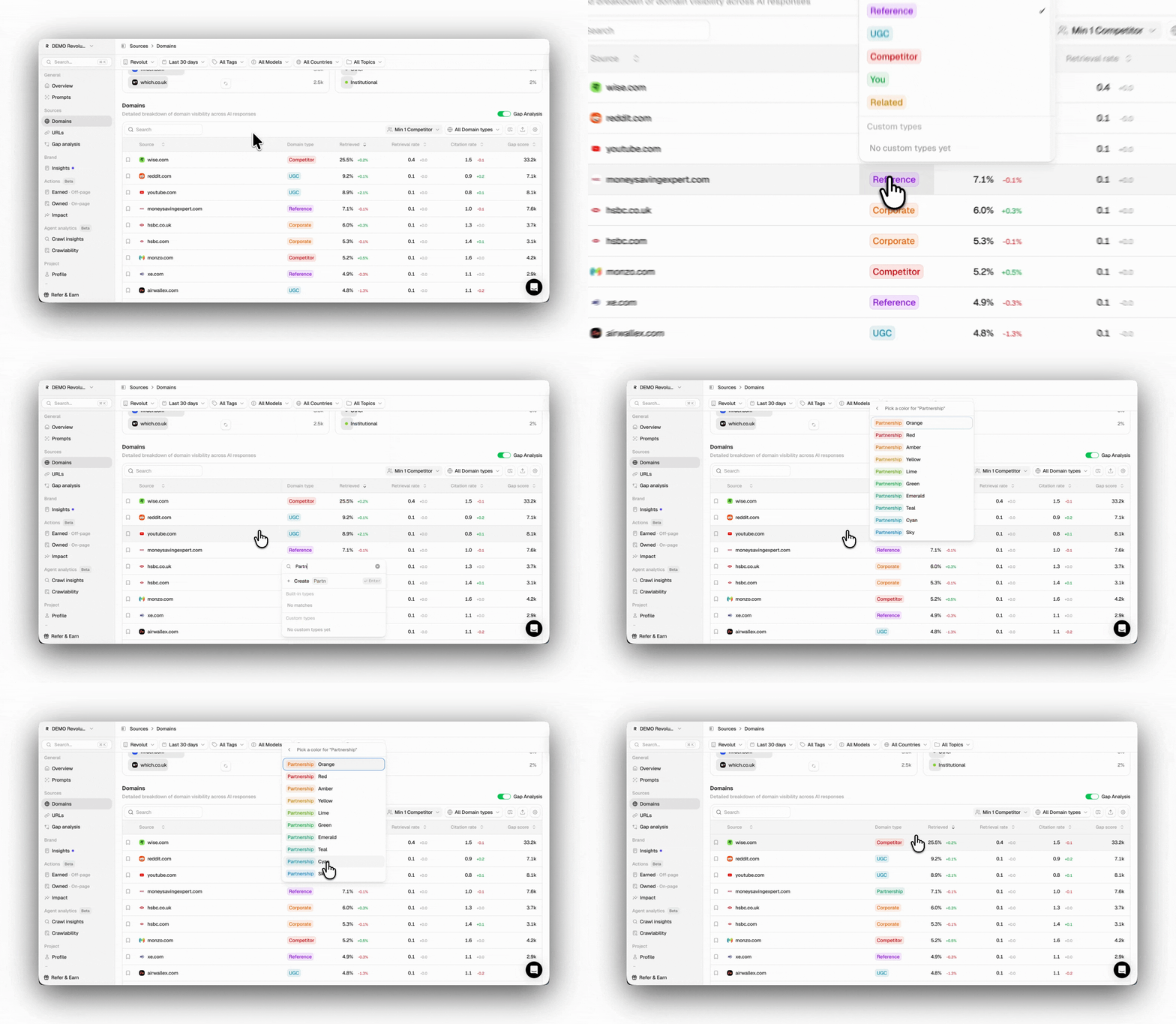 Overridden rows are visually marked so you can always tell what's been manually set versus auto-detected. You can reset any override back to the original automatic classification at any time.
## Domain metrics
In the domain table, you will see key metrics such as **Retrieved**, **Retrieval Rate**, and **Citation Rate** metrics. They all give you an idea of how relevant a source is for LLMs, but differ in their influence.
### Retrieved
Retrieved measures the percentage of chats in which one or more URLs from a specific domain appeared in the AI’s answer as a source. This metric indicates whether your or your competitors’ content is being picked up by AI models, demonstrating your domain’s reach even when not explicitly cited.
Retrieved is calculated over your selected timespan as:
`Retrieved (Domains) = (Chats with at least one domain URL retrieved / Total chats) × 100`
For example:
* If AI models used any URL from your domain as a source in 40 of 100 chats, then the retrieved percentage would be 40% (40 ÷ 100 × 100 = 40%).
This means that your domain appeared as a source in 40% of all chats, regardless of how many times it was cited in the AI responses.
### Retrieval rate
The Retrieval rate measures, on average, how many times a URL from a specific domain is retrieved per chat. Values above 1.0 mean the AI is pulling multiple pages from that domain in a single conversation. This metric reveals depth of reliance; not just whether your domain shows up, but how heavily the AI leans on it.
A brand with a high retrieval rate is deeply embedded in AI responses, not just occasionally present.
Note: A single chat can retrieve multiple URLs from the same domain.
Retrieval rate is calculated over your selected timespan as:
`Retrieval Rate = Number of unique URLs retrieved from a domain / total chats`
For example:
* Across the same 100 chats, your domain URLs were retrieved 80 times as a source, yielding a **retrieval rate of 0.8** (80/100).
This means that in chats where your domain was used as a source, the AI pulled an average of 0.8 different pages (URLs) from it. Indicating reliance, not just a one-off mention.
### **Citation rate**
Citation Rate measures the average number of times a specific source is explicitly cited within AI responses. This metric indicates how often AI models find your content relevant enough to reference multiple times. Multiple citations in a single response indicate that AI models consider your content highly relevant and trustworthy for the topic at hand.
The citation rate is calculated over your selected timespan as:
`Citation Rate (Domain) = Total citations of that Domain / Total responses where Domain was used as a source`
For example:
* If your domain was used as a source in 40 AI responses, and from those responses, the content from your domain was cited a total of 60 times, a citation rate of 1.5 (60 / 40)
Meaning that every time your domain is used as a source, the AI cites its content an average of 1.5 times per response, suggesting high content authority and consistency.
## Bookmarked domains
Within Peec, you can bookmark domains to build a personalized watchlist of sites you want to monitor closely, such as key competitors, your top owned assets, target publications for outreach, or any other domains that matter to you.
**Bookmarking a source is simple**: Every source row has a **bookmark icon i**n the left column. Clicking it adds the source to your watchlist under the tab **Bookmarked**.
Overridden rows are visually marked so you can always tell what's been manually set versus auto-detected. You can reset any override back to the original automatic classification at any time.
## Domain metrics
In the domain table, you will see key metrics such as **Retrieved**, **Retrieval Rate**, and **Citation Rate** metrics. They all give you an idea of how relevant a source is for LLMs, but differ in their influence.
### Retrieved
Retrieved measures the percentage of chats in which one or more URLs from a specific domain appeared in the AI’s answer as a source. This metric indicates whether your or your competitors’ content is being picked up by AI models, demonstrating your domain’s reach even when not explicitly cited.
Retrieved is calculated over your selected timespan as:
`Retrieved (Domains) = (Chats with at least one domain URL retrieved / Total chats) × 100`
For example:
* If AI models used any URL from your domain as a source in 40 of 100 chats, then the retrieved percentage would be 40% (40 ÷ 100 × 100 = 40%).
This means that your domain appeared as a source in 40% of all chats, regardless of how many times it was cited in the AI responses.
### Retrieval rate
The Retrieval rate measures, on average, how many times a URL from a specific domain is retrieved per chat. Values above 1.0 mean the AI is pulling multiple pages from that domain in a single conversation. This metric reveals depth of reliance; not just whether your domain shows up, but how heavily the AI leans on it.
A brand with a high retrieval rate is deeply embedded in AI responses, not just occasionally present.
Note: A single chat can retrieve multiple URLs from the same domain.
Retrieval rate is calculated over your selected timespan as:
`Retrieval Rate = Number of unique URLs retrieved from a domain / total chats`
For example:
* Across the same 100 chats, your domain URLs were retrieved 80 times as a source, yielding a **retrieval rate of 0.8** (80/100).
This means that in chats where your domain was used as a source, the AI pulled an average of 0.8 different pages (URLs) from it. Indicating reliance, not just a one-off mention.
### **Citation rate**
Citation Rate measures the average number of times a specific source is explicitly cited within AI responses. This metric indicates how often AI models find your content relevant enough to reference multiple times. Multiple citations in a single response indicate that AI models consider your content highly relevant and trustworthy for the topic at hand.
The citation rate is calculated over your selected timespan as:
`Citation Rate (Domain) = Total citations of that Domain / Total responses where Domain was used as a source`
For example:
* If your domain was used as a source in 40 AI responses, and from those responses, the content from your domain was cited a total of 60 times, a citation rate of 1.5 (60 / 40)
Meaning that every time your domain is used as a source, the AI cites its content an average of 1.5 times per response, suggesting high content authority and consistency.
## Bookmarked domains
Within Peec, you can bookmark domains to build a personalized watchlist of sites you want to monitor closely, such as key competitors, your top owned assets, target publications for outreach, or any other domains that matter to you.
**Bookmarking a source is simple**: Every source row has a **bookmark icon i**n the left column. Clicking it adds the source to your watchlist under the tab **Bookmarked**.
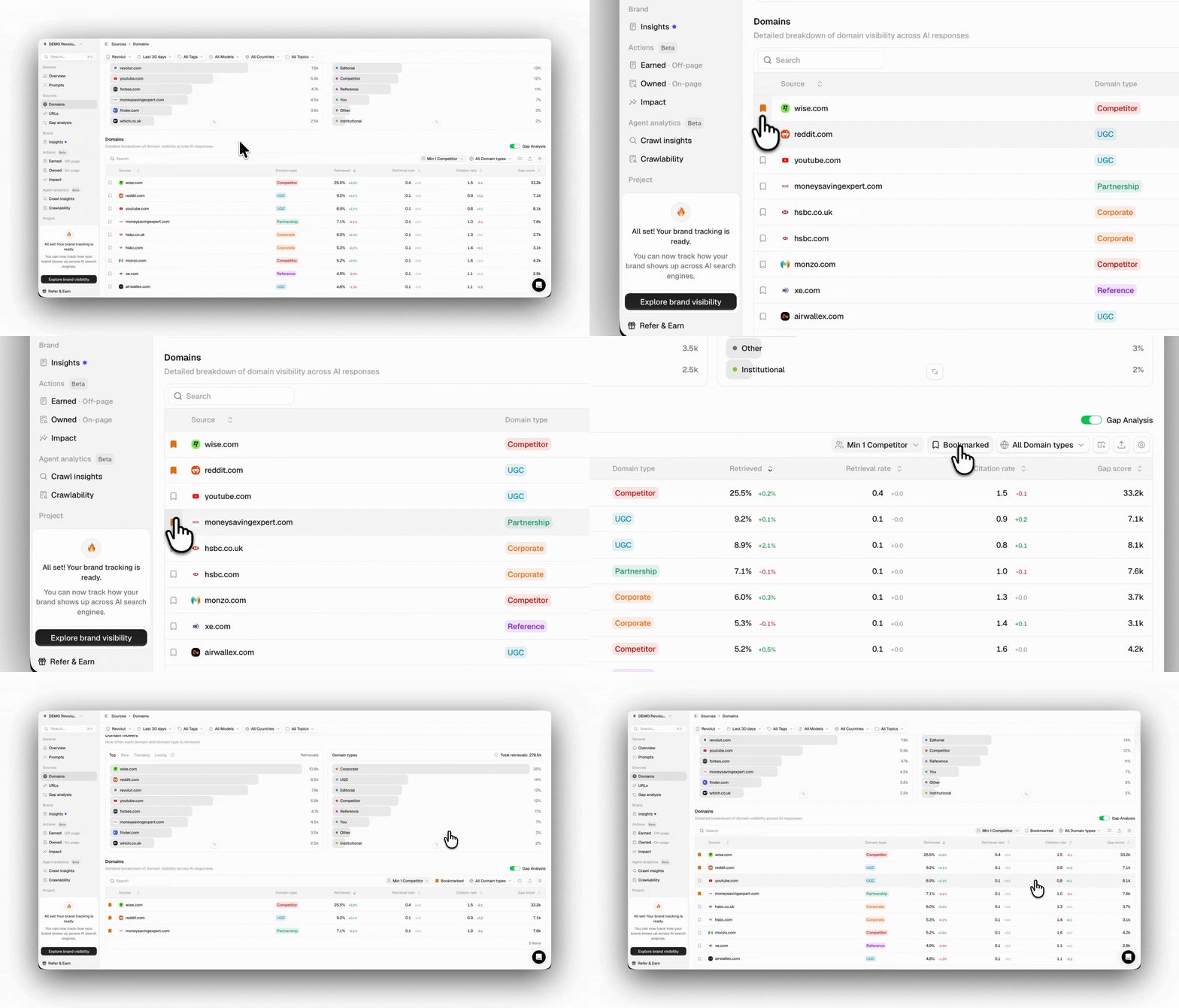 You can then quickly toggle between your bookmarked and non-bookmarked sources. Great for running a quick check on your priority sources without having to scroll through everything.