> ## Documentation Index
> Fetch the complete documentation index at: https://docs.peec.ai/llms.txt
> Use this file to discover all available pages before exploring further.
# Connecting your data
Crawl Insights works on your server logs. Connect a data source and Peec identifies the AI bot visits in your traffic, categorizes each bot, and keeps your dashboard up to date.
There are eight ways to connect. Pick the one that matches your hosting setup:
| Integration | How it connects |
| :------------------------------------ | :-------------------------------------------------- |
| [AWS CloudFront](#aws-cloudfront) | CloudFormation stack deployed into your AWS account |
| [Google Cloud CDN](#google-cloud-cdn) | One-line setup script for your GCP project |
| [Cloudflare](#cloudflare) | Worker deployed to your zone |
| [Vercel](#vercel) | Log Drain on your Vercel team |
| [WordPress](#wordpress) | Plugin installed on your site |
| [Akamai](#akamai) | DataStream created via the Akamai API |
| [Generic webhook](#generic-webhook) | Your system posts logs to a Peec endpoint |
| [File upload](#file-upload) | Upload a CSV or CLF log file directly |
You can manage or disconnect your data source at any time from **Settings**.
Every integration filters your traffic the same way: only requests from known AI crawlers and agents are stored, all other traffic is discarded at ingest. See the [supported AI bots](#supported-ai-bots) below.
## AWS CloudFront
Peec deploys a CloudFormation stack into your AWS account. The stack receives your CloudFront access logs, filters them for AI crawler traffic, and forwards the matching entries to Peec automatically.
You'll need permission to deploy CloudFormation stacks, plus your CloudFront Distribution ID(s).
1. Select your **AWS region** in Peec.
2. Click **Open in AWS Console**. A CloudFormation quick-create page opens with all parameters pre-filled.
3. Deploy the stack. This usually takes 1 to 2 minutes.
4. Back in Peec, enter your **CloudFront Distribution ID(s)**, comma-separated if you have several.
The status changes to **Stack deployed** once the integration is live.
## Google Cloud CDN
Peec generates a one-line setup command pre-filled with your credentials. Running it configures a Cloud Logging sink and deploys a Cloud Function that filters your CDN access logs and forwards AI crawler traffic to Peec.
You'll need a GCP project with permission to enable APIs, create Pub/Sub topics, and deploy Cloud Functions, plus your Cloud Load Balancer URL map name.
1. Select your **GCP region** in Peec.
2. Copy the generated setup command.
3. Run it in your terminal or **Google Cloud Shell**. The script asks for your **Cloud Load Balancer URL map name**, then completes setup and activates the integration.
The status moves from **Awaiting activation** to **Integration active**.
## Cloudflare
Peec uses your Cloudflare API token to deploy a Worker to your selected zone. The Worker captures AI crawler requests in real time and forwards them to Peec without affecting your site's response times.
### Create an API token
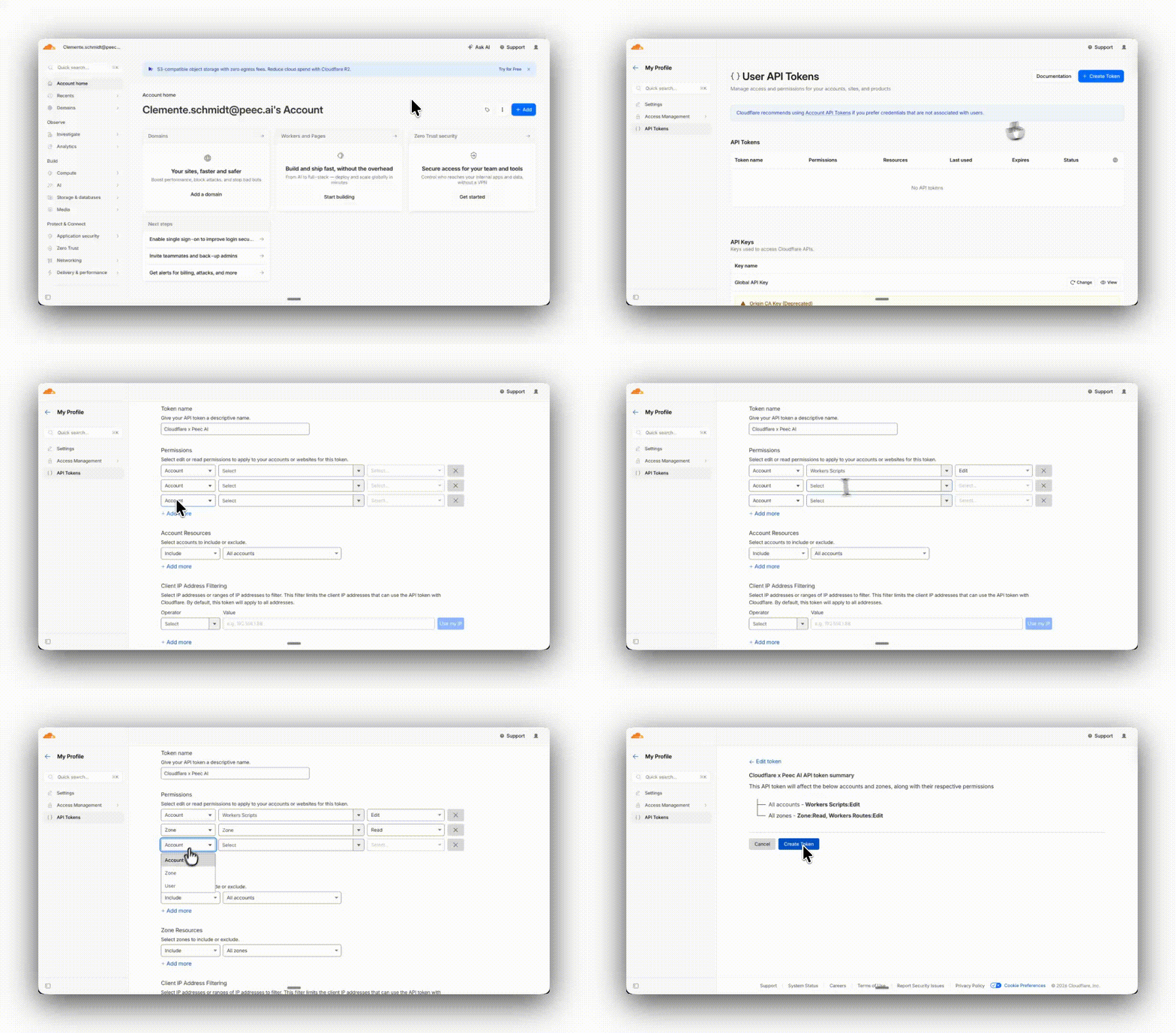 1. Navigate to your profile in Cloudflare
2. Select **API Tokens** from the left-hand panel
3. Select **Create Token** and click on **Get Started** (the first option)
4. Give your token a name
5. Add three permission fields by clicking on **Add More** under the permission section. From there, you need to add in order:
1. **Workers Scripts > Edit**
2. **Zone > Zone > Read**
3. **Zone > Workers Routes > Edit**
6. No need to edit anything else, you can continue to the summary and click on **Create Token**
### Deploy the Worker
1. Enter your **Cloudflare API token** in Peec and press **Enter** to validate it.
2. Select your **Zone** from the dropdown.
3. Click **Deploy worker**.
The Worker goes live immediately across all requests to that zone.
### Cloudflare Worker limits
When you connect through Cloudflare Workers, every request your site receives, including from AI bots, counts toward your Workers request quota.
All Cloudflare accounts include the Workers Free plan by default, which allows up to 100,000 requests per day and resets daily. This limit applies regardless of your Cloudflare site plan, because Business and Enterprise site plans are separate from the Workers plan. On high-traffic sites, this limit can be reached quickly.
Once the limit is hit, two things can happen:
* **Peec stops receiving log data:** For the remainder of that day, Peec stops receiving any log data coming from your domain, resulting in gaps in your Crawl Insights.
* **Errors to visitors:** Cloudflare routes requests to Fail closed by default, meaning that once the limit is hit, Cloudflare serves a [1027 error page](https://developers.cloudflare.com/workers/platform/limits/#daily-requests) instead of your site.
What to do in such situations:
* **Enable minimum safeguard:** In your Cloudflare dashboard, set the route mode to **Fail Open**. Your site will remain accessible to visitors, though data collection will still be paused for the rest of the day.
* **Upgrade to a Workers Paid plan:** The Workers Paid plan removes the daily request cap, ensuring uninterrupted log ingestion and continuous data in Crawl Insights. You can find Cloudflare's [pricing page](https://developers.cloudflare.com/workers/platform/pricing/) for details.
## Vercel
Peec uses a Vercel **Account API token** (a personal access token, not an AI Gateway key) to create a Log Drain on your selected team. Vercel streams access logs directly to Peec, where they're filtered for AI crawler traffic.
You'll need an API token generated from your Vercel account, with access to the team you want to monitor.
1. In Vercel, go to **Account Settings → Tokens** ([vercel.com/account/tokens](http://vercel.com/account/tokens)) and create a token. (Do not use a key from **AI Gateway → API Keys**, that's a separate credential for calling AI models and won't work here.)
2. Enter your Vercel API token in Peec and press Enter to validate it.
3. Select your **Team** from the dropdown.
4. Select the **Projects** to monitor, or choose **All projects**.
5. Click **Deploy drain**.
## WordPress
Peec generates a WordPress plugin pre-configured with your organization's credentials. Once activated, the plugin logs AI crawler visits to Peec without impacting your site's performance. It skips internal WordPress paths (health checks, admin AJAX, cron) and correctly identifies visitor IPs when your site sits behind a proxy or CDN.
1. Click **Download Plugin** in Peec. A `.zip` file is generated with your credentials embedded.
2. In your WordPress admin panel, go to **Plugins → Add New → Upload Plugin**.
3. Upload the `.zip` file and click **Activate Plugin**.
The plugin confirms the connection on activation, and the status changes to **Plugin active**.
## Akamai
Peec uses your Akamai EdgeGrid credentials to create a DataStream via the Akamai API. The stream delivers access logs to Peec every 30 seconds.
You'll need the EdgeGrid credentials from your `.edgerc` file: **Host**, **Client Token**, **Client Secret**, and **Access Token**.
1. Enter your Akamai EdgeGrid credentials in Peec and press **Enter** to validate them.
2. Select a **Group** from the dropdown.
3. Select the **Properties** to monitor.
4. Click **Deploy DataStream**.
## Generic webhook
If your provider isn't listed above, you can send logs to Peec yourself. Peec gives you a webhook endpoint and an API key. You configure your own system, whether that's a CDN, log shipper, reverse proxy, or custom application, to POST access log batches to the endpoint. Peec validates each payload and keeps the AI crawler traffic.
1. Click **Generate API Key** in Peec.
2. Click **Reserve API Key** to lock it in.
3. Copy the **Webhook URL** and **required headers**.
4. Configure your system to POST log batches to the endpoint.
5. Click **Confirm webhook deployment**.
Regenerating the API key invalidates the previous one. Update your sender configuration before switching keys.
### Endpoint
```text theme={null}
POST https://api.peec.ai/agent-analytics/generic-access-log
```
### Required headers
```text theme={null}
Authorization: Bearer
x-org-id:
Content-Type: application/json
```
### Request body
Send an array of log objects, with a maximum of **500 entries per request**.
```json theme={null}
[
{
"timestamp": "2024-01-15T12:34:56Z",
"request_method": "GET",
"request_url": "https://example.com/blog/my-post",
"response_status": 200,
"user_agent": "GPTBot/2.0",
"country_code": "US",
"client_ip": "1.2.3.4",
"referer": "https://some-site.com/"
}
]
```
| Field | Type | Required | Notes |
| :---------------- | :----- | :------- | :--------------------------------- |
| `timestamp` | string | Yes | ISO 8601 datetime |
| `request_method` | string | Yes | e.g. `GET`, `POST` |
| `request_url` | string | Yes | Full URL including scheme and host |
| `response_status` | number | Yes | HTTP status code (100–599) |
| `user_agent` | string | Yes | Raw User-Agent header value |
| `country_code` | string | No | ISO 3166-1 alpha-2 |
| `client_ip` | string | No | IPv4 or IPv6 |
| `referer` | string | No | Referring URL |
## File upload
To analyze a specific time period, or if you'd rather not set up a live connection, upload a log file directly from your browser. Peec parses the file, finds the AI crawler entries, and imports them into your dashboard.
1. Drag and drop your log file (`.csv` or CLF `.log`), or browse for it.
2. For CLF files, enter your **domain** (e.g. `example.com`) when prompted, so Peec can build full URLs from the request paths.
3. Peec processes the file and shows how many AI bot requests it found.
4. Click **Upload** to import them. A progress bar tracks completion.
### CSV format
Column order doesn't matter:
| Column | Required | Notes |
| :---------------- | :------- | :-------------------- |
| `timestamp` | Yes | ISO 8601 datetime |
| `request_method` | Yes | e.g. `GET` |
| `response_status` | Yes | HTTP status code |
| `user_agent` | Yes | Raw User-Agent string |
| `request_url` | Yes | Full URL |
| `client_ip` | No | IPv4 or IPv6 |
| `referer` | No | Referring URL |
| `country_code` | No | ISO 3166-1 alpha-2 |
Example:
```text theme={null}
timestamp,request_method,response_status,user_agent,request_url
2024-01-15T12:34:56Z,GET,200,GPTBot/2.0,https://example.com/blog/post
```
### Common Log Format (Apache / Nginx)
```text theme={null}
1.2.3.4 - - [15/Jan/2024:12:34:56 +0000] "GET /path HTTP/1.1" 200 1234 "https://referer" "GPTBot/2.0"
```
## Supported AI bots
All integrations detect and track the following AI crawlers and agents. Only requests whose User-Agent matches one of these are stored.
| Bot | Description |
| :--------------------------- | :------------------------------------ |
| GPTBot | OpenAI web crawler |
| ChatGPT-User | ChatGPT browsing requests |
| OAI-SearchBot | OpenAI search crawler |
| ClaudeBot | Anthropic web crawler |
| Claude-Web | Anthropic browsing (legacy) |
| Claude-SearchBot | Anthropic search crawler |
| Claude-User | Claude browsing requests |
| Claude-Code | Claude Code agent |
| anthropic-ai | Anthropic general crawler |
| PerplexityBot | Perplexity AI crawler |
| Perplexity-User | Perplexity browsing requests |
| Google-Extended | Google AI training crawler |
| Google-CloudVertexBot | Google Vertex AI crawler |
| Google-Agent | Google AI agent |
| GoogleAgent-Mariner | Google Mariner agent |
| Gemini-Deep-Research | Google Gemini deep research agent |
| Meta-ExternalAgent | Meta AI agent |
| meta-webindexer | Meta web indexer |
| meta-externalfetcher | Meta external fetcher |
| FacebookBot | Meta/Facebook crawler |
| Applebot | Apple web crawler |
| Applebot-Extended | Apple AI training crawler |
| Amazonbot | Amazon web crawler |
| Amzn-SearchBot | Amazon search AI crawler |
| AzureAI-SearchBot | Microsoft Azure AI crawler |
| GrokBot | xAI Grok crawler |
| Grok-DeepSearch | xAI Grok deep search agent |
| xAI-Grok | xAI Grok agent |
| DeepSeekBot | DeepSeek AI crawler |
| MistralAI-User | Mistral AI browsing requests |
| cohere-ai | Cohere AI crawler |
| cohere-training-data-crawler | Cohere training data crawler |
| PanguBot | Huawei PanGu crawler |
| Ai2Bot | Allen Institute for AI crawler |
| Ai2Bot-Dolma | Allen Institute Dolma dataset crawler |
| CCBot | Common Crawl bot |
| Bytespider | ByteDance/TikTok crawler |
| Diffbot | Diffbot AI crawler |
| DuckAssistBot | DuckDuckGo AI assistant crawler |
| YouBot | You.com crawler |
| quillbot.com | QuillBot AI crawler |
| Webzio-Extended | Webz.io extended crawler |
| omgili | Webhose/Omgili crawler |
| omgilibot | Webhose/Omgili bot |
| Timpibot | Timpi search crawler |
| NovaAct | Amazon Nova Act agent |
| Manus-User | Manus AI agent |
| MyCentralAIScraperBot | MyCentral AI scraper |
1. Navigate to your profile in Cloudflare
2. Select **API Tokens** from the left-hand panel
3. Select **Create Token** and click on **Get Started** (the first option)
4. Give your token a name
5. Add three permission fields by clicking on **Add More** under the permission section. From there, you need to add in order:
1. **Workers Scripts > Edit**
2. **Zone > Zone > Read**
3. **Zone > Workers Routes > Edit**
6. No need to edit anything else, you can continue to the summary and click on **Create Token**
### Deploy the Worker
1. Enter your **Cloudflare API token** in Peec and press **Enter** to validate it.
2. Select your **Zone** from the dropdown.
3. Click **Deploy worker**.
The Worker goes live immediately across all requests to that zone.
### Cloudflare Worker limits
When you connect through Cloudflare Workers, every request your site receives, including from AI bots, counts toward your Workers request quota.
All Cloudflare accounts include the Workers Free plan by default, which allows up to 100,000 requests per day and resets daily. This limit applies regardless of your Cloudflare site plan, because Business and Enterprise site plans are separate from the Workers plan. On high-traffic sites, this limit can be reached quickly.
Once the limit is hit, two things can happen:
* **Peec stops receiving log data:** For the remainder of that day, Peec stops receiving any log data coming from your domain, resulting in gaps in your Crawl Insights.
* **Errors to visitors:** Cloudflare routes requests to Fail closed by default, meaning that once the limit is hit, Cloudflare serves a [1027 error page](https://developers.cloudflare.com/workers/platform/limits/#daily-requests) instead of your site.
What to do in such situations:
* **Enable minimum safeguard:** In your Cloudflare dashboard, set the route mode to **Fail Open**. Your site will remain accessible to visitors, though data collection will still be paused for the rest of the day.
* **Upgrade to a Workers Paid plan:** The Workers Paid plan removes the daily request cap, ensuring uninterrupted log ingestion and continuous data in Crawl Insights. You can find Cloudflare's [pricing page](https://developers.cloudflare.com/workers/platform/pricing/) for details.
## Vercel
Peec uses a Vercel **Account API token** (a personal access token, not an AI Gateway key) to create a Log Drain on your selected team. Vercel streams access logs directly to Peec, where they're filtered for AI crawler traffic.
You'll need an API token generated from your Vercel account, with access to the team you want to monitor.
1. In Vercel, go to **Account Settings → Tokens** ([vercel.com/account/tokens](http://vercel.com/account/tokens)) and create a token. (Do not use a key from **AI Gateway → API Keys**, that's a separate credential for calling AI models and won't work here.)
2. Enter your Vercel API token in Peec and press Enter to validate it.
3. Select your **Team** from the dropdown.
4. Select the **Projects** to monitor, or choose **All projects**.
5. Click **Deploy drain**.
## WordPress
Peec generates a WordPress plugin pre-configured with your organization's credentials. Once activated, the plugin logs AI crawler visits to Peec without impacting your site's performance. It skips internal WordPress paths (health checks, admin AJAX, cron) and correctly identifies visitor IPs when your site sits behind a proxy or CDN.
1. Click **Download Plugin** in Peec. A `.zip` file is generated with your credentials embedded.
2. In your WordPress admin panel, go to **Plugins → Add New → Upload Plugin**.
3. Upload the `.zip` file and click **Activate Plugin**.
The plugin confirms the connection on activation, and the status changes to **Plugin active**.
## Akamai
Peec uses your Akamai EdgeGrid credentials to create a DataStream via the Akamai API. The stream delivers access logs to Peec every 30 seconds.
You'll need the EdgeGrid credentials from your `.edgerc` file: **Host**, **Client Token**, **Client Secret**, and **Access Token**.
1. Enter your Akamai EdgeGrid credentials in Peec and press **Enter** to validate them.
2. Select a **Group** from the dropdown.
3. Select the **Properties** to monitor.
4. Click **Deploy DataStream**.
## Generic webhook
If your provider isn't listed above, you can send logs to Peec yourself. Peec gives you a webhook endpoint and an API key. You configure your own system, whether that's a CDN, log shipper, reverse proxy, or custom application, to POST access log batches to the endpoint. Peec validates each payload and keeps the AI crawler traffic.
1. Click **Generate API Key** in Peec.
2. Click **Reserve API Key** to lock it in.
3. Copy the **Webhook URL** and **required headers**.
4. Configure your system to POST log batches to the endpoint.
5. Click **Confirm webhook deployment**.
Regenerating the API key invalidates the previous one. Update your sender configuration before switching keys.
### Endpoint
```text theme={null}
POST https://api.peec.ai/agent-analytics/generic-access-log
```
### Required headers
```text theme={null}
Authorization: Bearer
x-org-id:
Content-Type: application/json
```
### Request body
Send an array of log objects, with a maximum of **500 entries per request**.
```json theme={null}
[
{
"timestamp": "2024-01-15T12:34:56Z",
"request_method": "GET",
"request_url": "https://example.com/blog/my-post",
"response_status": 200,
"user_agent": "GPTBot/2.0",
"country_code": "US",
"client_ip": "1.2.3.4",
"referer": "https://some-site.com/"
}
]
```
| Field | Type | Required | Notes |
| :---------------- | :----- | :------- | :--------------------------------- |
| `timestamp` | string | Yes | ISO 8601 datetime |
| `request_method` | string | Yes | e.g. `GET`, `POST` |
| `request_url` | string | Yes | Full URL including scheme and host |
| `response_status` | number | Yes | HTTP status code (100–599) |
| `user_agent` | string | Yes | Raw User-Agent header value |
| `country_code` | string | No | ISO 3166-1 alpha-2 |
| `client_ip` | string | No | IPv4 or IPv6 |
| `referer` | string | No | Referring URL |
## File upload
To analyze a specific time period, or if you'd rather not set up a live connection, upload a log file directly from your browser. Peec parses the file, finds the AI crawler entries, and imports them into your dashboard.
1. Drag and drop your log file (`.csv` or CLF `.log`), or browse for it.
2. For CLF files, enter your **domain** (e.g. `example.com`) when prompted, so Peec can build full URLs from the request paths.
3. Peec processes the file and shows how many AI bot requests it found.
4. Click **Upload** to import them. A progress bar tracks completion.
### CSV format
Column order doesn't matter:
| Column | Required | Notes |
| :---------------- | :------- | :-------------------- |
| `timestamp` | Yes | ISO 8601 datetime |
| `request_method` | Yes | e.g. `GET` |
| `response_status` | Yes | HTTP status code |
| `user_agent` | Yes | Raw User-Agent string |
| `request_url` | Yes | Full URL |
| `client_ip` | No | IPv4 or IPv6 |
| `referer` | No | Referring URL |
| `country_code` | No | ISO 3166-1 alpha-2 |
Example:
```text theme={null}
timestamp,request_method,response_status,user_agent,request_url
2024-01-15T12:34:56Z,GET,200,GPTBot/2.0,https://example.com/blog/post
```
### Common Log Format (Apache / Nginx)
```text theme={null}
1.2.3.4 - - [15/Jan/2024:12:34:56 +0000] "GET /path HTTP/1.1" 200 1234 "https://referer" "GPTBot/2.0"
```
## Supported AI bots
All integrations detect and track the following AI crawlers and agents. Only requests whose User-Agent matches one of these are stored.
| Bot | Description |
| :--------------------------- | :------------------------------------ |
| GPTBot | OpenAI web crawler |
| ChatGPT-User | ChatGPT browsing requests |
| OAI-SearchBot | OpenAI search crawler |
| ClaudeBot | Anthropic web crawler |
| Claude-Web | Anthropic browsing (legacy) |
| Claude-SearchBot | Anthropic search crawler |
| Claude-User | Claude browsing requests |
| Claude-Code | Claude Code agent |
| anthropic-ai | Anthropic general crawler |
| PerplexityBot | Perplexity AI crawler |
| Perplexity-User | Perplexity browsing requests |
| Google-Extended | Google AI training crawler |
| Google-CloudVertexBot | Google Vertex AI crawler |
| Google-Agent | Google AI agent |
| GoogleAgent-Mariner | Google Mariner agent |
| Gemini-Deep-Research | Google Gemini deep research agent |
| Meta-ExternalAgent | Meta AI agent |
| meta-webindexer | Meta web indexer |
| meta-externalfetcher | Meta external fetcher |
| FacebookBot | Meta/Facebook crawler |
| Applebot | Apple web crawler |
| Applebot-Extended | Apple AI training crawler |
| Amazonbot | Amazon web crawler |
| Amzn-SearchBot | Amazon search AI crawler |
| AzureAI-SearchBot | Microsoft Azure AI crawler |
| GrokBot | xAI Grok crawler |
| Grok-DeepSearch | xAI Grok deep search agent |
| xAI-Grok | xAI Grok agent |
| DeepSeekBot | DeepSeek AI crawler |
| MistralAI-User | Mistral AI browsing requests |
| cohere-ai | Cohere AI crawler |
| cohere-training-data-crawler | Cohere training data crawler |
| PanguBot | Huawei PanGu crawler |
| Ai2Bot | Allen Institute for AI crawler |
| Ai2Bot-Dolma | Allen Institute Dolma dataset crawler |
| CCBot | Common Crawl bot |
| Bytespider | ByteDance/TikTok crawler |
| Diffbot | Diffbot AI crawler |
| DuckAssistBot | DuckDuckGo AI assistant crawler |
| YouBot | You.com crawler |
| quillbot.com | QuillBot AI crawler |
| Webzio-Extended | Webz.io extended crawler |
| omgili | Webhose/Omgili crawler |
| omgilibot | Webhose/Omgili bot |
| Timpibot | Timpi search crawler |
| NovaAct | Amazon Nova Act agent |
| Manus-User | Manus AI agent |
| MyCentralAIScraperBot | MyCentral AI scraper |