> ## Documentation Index
> Fetch the complete documentation index at: https://docs.peec.ai/llms.txt
> Use this file to discover all available pages before exploring further.
# Agent
> Explore your Peec data by asking questions in plain language and get answers with charts generated for you.
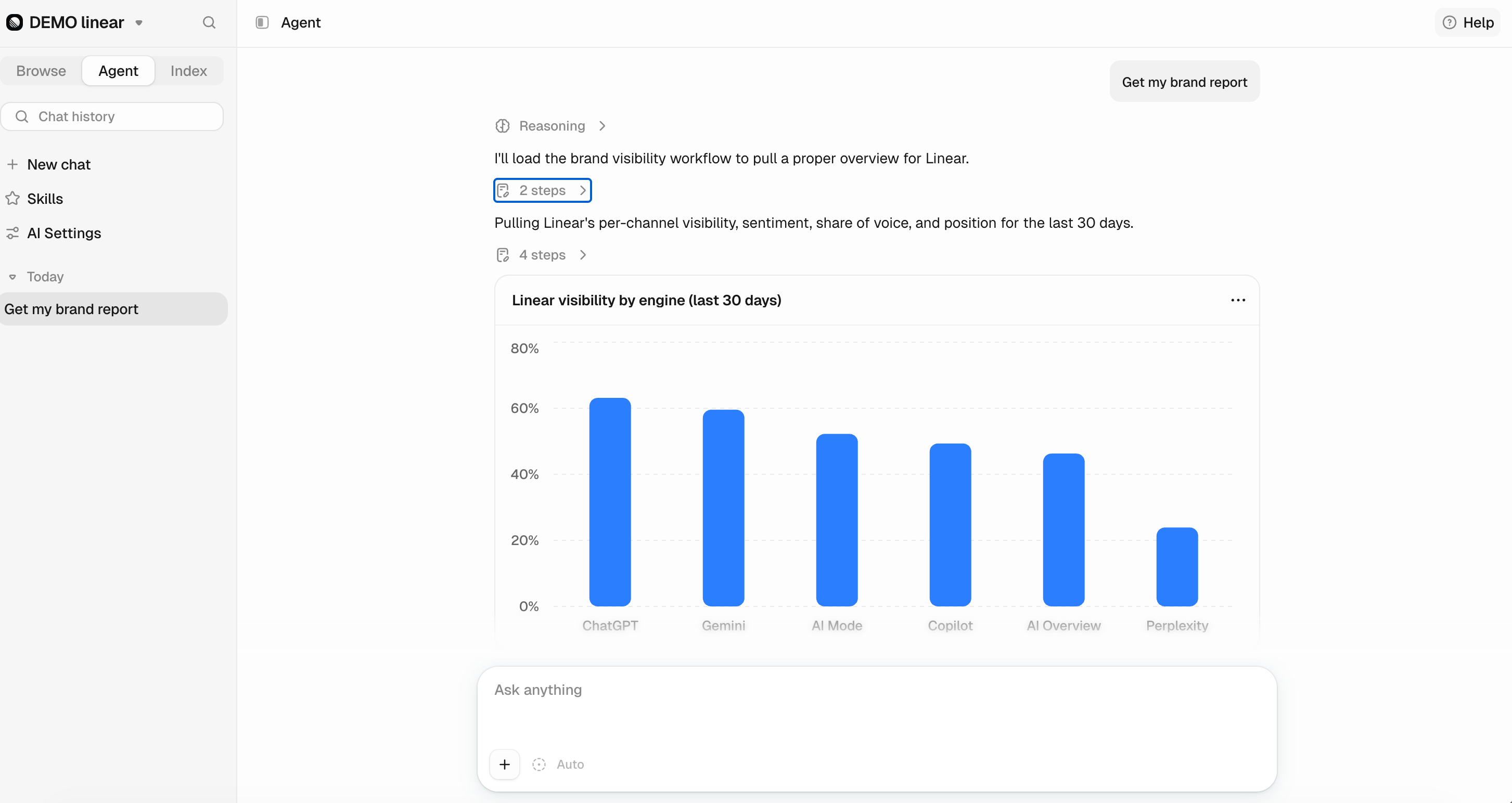
The Agent makes it easier to explore your Peec AI data without jumping between pages or stacking multiple filters. Ask a question in plain language, and it works through your tracked data to return the answer with a chart or list already built.
Agent only works with your own Peec data, so it isn't a general-purpose chatbot. It's also separate from **Agent Analytics**, which tracks AI crawler activity on your website, and **Chats**, which contains the raw AI responses generated from your tracked prompts.
## How to ask
Switch the sidebar to the **Agent** tab to open the panel next to whatever you're viewing. You can also start from where you are: click **Ask AI** on a chart, or press **⌘K** / **Ctrl+K** and hit **Tab** to turn your search into a question.
Type your question in plain language. There's no special syntax or commands to learn.
The Agent understands the context of the page you're viewing, including the selected brand, domain, prompt, date range, and filters. This means you can ask questions like **"Why did this drop?"** without having to explain what you're referring to.
Three shortcuts in the composer help you add context or start from something already available:
* `/` Opens the **Skills** catalog. Choose a skill to use it as the starting point for your conversation.
* `@` References a chart, metric, or table directly in your question.
* `+` Opens the same options in browse mode, starting with **Skills** and **Charts & metrics**.
**Skills** are ready-made analyses that answer common questions about your Peec data. Browse them as cards or in a list, search for the one you need, then pick one to start a conversation with that analysis. You can also create your own skills for analyses you run often.
Use the **arrow keys** to browse the options, **Enter** to select one, and **Esc** to dismiss.
An `@` reference hands the Agent that chart along with its data, so you don't need to describe which one you mean. The Agent can also see what's on your current page, so you can ask about what's on screen without adding a reference.
## How the Agent responds
The answer appears as the Agent works through your question, showing its progress, the steps it's taking, and the tools it's using along the way.
Results can appear in different formats depending on your question:
* **Charts:** Visualized from the data the Agent queried.
* **To-do lists:** Turn the answer into a list of next steps.
* **Multiple choice:** Lets you choose between options when the Agent needs more input to continue.
While the Agent is working, the send button becomes **Stop**. On the latest answer, use the controls beneath it to copy the response or retry the question.
Conversations started in the panel can be opened on the full-page view with **Open in Agent** when you need more space. Your sessions are saved, so you can return to them later.
## Managing approvals
The Agent can read and analyze your data without approval. Any action that makes a change, such as creating a brand, prompt, topic, or tag, is shown to you first and only happens once you click **Approve**.
There are two ways to reduce approval steps when you want to work faster:
* **Always allow**: On a given action, from the approval's options menu.
* **Auto-approve actions**: With the **Auto** toggle in the composer, or on the **Behavior** tab of **AI settings**, which stops it from asking each time.
Auto-approve applies to writes the Agent makes on your behalf. Leave it off if you'd rather see every change before it lands.
## Usage limits
Each organization has an Agent budget. The **Usage remaining** row at the top of the `+` menu shows how much is left, with daily, weekly, and monthly breakdowns. When you reach a limit, the composer tells you, and you can keep going through the Peec Model Context Protocol (MCP) server.
## Using the Agent outside Peec
The Agent uses the same tools as the **Peec MCP server**, so you can use or automate the same analyses outside the platform. Follow the [MCP documentation](/mcp/introduction) to set it up in Claude, Cursor, or any other MCP client.
 The Agent understands the context of the page you're viewing, including the selected brand, domain, prompt, date range, and filters. This means you can ask questions like **"Why did this drop?"** without having to explain what you're referring to.
Three shortcuts in the composer help you add context or start from something already available:
* `/` Opens the **Skills** catalog. Choose a skill to use it as the starting point for your conversation.
* `@` References a chart, metric, or table directly in your question.
* `+` Opens the same options in browse mode, starting with **Skills** and **Charts & metrics**.
The Agent understands the context of the page you're viewing, including the selected brand, domain, prompt, date range, and filters. This means you can ask questions like **"Why did this drop?"** without having to explain what you're referring to.
Three shortcuts in the composer help you add context or start from something already available:
* `/` Opens the **Skills** catalog. Choose a skill to use it as the starting point for your conversation.
* `@` References a chart, metric, or table directly in your question.
* `+` Opens the same options in browse mode, starting with **Skills** and **Charts & metrics**.