> ## Documentation Index
> Fetch the complete documentation index at: https://docs.peec.ai/llms.txt
> Use this file to discover all available pages before exploring further.
# Understanding credits
> How agencies can use credits to allocate prompts and models to their projects
[Watch "Pricing Update: More value for everyone." on YouTube](https://youtu.be/yzoc-MOhUUY)
Credits determine how many prompts and AI models you can track across your client projects. You can change the number of prompts and the models you want to track them on, but not credits. Instead, they are automatically assigned to the project based on the other two variables.
Our credit calculation formula:
**1 prompt x 1 model x 1 day = 1 credit**
**1 prompt x 1 model x 1 month (30 days) = 30 credits**
For our larger plans, such as Scale and Comprehensive, you can switch to weekly tracking for 1/3 of the credit use.
For example, tracking the prompt: **"What's the best CRM for small businesses?"** daily across three AI models (ChatGPT, Claude, and Perplexity) for a full month would require 90 credits:
1 prompt x 3 AI models x 30 days = 90 credits
## Managing your credits
### Usage overview
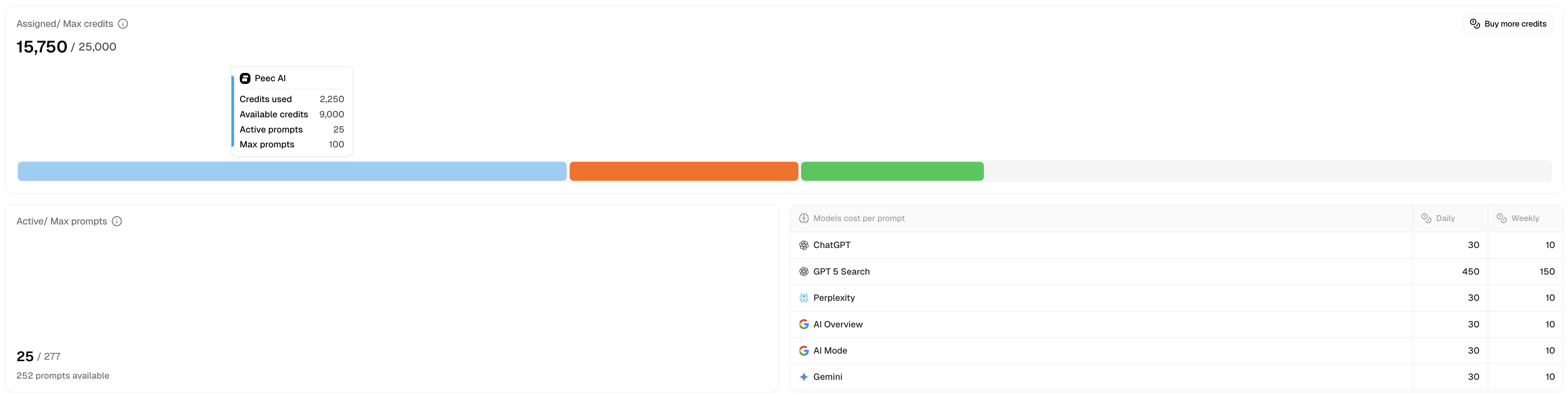
You can see how many credits are available and how many are currently assigned to active customer projects in the **Projects** tab under **Usage.**
**Usage** tells you:
* The total number of already assigned credits
* The total number of available credits for your subscription plan
* Colored breakdown of projects by the number of credits assigned to each
You can hover over each colored box to quickly see how many credits are being used and how many are assigned for each project. You can also always see this in the project table below.
Don’t worry about having to calculate how many credits you will need for each new project. We will automatically do this for you when you create a new one.
### Project table
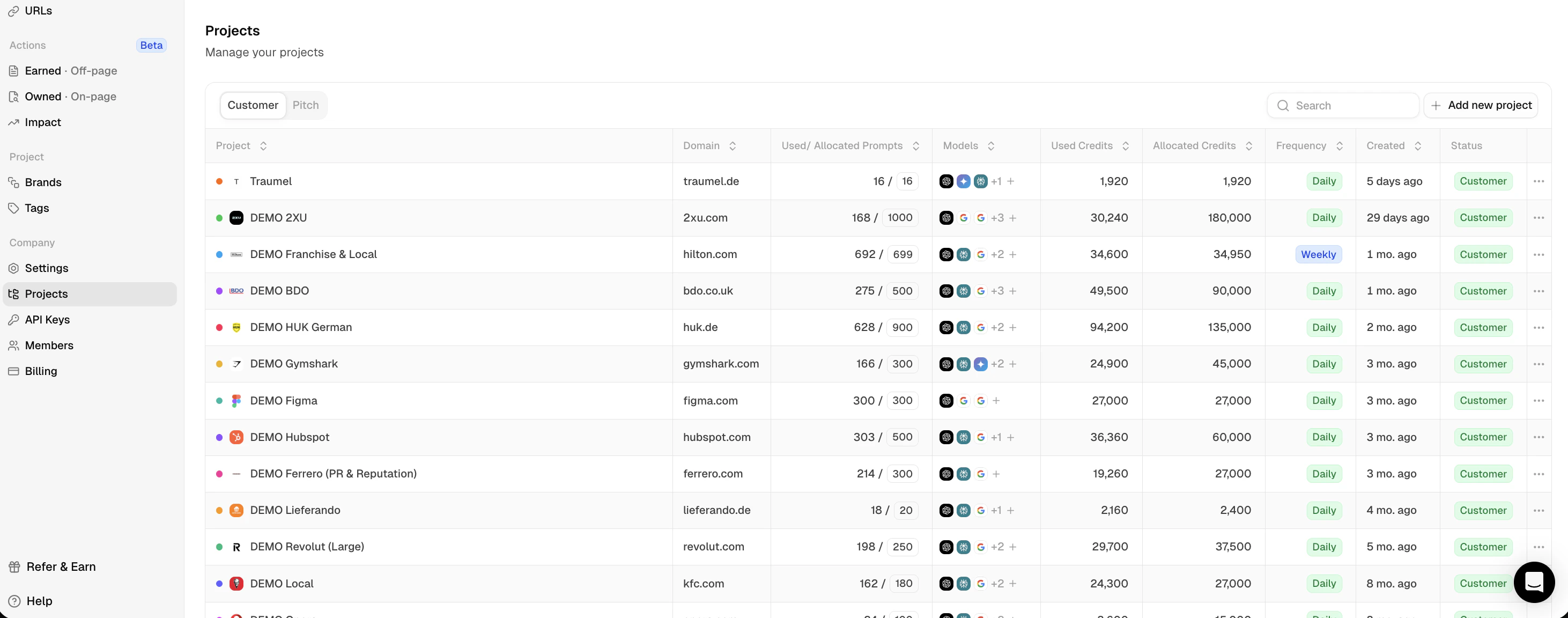
The project table gives you a quick overview of the current status of all the projects on your account, split between **Customer** and **Pitch.**
This is where you can manage the number of prompts and models each project should track. You can also delete a customer or a pitch project if it's no longer needed.
The projects table will show:
* The name of your project (this is the name used internally to identify the project you are working on)
* The domain being used for the project
* **Used** and **Allocated** prompts for each project
* All the models that are currently being tracked
* **Used** and **Allocated** credits based on the prompts and models being tracked per project
* The frequency at which the project runs (Daily means we run the prompts every 24 hours). For Scale and Comprehensive plans, this can be adjusted to Weekly)
* The date when the project was created
* The status of the project (**Customer, Pitch, Pitch Ended)**
* Setting options to update your brand details, changing tracking, or deleting the project
This view also applies to the Pitch project under the **Pitch tab**.
 ### Project table
The project table gives you a quick overview of the current status of all the projects on your account, split between **Customer** and **Pitch.**
This is where you can manage the number of prompts and models each project should track. You can also delete a customer or a pitch project if it's no longer needed.
### Project table
The project table gives you a quick overview of the current status of all the projects on your account, split between **Customer** and **Pitch.**
This is where you can manage the number of prompts and models each project should track. You can also delete a customer or a pitch project if it's no longer needed.
 The projects table will show:
* The name of your project (this is the name used internally to identify the project you are working on)
* The domain being used for the project
* **Used** and **Allocated** prompts for each project
* All the models that are currently being tracked
* **Used** and **Allocated** credits based on the prompts and models being tracked per project
* The frequency at which the project runs (Daily means we run the prompts every 24 hours). For Scale and Comprehensive plans, this can be adjusted to Weekly)
* The date when the project was created
* The status of the project (**Customer, Pitch, Pitch Ended)**
* Setting options to update your brand details, changing tracking, or deleting the project
The projects table will show:
* The name of your project (this is the name used internally to identify the project you are working on)
* The domain being used for the project
* **Used** and **Allocated** prompts for each project
* All the models that are currently being tracked
* **Used** and **Allocated** credits based on the prompts and models being tracked per project
* The frequency at which the project runs (Daily means we run the prompts every 24 hours). For Scale and Comprehensive plans, this can be adjusted to Weekly)
* The date when the project was created
* The status of the project (**Customer, Pitch, Pitch Ended)**
* Setting options to update your brand details, changing tracking, or deleting the project