> ## Documentation Index
> Fetch the complete documentation index at: https://docs.peec.ai/llms.txt
> Use this file to discover all available pages before exploring further.
# Ads
> Identify which brands advertise on the prompts you’re tracking, review their ads, and see which pages those ads point to.
Identify which brands advertise on the prompts you’re tracking, review their ads, and see which pages those ads point to.
ChatGPT now displays sponsored ads within some responses. Even if your brand ranks first organically, a competitor's ad can still appear in the same answer and capture the click.
The **Ads** page shows all ads Peec has captured across your tracked prompts, so you can see who is advertising, what they’re promoting, where they’re sending users, and how often they appear.
Note: Ad tracking is currently available for **ChatGPT** only. If you don't see ads for other AI models, that's because they aren't currently supported.
## Ads overview
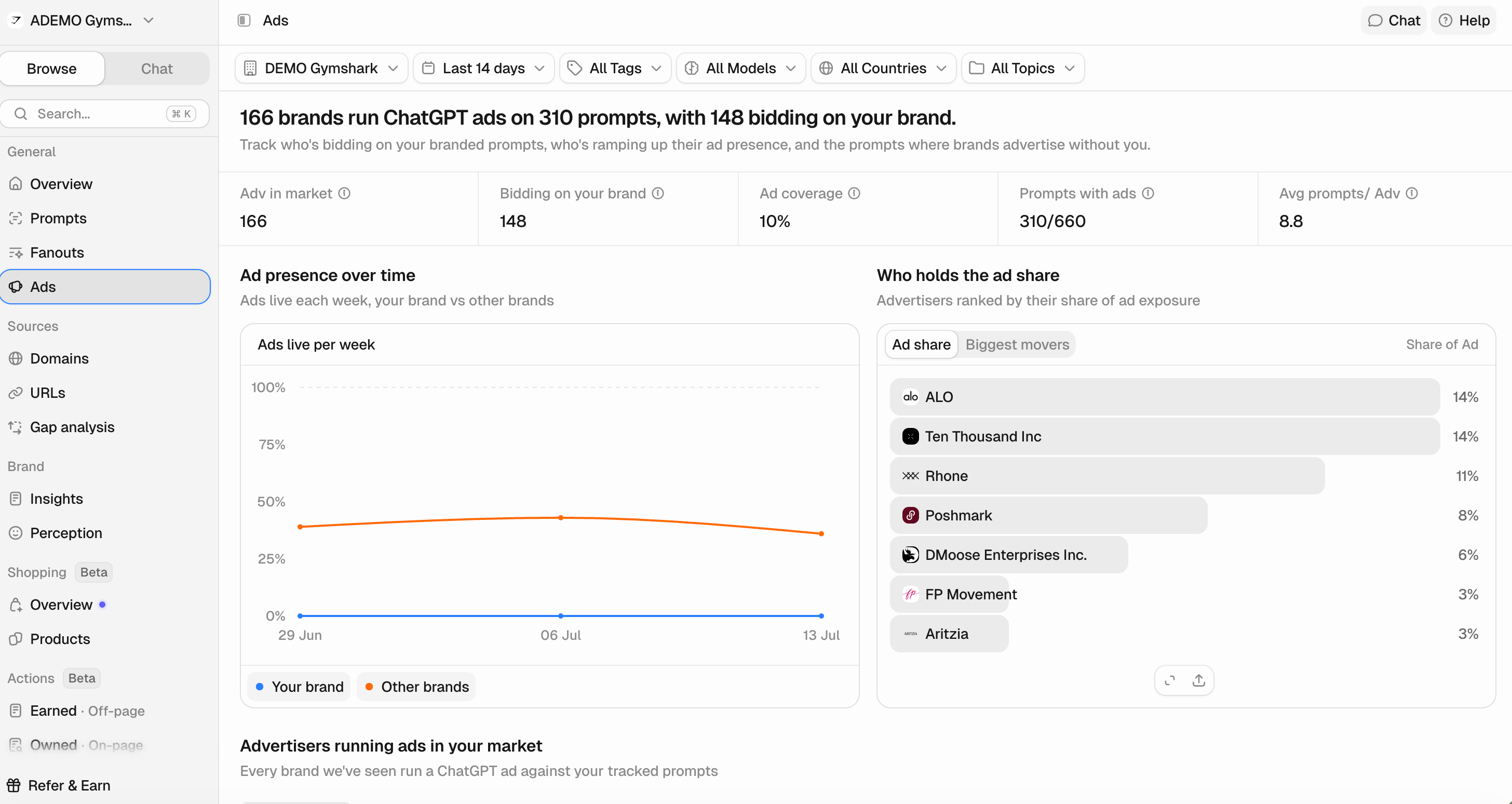 At the top of the dashboard, you will see:
* **Advertisers in market:** The total number of advertisers we've seen run at least one ad on your tracked prompts.
* **Bidding on your brand:** Advertisers running ads on your branded or comparison prompts.
* **Ad coverage:** Share of your tracked prompts that showed at least one ad.
* **Prompts with ads:** The total number of prompts that showed ads, out of all your tracked prompts.
* **Average prompts per advertiser:** The average number of prompts each advertiser runs ads on.
Ads are currently only supported in the **United States,** the **United Kingdom, Canada, Australia, New Zealand, Japan, and South Korea**.
If you're tracking ChatGPT prompts in other countries, you may see few or no ads because the feature isn't available there yet.
Below the KPIs, you'll find two charts:
* **Ad presence over time:** Shows how often ads appeared over the selected period for your chosen brand compared with other advertisers.
* **Ad share:** Advertisers ranked by their ad exposure share. (You can toggle for the **Biggest movers** to show which advertisers gained or lost the most ad share compared with the previous period, helping you spot who's increasing or reducing their advertising.)
The chart will show how many ads appeared each week for your selected brand compared with those for other brands. Use it to see how ad activity changes over time and how much belongs to your brand versus everyone else.
## Advertisers table
At the top of the dashboard, you will see:
* **Advertisers in market:** The total number of advertisers we've seen run at least one ad on your tracked prompts.
* **Bidding on your brand:** Advertisers running ads on your branded or comparison prompts.
* **Ad coverage:** Share of your tracked prompts that showed at least one ad.
* **Prompts with ads:** The total number of prompts that showed ads, out of all your tracked prompts.
* **Average prompts per advertiser:** The average number of prompts each advertiser runs ads on.
Ads are currently only supported in the **United States,** the **United Kingdom, Canada, Australia, New Zealand, Japan, and South Korea**.
If you're tracking ChatGPT prompts in other countries, you may see few or no ads because the feature isn't available there yet.
Below the KPIs, you'll find two charts:
* **Ad presence over time:** Shows how often ads appeared over the selected period for your chosen brand compared with other advertisers.
* **Ad share:** Advertisers ranked by their ad exposure share. (You can toggle for the **Biggest movers** to show which advertisers gained or lost the most ad share compared with the previous period, helping you spot who's increasing or reducing their advertising.)
The chart will show how many ads appeared each week for your selected brand compared with those for other brands. Use it to see how ad activity changes over time and how much belongs to your brand versus everyone else.
## Advertisers table
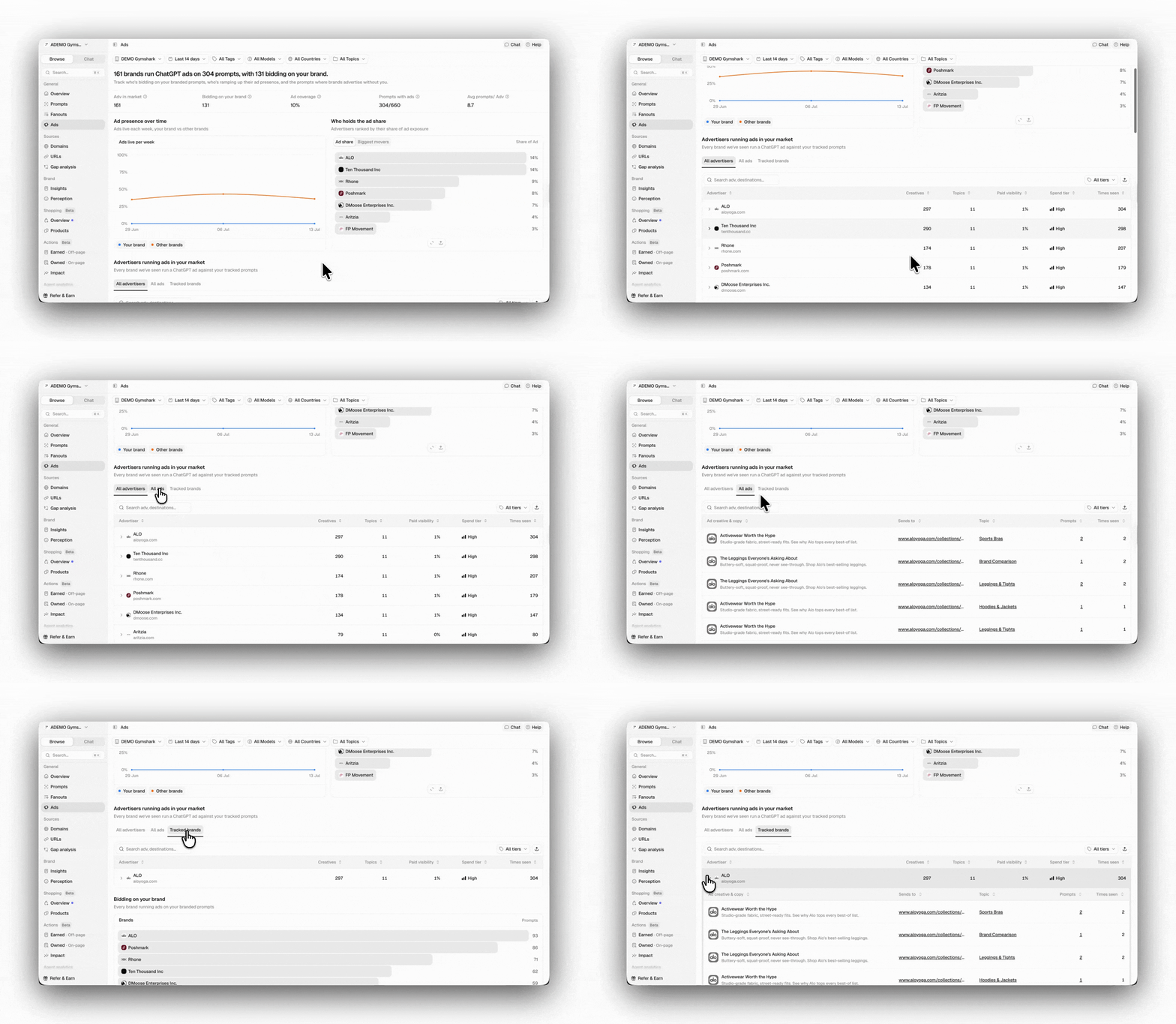 In the advertisers' table, you will see every brand running ads in ChatGPT for your tracked prompts. You can then toggle between three different views:
* **All advertisers:** one row per advertiser. For each advertiser, you'll see:
* **Creatives:** The number of unique ads captured.
* **Topics:** The number of Topics where their ads appeared.
* **Ad visibility:** Their share of all ad appearances across your tracked prompts.
* **Spend tier:** An estimated spending level relative to other advertisers (**High**, **Medium**, or **Low**).
* **Times seen:** The total number of times their ads were captured across chat runs.
* **All ads:** All ad creatives are flattened into a single list.
* **Tracked brands:** The same table, limited to brands you already track.
Hover over an ad to preview the full creative, including its image and **sponsored label**, or click it to open the source chat. You can also search by advertiser or destination URL, filter by **spend tier,** and export the table to CSV.
If you continue scrolling, you’ll see:
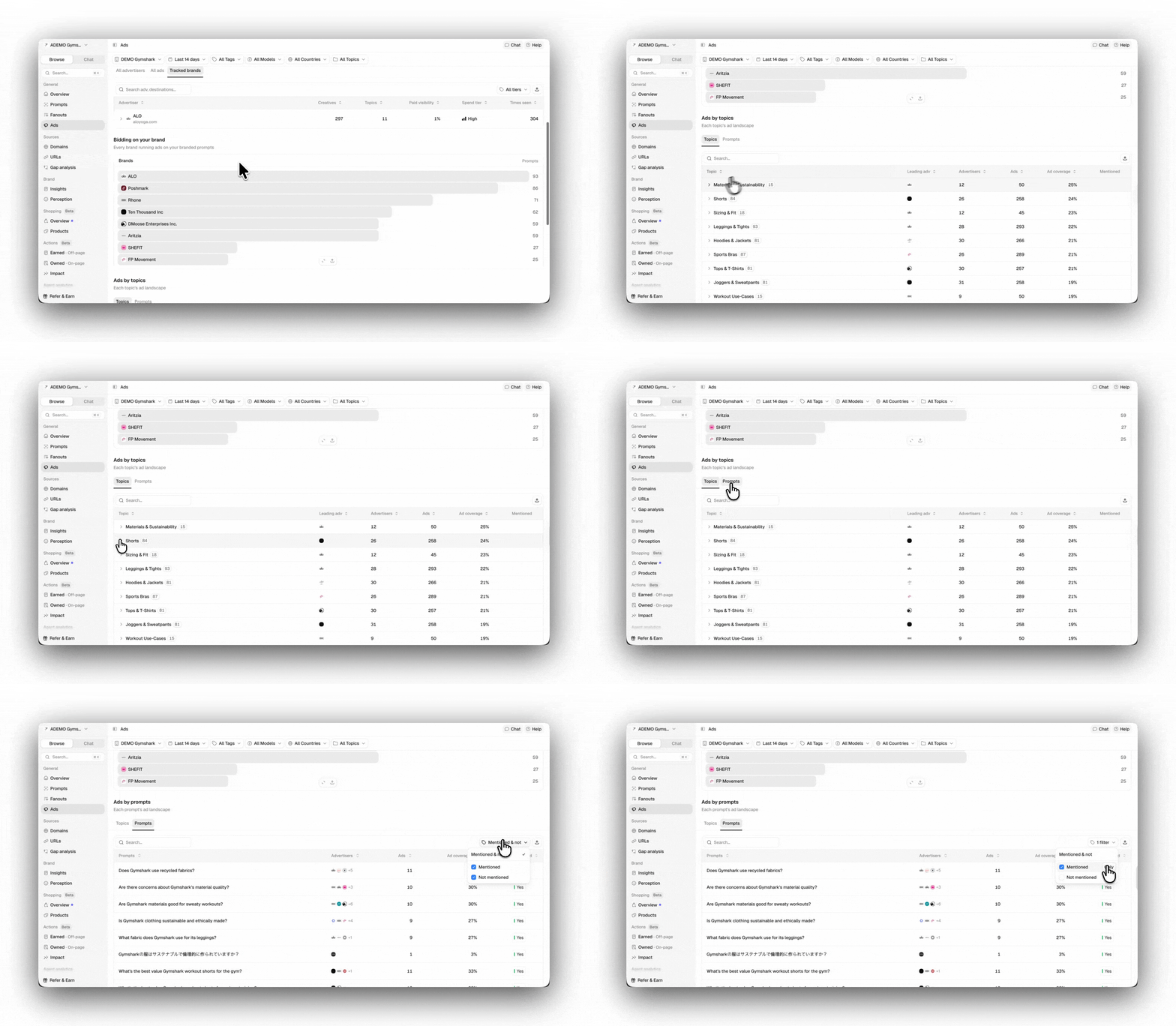
* **Bidding on your brand chart:** This shows the advertisers running ads on your branded and comparison prompts, ranked by how many of those prompts they appear on. Use this view to see which brands are advertising on searches related to your brand.
* **Ads by topics and prompts table:** Here you can find a quick breakdown of where the ads are running based on your topic and prompt setup (you can toggle between these two views at any time).
* **Topics:** See how ads are distributed across your Topics, including the top advertiser, the number of advertisers, the number of distinct ads, and each Topic’s ad coverage. Expand a Topic to view the prompts tracked within.
* **Prompts:** View every tracked prompt alongside the advertisers that appeared, the number of ads, ad coverage, and whether your brand was mentioned in the response. Filter by **Mentioned** or **Not mentioned** to quickly find prompts where competitors are advertising but your brand isn’t.
In the Prompts view, you can filter by whether your brand is mentioned.
In the advertisers' table, you will see every brand running ads in ChatGPT for your tracked prompts. You can then toggle between three different views:
* **All advertisers:** one row per advertiser. For each advertiser, you'll see:
* **Creatives:** The number of unique ads captured.
* **Topics:** The number of Topics where their ads appeared.
* **Ad visibility:** Their share of all ad appearances across your tracked prompts.
* **Spend tier:** An estimated spending level relative to other advertisers (**High**, **Medium**, or **Low**).
* **Times seen:** The total number of times their ads were captured across chat runs.
* **All ads:** All ad creatives are flattened into a single list.
* **Tracked brands:** The same table, limited to brands you already track.
Hover over an ad to preview the full creative, including its image and **sponsored label**, or click it to open the source chat. You can also search by advertiser or destination URL, filter by **spend tier,** and export the table to CSV.
If you continue scrolling, you’ll see:
* **Bidding on your brand chart:** This shows the advertisers running ads on your branded and comparison prompts, ranked by how many of those prompts they appear on. Use this view to see which brands are advertising on searches related to your brand.
* **Ads by topics and prompts table:** Here you can find a quick breakdown of where the ads are running based on your topic and prompt setup (you can toggle between these two views at any time).
* **Topics:** See how ads are distributed across your Topics, including the top advertiser, the number of advertisers, the number of distinct ads, and each Topic’s ad coverage. Expand a Topic to view the prompts tracked within.
* **Prompts:** View every tracked prompt alongside the advertisers that appeared, the number of ads, ad coverage, and whether your brand was mentioned in the response. Filter by **Mentioned** or **Not mentioned** to quickly find prompts where competitors are advertising but your brand isn’t.
In the Prompts view, you can filter by whether your brand is mentioned.
 ## Best practices
* **Start with "bidding on your brand":** Ads on your branded and comparison prompts are the ones directly competing for clicks that would otherwise be yours.
* **Use the filter mentioned on the Prompts tab:** Helps you find prompts where a competitor's ad appeared, but your brand wasn't mentioned in the AI response, highlighting opportunities where you're missing both paid and organic visibility.
* **Follow ad coverage over time:** A topic whose ad coverage keeps climbing is one AI is actively monetizing and worth watching before the competition deepens.
## Best practices
* **Start with "bidding on your brand":** Ads on your branded and comparison prompts are the ones directly competing for clicks that would otherwise be yours.
* **Use the filter mentioned on the Prompts tab:** Helps you find prompts where a competitor's ad appeared, but your brand wasn't mentioned in the AI response, highlighting opportunities where you're missing both paid and organic visibility.
* **Follow ad coverage over time:** A topic whose ad coverage keeps climbing is one AI is actively monetizing and worth watching before the competition deepens.