> ## Documentation Index
> Fetch the complete documentation index at: https://docs.peec.ai/llms.txt
> Use this file to discover all available pages before exploring further.
# Adding tracked brands
> Peec AI lets you monitor competitors using the same visibility metrics, so you can see who AI is promoting alongside (or instead of) you.
## Two ways to add tracked brands
Navigate to **Brands** in your sidebar. From here, you can:
### 1. Use suggested brands
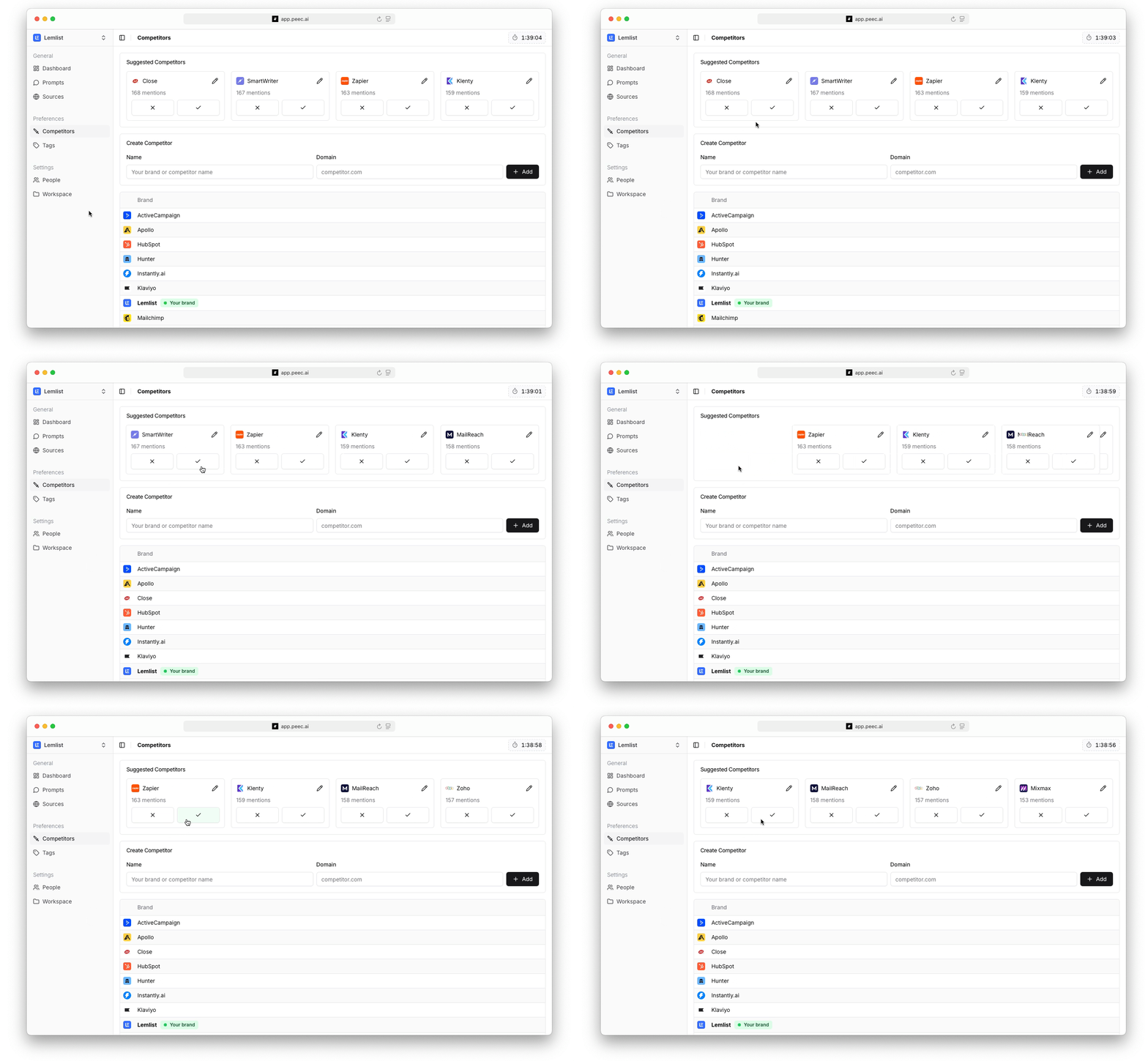
Peec AI automatically flags companies that appear often in your prompt responses. You can:
* **Accept:** Click the checkmark to add them as a tracked brand.
* **Reject:** Click the X to remove them.
* **Edit:** Click the pencil icon to edit name or domain before adding.
Each suggestion shows how many times that brand has been mentioned across your prompts.
 ### 2. Add tracked brands manually
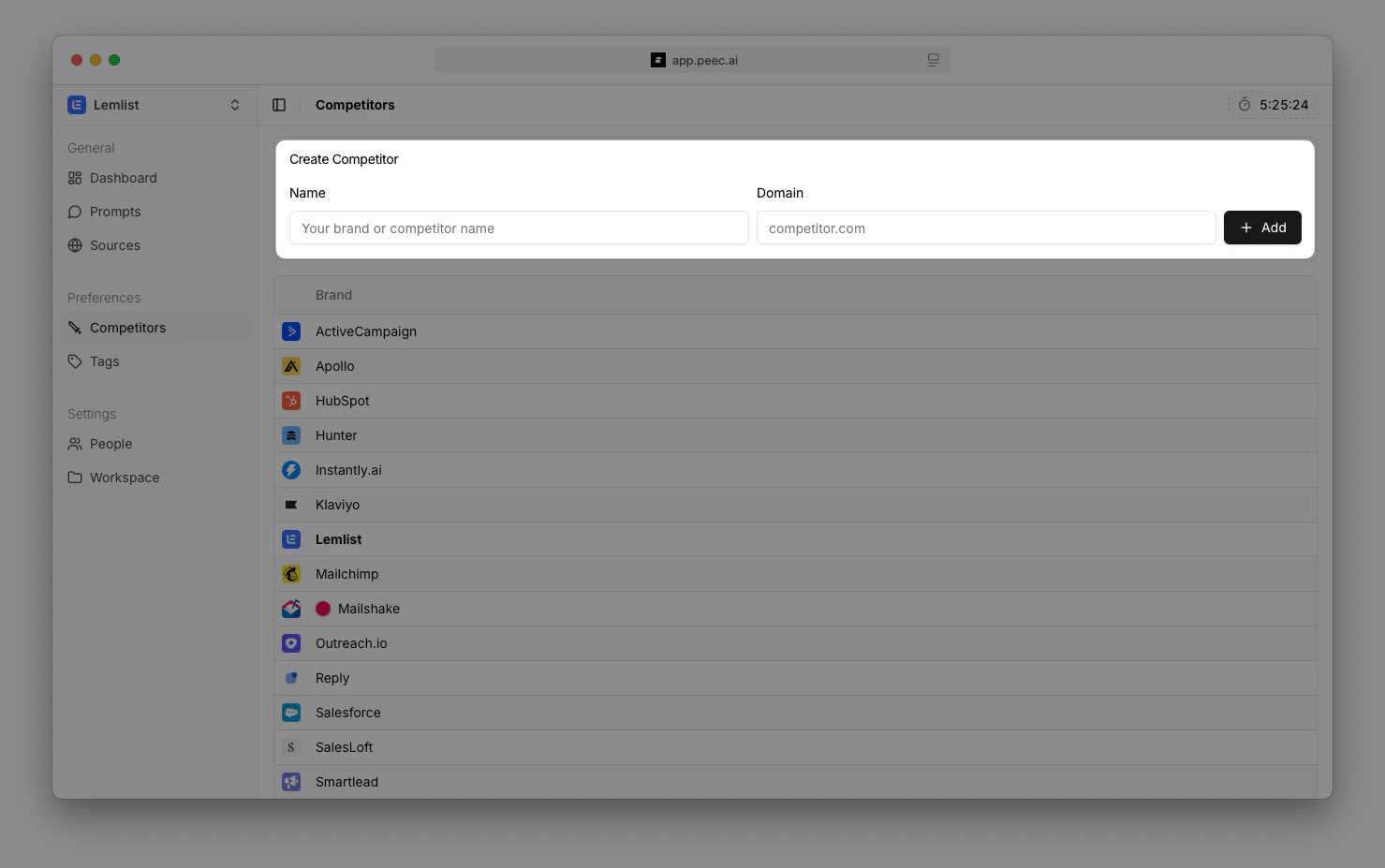
Navigate to the **Brands** page and use the **Create Brand** form:
* **Name:** Enter the competitor’s brand name as it typically appears in AI responses.
* **Domain:** Add their main website domain (used to detect source citations).
* Click **Add** to save.
### 2. Add tracked brands manually
Navigate to the **Brands** page and use the **Create Brand** form:
* **Name:** Enter the competitor’s brand name as it typically appears in AI responses.
* **Domain:** Add their main website domain (used to detect source citations).
* Click **Add** to save.